Trying to activate Windows 11 but your product key is not working?
You are not alone. Windows activation can fail for several reasons, including entering the wrong edition key, using a key that has already been used on another device, changing major hardware, connection problems, or an issue with the Windows activation service.
Table of Contents
The good news is that many Windows 11 activation problems can be fixed without reinstalling Windows.
In this guide, we will explain 10 ways to fix a Windows 11 product key that is not working, including some of the most common activation errors and what they mean.
Quick answer: First check that your Windows edition matches your product key, make sure you are connected to the internet, run the Windows Activation Troubleshooter, and re-enter the 25-character key from Settings → System → Activation.
Why Is My Windows 11 Product Key Not Working?
A Windows 11 product key is a 25-character code used to activate Windows. However, the key must match the Windows edition installed on your PC and must be valid for the intended activation scenario. Microsoft also supports digital licenses, which can activate Windows without entering a product key.
Common reasons a Windows 11 key may not work include:
- The product key was entered incorrectly.
- The key is for a different Windows edition.
- The key has already been used on another device.
- Windows cannot connect to the activation service.
- Your PC recently had a major hardware change.
- Windows is not fully updated.
- The installed Windows edition does not match your license.
- Your device already has a different digital license.
- The activation service is temporarily unavailable.
- The key or license has a problem that requires the seller or Microsoft to investigate.
Let’s go through the fixes one by one.
1. Check Your Windows 11 Edition
One of the most common causes of activation failure is an edition mismatch.
For example, a Windows 11 Pro key cannot activate Windows 11 Home. Microsoft specifically documents edition mismatch errors such as 0xC004E016 and 0xC004F210.
How to check your Windows edition
Press:
Windows + R
Type:
winver
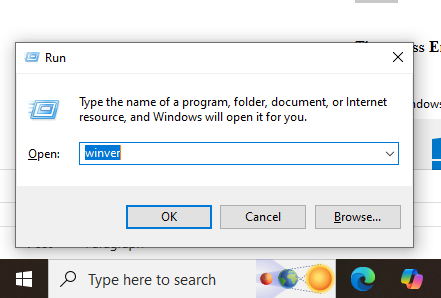
Then press Enter.
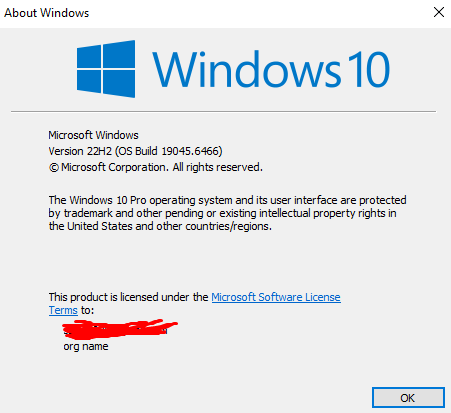
You can also check:
Settings → System → About
Look for your Windows edition.
For example:
Make sure the edition installed on your PC matches the license you are trying to activate.
Example
If you purchased a Windows 11 Pro license but your computer is running Windows 11 Home, the Pro key will not simply activate the Home edition.
Microsoft provides a supported edition-upgrade process for moving from Windows 11 Home to Pro.
2. Re-Enter the Product Key Carefully
A simple typing mistake can prevent activation.
Windows product keys contain 25 characters and are normally displayed in five groups:
XXXXX-XXXXX-XXXXX-XXXXX-XXXXX
Microsoft confirms that a Windows product key is a 25-character code.
Check your key carefully before trying again.
To enter the key in Windows 11:
- Open Settings.
- Select System.
- Select Activation.
- Select Change product key.
- Enter your 25-character key.
- Select Next.
- Follow the activation instructions.
Microsoft documents this as the standard way to enter a Windows 11 product key after installation.
Tip
If you copied the key from an email, make sure you did not accidentally copy:
- A space before or after the key
- Extra characters
- The wrong product key
- A key belonging to another Windows edition
3. Check Your Internet Connection
Windows activation requires an internet connection in normal online activation scenarios.
If your computer cannot connect to Microsoft’s activation service, Windows may display an activation error even when you have entered the correct key.
Check that:
- Wi-Fi or Ethernet is connected.
- Other websites load normally.
- Your VPN is not interfering with the connection.
- Your firewall is not blocking activation.
- Windows is not showing a network error.
Microsoft identifies 0xC004FC03 as an error that can occur when Windows cannot complete online activation because of connectivity or firewall-related problems.
After fixing your connection, return to:
Settings → System → Activation
and try activating Windows again.
4. Run the Windows Activation Troubleshoote
Windows 11 includes a built-in activation troubleshooter that can diagnose common activation problems.
This should be one of the first things you try.
How to run it
Go to:
Settings → System → Activation
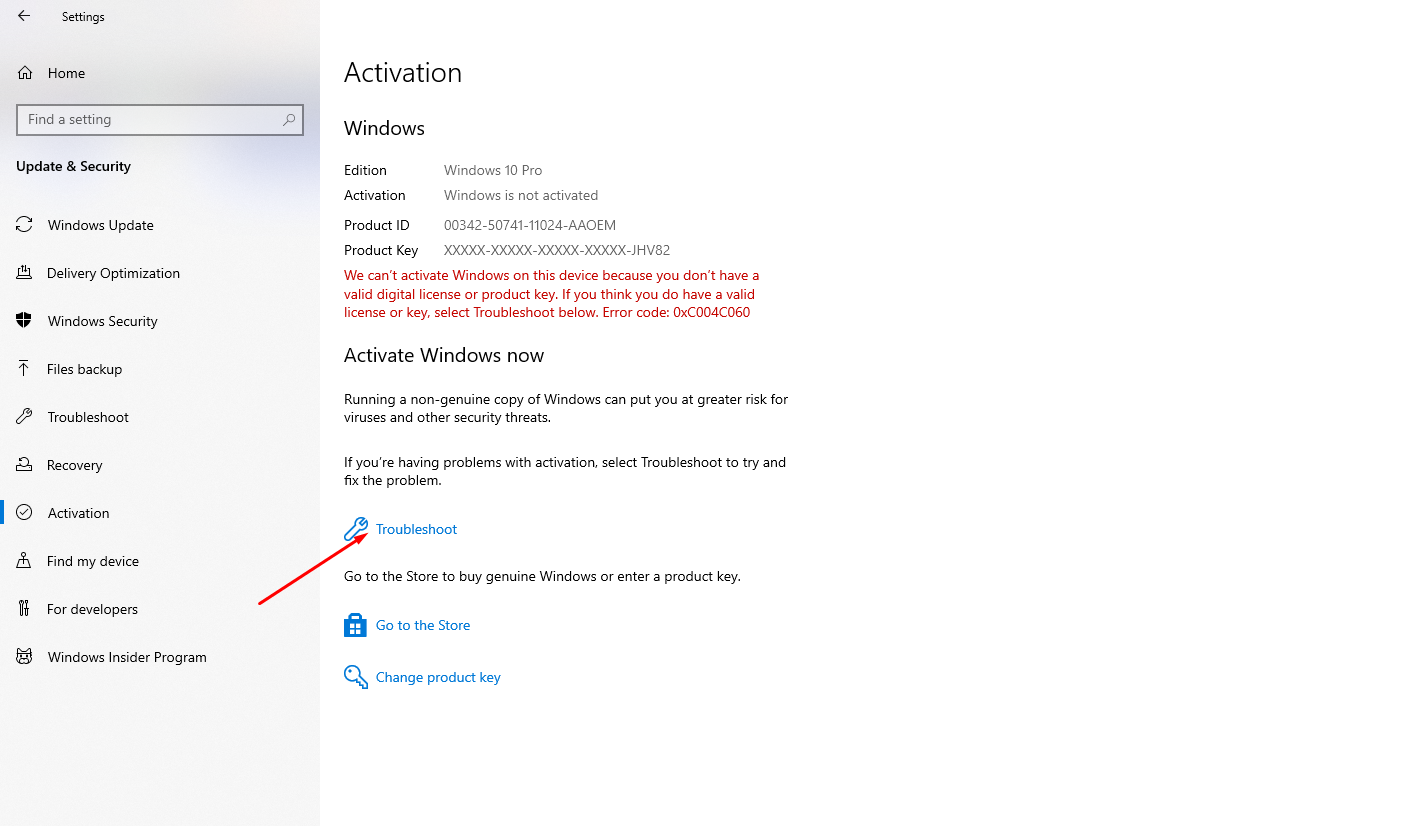
Look for the Troubleshoot option and follow the instructions.
Microsoft recommends using the Windows Activation Troubleshooter to diagnose and attempt to fix common activation problems.
The troubleshooter can be particularly useful when:
- Windows was previously activated.
- You recently changed hardware.
- Your digital license is not being detected.
- Your installed edition does not match the license.
- Windows has an activation-related configuration problem.
5. Check for Windows Updates
An outdated Windows installation can sometimes contribute to activation or system problems.
Before troubleshooting further, make sure Windows 11 is up to date.
Go to:
Settings → Windows Update
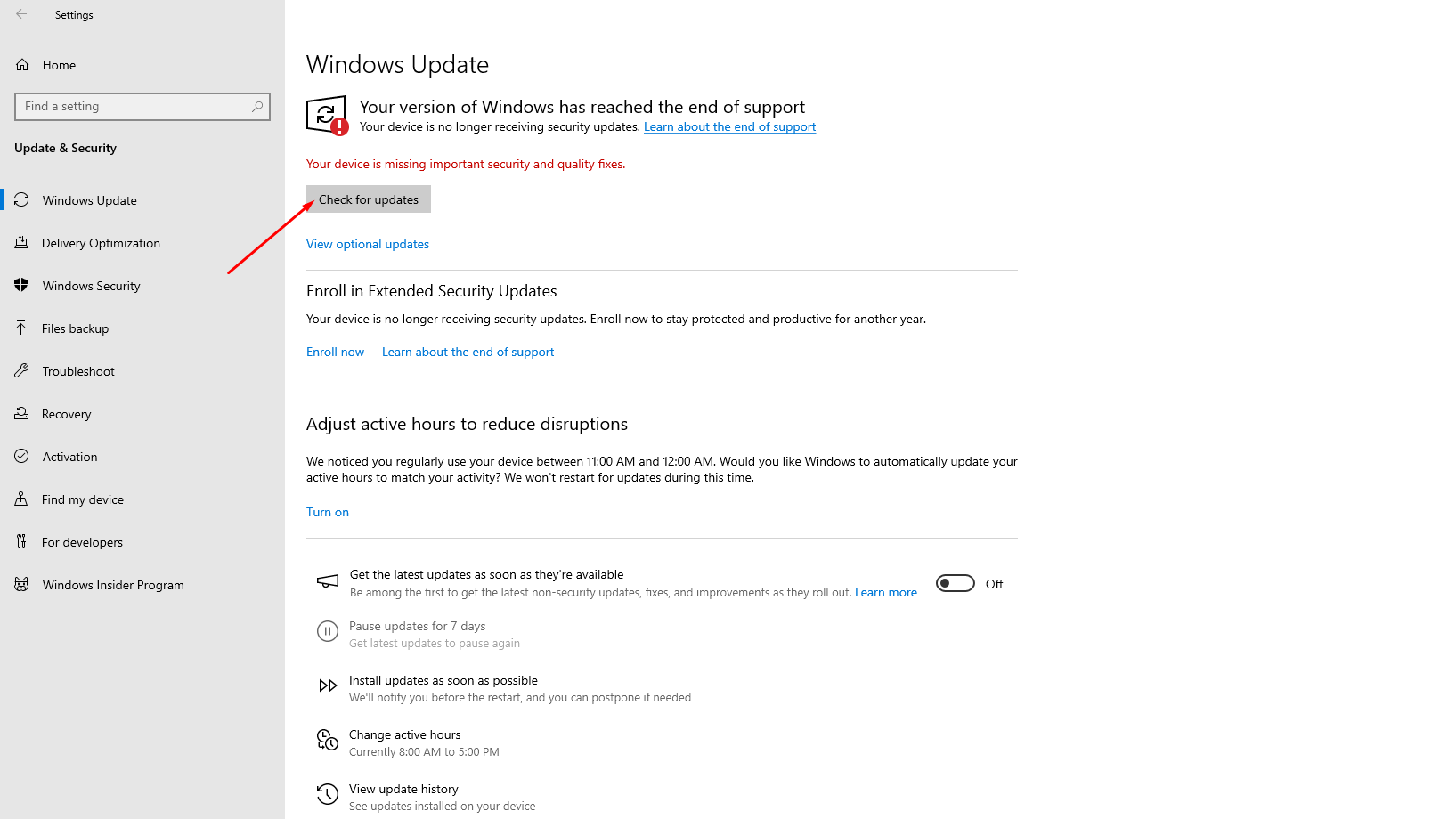
Then select:
Check for updates
Install available updates and restart your computer if required.
Microsoft recommends confirming that your device is up to date when troubleshooting Windows activation errors.
After restarting, go back to:
Settings → System → Activation
and try again.
6. Check the Date and Time
Incorrect system date or time can cause problems when Windows tries to communicate with online activation services.
Check:
Settings → Time & language → Date & time
Make sure:
- Set time automatically is enabled.
- Your time zone is correct.
- The displayed date is correct.
Microsoft notes that error 0x80072F8F can occur when the device date and time are incorrect or Windows cannot properly connect to the online activation service.
After correcting the time, restart the activation process.
7. Check Whether the Key Has Already Been Used
If a product key has already been used in a way that exceeds its licensing terms, Windows may reject it.
One common error is:
Error 0xC004C003
Microsoft says this error can occur when the product key entered isn’t valid for activation, including situations where a key has been used or attempted on multiple devices.
If you purchased the key from a reseller and receive this error, keep your order information and contact the seller.
For a Digitlogs purchase, provide:
- Your order number
- The product purchased
- The activation error
- A screenshot of the error
This gives support the information needed to investigate the issue.
8. Check If You Recently Changed Your Motherboard
A major hardware change can cause Windows to lose track of the license associated with your device.
A motherboard replacement is one of the most important examples.
Microsoft explains that significant hardware changes can prevent Windows from finding a matching license after the device restarts.
If you previously had an activated Windows installation, try the Activation Troubleshooter.
You may also need to re-enter the product key associated with your Windows license.
Important
Hardware-change activation depends on the type of Windows license you have.
Do not assume that every Windows license can automatically be transferred to a new PC.
9. Make Sure You Are Using the Correct License Type
Not every Windows key works in every activation scenario.
Windows licenses can be associated with different licensing channels, editions, and activation methods.
For example, a key intended for:
- Windows 11 Home
- Windows 11 Pro
- Windows 11 Enterprise
- Windows 11 Education
should not be assumed to activate another edition.
Microsoft also distinguishes between digital licenses and product keys as different Windows activation methods.
If you recently reinstalled Windows, check whether the edition you installed is the same edition previously licensed on the device.
10. Contact the Seller or Microsoft Support
If you have tried the steps above and your Windows 11 key still does not activate, the problem may require further investigation.
First, verify:
- Your Windows edition
- Product key
- Activation error code
- Internet connection
- Recent hardware changes
- Purchase information
If you purchased your Windows license from a reseller, contact the seller with the relevant details.
Microsoft also recommends contacting support when an activation error cannot be resolved through the available troubleshooting steps.
Common Windows 11 Activation Errors
Here are some common errors you may see when a Windows product key does not work.
| Error | Possible Cause |
|---|---|
| 0xC004C003 | Product key is not valid for activation or has been used in a way that prevents activation |
| 0xC004F050 | Product key cannot be used for the installed Windows edition |
| 0xC004E016 | Product key is for a different Windows edition |
| 0xC004F210 | Product key does not match the installed Windows edition |
| 0xC004FC03 | Windows cannot complete online activation |
| 0x80072F8F | Date/time or connection problem affecting activation |
| 0xC004F211 | Windows detected a significant hardware change |
| 0xC004F213 | Windows cannot find a product key on the device |
These meanings are based on Microsoft’s current Windows activation troubleshooting documentation.
Windows 11 Pro Key Not Working After Reinstall
If you reinstalled Windows 11 and your previous activation disappeared, don’t immediately assume that you need to purchase another license.
First check whether your previous activation was associated with a digital license.
Microsoft explains that Windows 11 can activate through a digital license without requiring you to enter a product key. If the digital license is linked to your Microsoft account, signing in with that account can help Windows reactivate after reinstalling on the same device.
Also make sure you installed the same Windows edition that was previously activated.
For example:
Previously activated Windows 11 Pro → reinstall Windows 11 Pro
Installing a different edition can require a different license.
Windows 11 Product Key Not Working After Hardware Change
If you replaced your motherboard or made another significant hardware change, Windows may no longer recognize the previous license.
Microsoft recommends linking your digital license to your Microsoft account before major hardware changes where possible. This can help with reactivation through the Activation Troubleshooter.
If you have a valid product key associated with the device, you can also enter it again through:
Settings → System → Activation → Change product key
What If None of These Fixes Work?
If your Windows 11 product key still doesn’t work after trying all 10 solutions, don’t keep entering the same key repeatedly.
Instead, collect the following information:
1. Windows edition
Example: Windows 11 Pro
2. Activation error
Example: 0xC004C003
3. Product source
Where you purchased or received the license
4. Hardware changes
Especially a motherboard replacement
5. Screenshot
Capture the Windows activation message
This information makes it much easier for Microsoft or your software seller to identify the problem.
Should You Buy a New Windows 11 Product Key?
Not always.
If you previously had a valid Windows digital license, reinstalling Windows or troubleshooting activation may restore activation without purchasing another license.
However, if your PC has never had a valid Windows license, your existing license does not cover the installed edition, or your previous license is not valid for the current device, you may need an appropriate Windows license.
Microsoft confirms that activation requires either a valid digital license or a 25-character product key.
If you need a new Windows 11 Pro license, make sure you choose a license that matches your Windows edition and intended use.
How to Avoid Windows Activation Problems
A few simple checks can prevent many activation problems.
Before buying a Windows license:
- Check your current Windows edition.
- Confirm the license matches your edition.
- Check your PC’s Windows 11 compatibility.
- Understand whether you have a digital license or product key.
- Keep your purchase confirmation.
- Use the license according to its applicable terms.
After purchasing:
- Keep your product key in a safe place.
- Save your order confirmation.
- Follow the installation instructions.
- Don’t share your product key publicly.
- If activation fails, record the exact error code before contacting support.
Frequently Asked Questions
Why is my Windows 11 product key not working?
The most common reasons include an incorrect key, an edition mismatch, previous use of the key, internet or activation-service problems, or a significant hardware change.
How do I fix a Windows 11 product key that won’t activate?
Start by checking your Windows edition, re-entering the 25-character key, checking your internet connection, installing Windows updates, and running the Activation Troubleshooter.
Can a Windows 11 Pro key activate Windows 11 Home?
A Windows 11 Pro license does not simply activate Windows 11 Home. The installed edition must match the applicable license. Microsoft provides a supported process for upgrading Windows 11 Home to Pro.
What does error 0xC004C003 mean?
Microsoft says 0xC004C003 can indicate that the Windows product key isn’t valid for activation, including cases where the key has been used or attempted on multiple devices.
What does error 0xC004F050 mean?
This error can indicate that the product key cannot be used to activate the installed Windows edition. Check that your key and installed edition match.
Can I activate Windows 11 without a product key?
Yes. Windows 11 can use either a digital license or a 25-character product key, depending on how Windows was obtained.
What happens if I change my motherboard?
A significant hardware change can cause Windows to lose activation. If you have a digital license or valid product key, Microsoft provides reactivation and troubleshooting options depending on the license type.
Can I use the same Windows key on another PC?
You should not assume that a Windows product key can be used on multiple PCs. The applicable Microsoft license terms determine how the license can be used. If a key is used beyond its permitted activation rights, activation may fail.
Should I reinstall Windows if my product key doesn’t work?
Usually, no. Try the activation troubleshooting steps first. Reinstalling Windows may not solve an edition mismatch, invalid key, hardware-related issue, or licensing problem.
Final Thoughts
A Windows 11 product key that doesn’t work does not always mean that the key itself is bad.
Start with the basics:
Check your Windows edition → re-enter the key → check your internet connection → update Windows → check date and time → run the Activation Troubleshooter.
If you see an error such as 0xC004C003, 0xC004F050, 0xC004E016, 0xC004FC03, or 0x80072F8F, use the error code to identify the likely cause rather than repeatedly entering the same key. Microsoft’s activation documentation provides specific troubleshooting guidance for these errors.
If the problem continues, contact Microsoft or the seller from whom you obtained the license and provide the exact activation error and purchase information.
Need a Windows 11 Pro License?
If your PC needs a valid Windows 11 Pro license, explore our Windows 11 Pro product page for product details, compatibility information, delivery, and support options.