
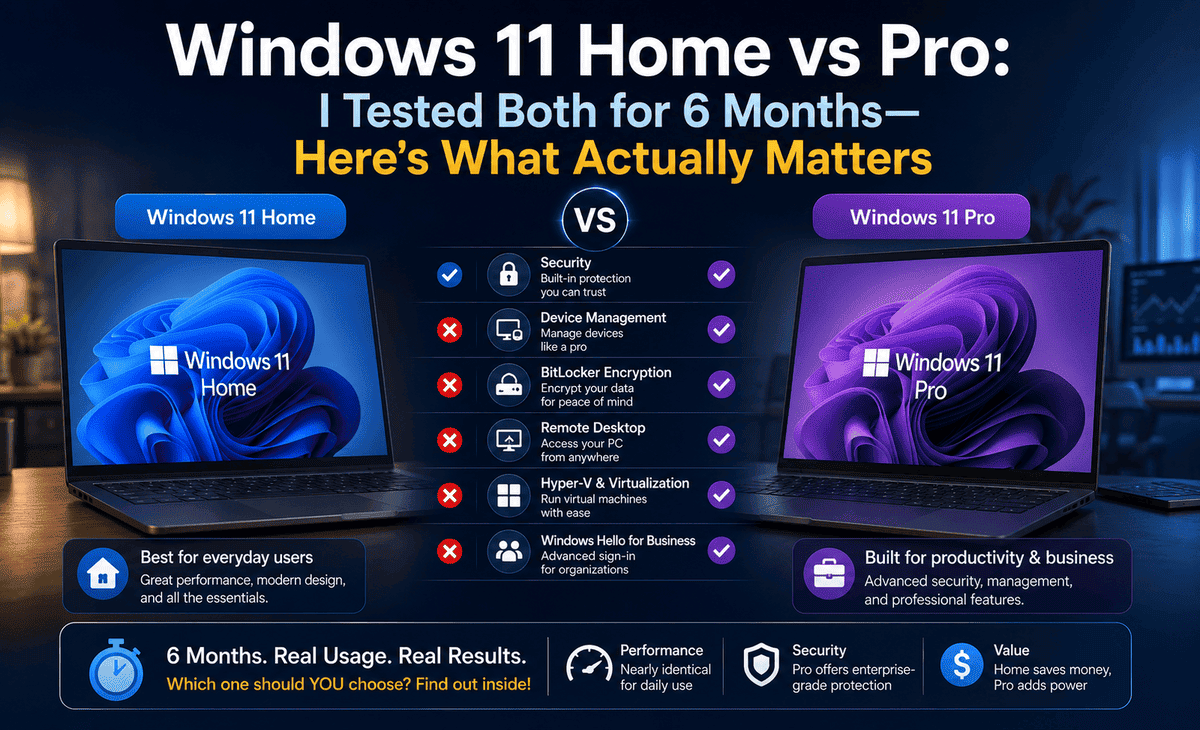
Building a new computer, buying a new laptop, or upgrading your current operating system is an exciting milestone. You have picked out the perfect processor, the right amount of RAM, and a stunning monitor. But right before you check out, you hit a frustrating roadblock: choosing your operating system version.
Table of Contents
You stare at the screen, wondering which version to click. You want the best for your new machine, but you also don’t want to waste money on features you will never use. To find out the truth, I installed and used both operating systems extensively. I tested both for six months switching between heavy gaming, daily office work, and casual web browsing.
In this comprehensive, beginner-friendly guide, I am going to share exactly what I found. We will cut through the tech jargon, break down the real-world differences, and help you decide once and for all which version belongs on your computer.
The Problem: The Overwhelming Choice for Beginners
The biggest problem for average consumers and beginners is how Microsoft markets these two operating systems.
When you go to the official website and look at the comparison chart, you are bombarded with enterprise-level terminology. You see terms like “BitLocker device encryption,” “Hyper-V virtualization,” “Windows Information Protection,” and “Active Directory integration.”
If you are just a normal person who wants to play PC games, write essays for college, browse YouTube, and check emails, this list is completely overwhelming. It makes you feel like if you buy the “Home” version, you are getting an inferior, stripped-down piece of software that might break or underperform. Nobody wants to spend $1,500 on a gaming PC only to cripple it with the wrong operating system.
But here is the truth I discovered after months of testing: making the wrong choice won’t break your PC, but buying the wrong version can certainly waste your hard-earned cash.
What is Windows 11 Pro vs Home Exactly?
Before we dive into the nitty-gritty details, let’s answer a fundamental question: what is windows 11 pro vs home?
At their core, Windows 11 Home and Windows 11 Pro are the exact same operating system. If you put two laptops side-by-side—one running Home and one running Pro you would not be able to tell the difference just by looking at the desktop. They have the same centered Start menu, the same taskbar, the same settings layout, and the same visual design.
- Windows 11 Home is the standard, baseline experience. It contains 100% of the core features that 95% of consumers will ever need.
- Windows 11 Pro is the exact same foundation, but with a few hidden, advanced software tools unlocked. These tools are specifically designed for IT professionals, remote workers, programmers, and small business owners.
Windows 11 Home vs Pro Differences: The Real-World Breakdown
So, what exactly are you paying extra for? When we look closely at the windows 11 home vs pro differences, it boils down to security, remote access, and virtualization. Here are the tools I actually noticed during my six-month test.
1. Advanced Security with BitLocker
This is the biggest selling point of the Pro version. BitLocker is a powerful encryption tool. It scrambles all the data on your hard drive.
Example: Imagine you leave your laptop at a coffee shop, and someone steals it. Even if they take the physical hard drive out of your laptop and plug it into another computer, they cannot read your files without your Microsoft password or recovery key. The data is locked.
While Windows 11 Home has basic device encryption, BitLocker on Pro offers granular control, allowing you to encrypt specific USB flash drives as well. If you carry highly sensitive client data, tax returns, or legal documents, BitLocker is incredible.
2. Windows Sandbox and Hyper-V
Have you ever downloaded a file from the internet and thought, “Is this a virus?”
Windows 11 Pro includes a brilliant feature called Windows Sandbox. It allows you to open a temporary, isolated “mini-computer” inside your desktop. You can open sketchy files, test unverified software, or browse dangerous websites. When you close the Sandbox, everything inside it vanishes forever, keeping your main PC perfectly safe.
Similarly, Hyper-V allows you to run completely different operating systems (like Linux or older versions of Windows) inside a window on your desktop. Home users do not get these native tools.
3. Remote Desktop Hosting
If you travel often, you might want to log into your powerful desktop computer at home from your tiny travel laptop. Windows 11 Pro allows your computer to act as a “Host” for Remote Desktop. This means you can view your home desktop screen and control it from anywhere in the world.
(Note: Windows 11 Home can connect to other PCs, but it cannot be the host PC that is being controlled).
Windows 11 Home vs Pro Which is Faster?
This is perhaps the most common question I get from beginners building their first PC. People naturally assume that the more expensive “Pro” version must run faster.
Let’s settle the debate regarding windows 11 home vs pro which is faster: They are exactly the same speed.
During my testing, I ran benchmark software, opened dozens of Chrome tabs, rendered 4K videos, and booted the PC from a cold start. The startup times, application loading speeds, and overall snappiness were completely identical. Your computer’s speed is determined by your physical hardware—your processor (CPU), your graphics card (GPU), your memory (RAM), and your solid-state drive (SSD). The operating system tier does not magically make your computer run faster.
The Hardware Limit Exception: There is one technical difference regarding hardware limits. Windows 11 Home supports a maximum of 128 GB of RAM and 1 CPU. Windows 11 Pro supports a massive 2 TB of RAM and up to 2 CPUs. However, since the average high-end computer today has 32 GB of RAM, the 128 GB limit of the Home edition is more than enough for regular users.
Windows 11 Home vs Pro for Gaming
If you are a gamer, pay close attention to this section. When evaluating windows 11 home vs pro for gaming, the result is a massive, undeniable tie.
You do not need Windows 11 Pro to be a hardcore PC gamer.
During my months of testing, I played demanding games like Cyberpunk 2077, Call of Duty: Warzone, and Microsoft Flight Simulator. I monitored my frames per second (FPS), my graphics card temperatures, and my input lag. There was absolutely zero difference between Home and Pro.
All the modern gaming features that Microsoft heavily advertises are included in both versions. This includes:
- DirectX 12 Ultimate: For top-tier graphics rendering.
- Auto HDR: Which automatically makes older games look more colorful and vibrant.
- DirectStorage: A feature that allows games to load almost instantly from your SSD.
- Xbox Game Bar: For recording clips and chatting with friends.
If your primary goal is gaming, save your money. Buy the Home version and spend the leftover cash on a better graphics card or more video games!
Windows 11 Home vs Pro Price Comparison
Eventually, every decision comes down to the budget. Let’s look at the windows 11 home vs pro price difference if you are buying directly from official, safe retailers.
- Windows 11 Home: Typically costs $139.00 USD.
- Windows 11 Pro: Typically costs $199.00 USD.
That is a $60 difference. For a large corporation buying hundreds of computers, that adds up. For an individual, you have to ask yourself: “Is BitLocker, Remote Desktop, and a Sandbox worth $60 to me?”
If you are a student or a casual home user, the answer is usually no.
The Corporate Heavyweight: Windows 11 Home vs Pro vs Enterprise
As you research, you might occasionally see a third option and wonder about windows 11 home vs pro vs enterprise.
Let’s keep this simple: as an individual consumer or beginner, you should completely ignore the Enterprise edition.
Windows 11 Enterprise is not sold to regular people. It is a volume-licensed product meant for massive companies with hundreds or thousands of employees (like hospitals, universities, or global corporations). It includes massive IT deployment tools, long-term servicing channels, and advanced threat protection managed by corporate servers. Unless you are the Chief Information Officer of a Fortune 500 company, Enterprise is not for you.
Step-by-Step Solution: How to Decide Which Version You Need
If you are still on the fence, follow this simple step-by-step framework to make your final decision today.
Step 1: Assess Your Primary Usage
Ask yourself what you will do 90% of the time on this PC. Are you gaming, watching Netflix, doing homework, and browsing the web? If yes, choose Home.
Step 2: Check Your Work-From-Home Requirements
Do you work for a company that requires you to connect your personal computer to their corporate server domain? Do you need to use Remote Desktop to access your office PC? Does your boss require strict BitLocker encryption on your local drives? If yes, choose Pro.
Step 3: Evaluate Your Hardware Specs
Look at the PC you are building or buying. Does it have a specialized dual-CPU motherboard (like a server)? Are you installing more than 128 GB of RAM for intense 3D architectural rendering? If yes, choose Pro. (If you have a standard gaming PC, stick with Home).
Step 4: Make the Purchase (Without Fear)
Make your purchase knowing you cannot be “trapped” in the Home edition. If you buy Windows 11 Home today to save money, and two years from now you start a home business and suddenly realize you need BitLocker, you do not have to reinstall your computer.
You can easily perform a product key upgrade windows 11 home to pro. You simply go to your PC Settings > System > Activation, pay the $99 upgrade fee in the Microsoft Store, and Windows will unlock the Pro features in about five minutes without deleting any of your files.
Frequently Asked Questions (FAQ)
1. Can I get a windows 11 home product key free legally?
Unless you are upgrading from an older, legally activated Windows 10 computer, or you are a university student with access to a school software portal, there is no legal way to get a completely free key. Beware of websites offering “free activators,” as they almost always contain malware.
2. What is the general consensus on windows 11 home vs pro reddit threads?
If you browse tech forums and Reddit, the overwhelming consensus among power users and gamers is to stick with Windows 11 Home for personal use. Redditors frequently point out that unless you specifically know you need Hyper-V or BitLocker for work, the extra $60 for Pro is a waste of money that could be spent on better hardware.
3. Does Windows 11 Pro have less “bloatware” than Home?
No. This is a common myth. Both Windows 11 Home and Pro come with the exact same pre-installed Microsoft apps and third-party sponsored shortcuts in the Start menu (like TikTok, Spotify, or various games). You will still need to manually uninstall the apps you do not want, regardless of the version you buy.
4. Will I have to create a Microsoft Account for both versions?
Yes. Historically, Pro users could easily bypass the Microsoft account requirement and set up a local offline account. However, Microsoft recently changed this. Today, both Home and Pro editions require an internet connection and a Microsoft account during the initial setup process.
5. How do I safely buy windows 11 home product key online?
The safest way to make your windows 11 home product key purchase is through official channels like the Microsoft Store, Amazon, Newegg, or Best Buy. While discount “gray market” sites offer keys for $20, these are often stolen corporate keys that Microsoft can suddenly deactivate, leaving your computer locked.









