Trusted by Over 30,000+ Customers Worldwide.

Instant Digital Delivery To Your E-Mail

Office 2024 Pro Plus LTSC – Installation and Activation

This guide will help you quickly install and activate Office 2024 Professional Plus LTSC. Follow the simple steps to download, install, and activate your Office suite, ensuring access to all applications like Word, Excel, and PowerPoint. Get started with a seamless setup for your productivity needs.

Step 1: Create a Setup Folder

  1. Right-click on your desktop.
  2. Select New > Folder.
  3. Name it: Office 2024.

This folder will be used to store all setup files.

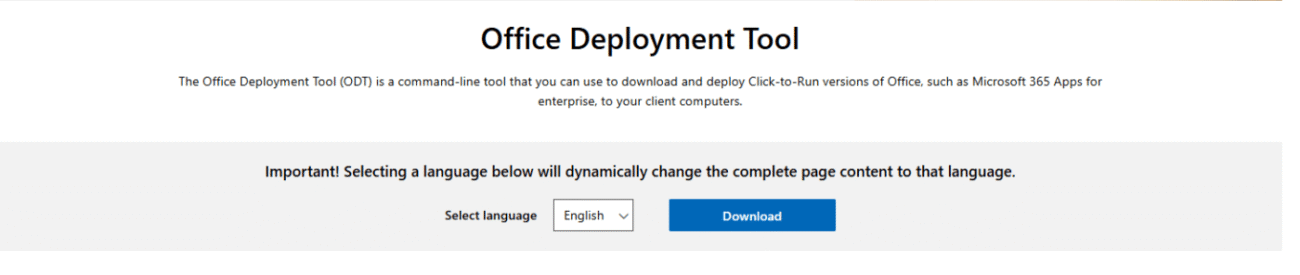
Step 2: Download the Office Deployment Tool

  1. Open your browser.
  2. Search for: Office Deployment Tool.
  3. Click on the official Microsoft link (usually the first result).
  4. Download the tool (a .exe file).
  5. Once downloaded, run the .exe file.
  6. When prompted, extract the contents into the Office 2024 folder on your desktop.

Open Office Deployment Tool

Step 3: Use the Office Customization Tool

  1. Open a new browser tab.
  2. Search for: Office Customization Tool.
  3. Click on the official Microsoft link to open the tool online.

Open Office Customization Tool

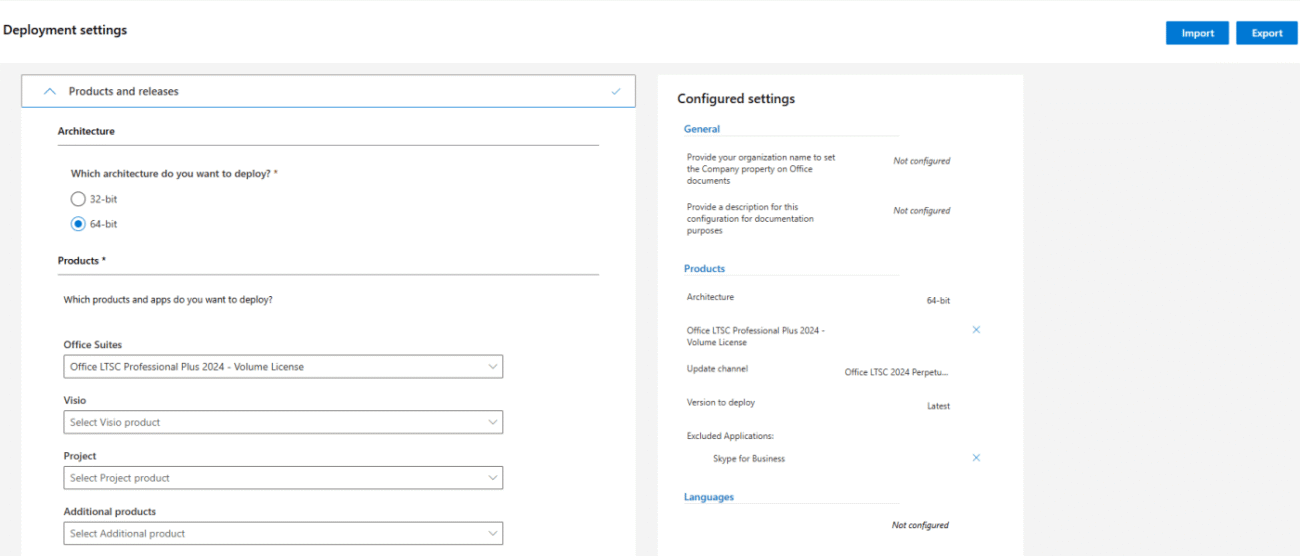
In the customization tool:

  • Select Architecture: Choose 32-bit or 64-bit based on your system.
  • Product Selection: Choose Office LTSC Professional Plus 2024 – Volume License.
  • Version: Select the version of Office you want to install (recommended latest).
  • Apps: Toggle which Office apps you want (Word, Excel, PowerPoint, etc.).
  • Language: Choose your preferred language.

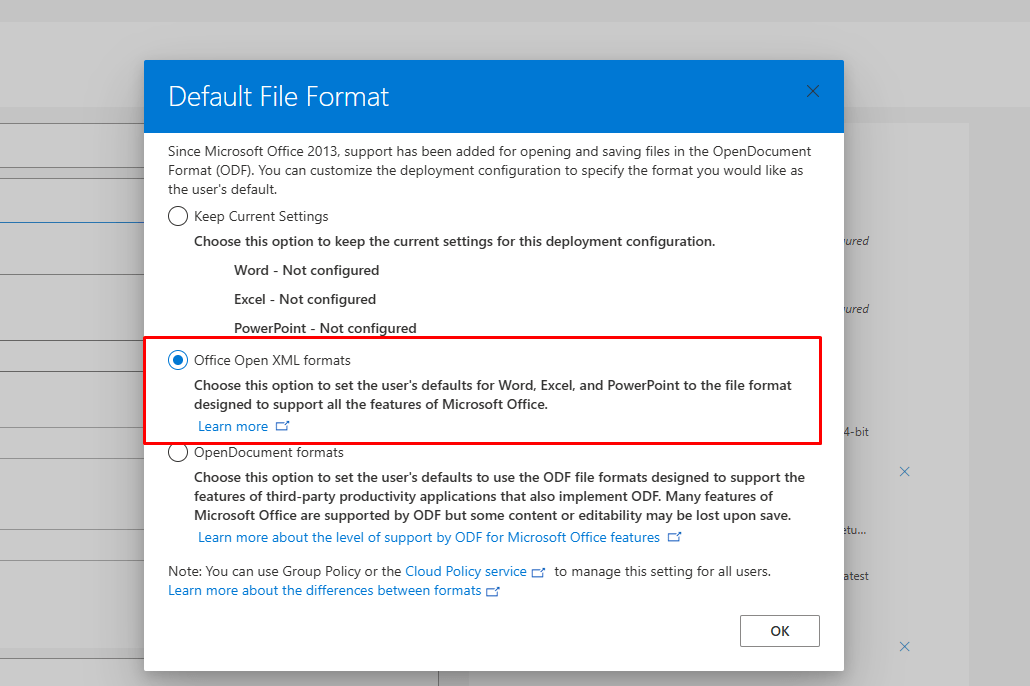
Export the Configuration:

  1. After customization, click the Export button (usually on the right side).
  2. Choose Office Open XML format.
  3. Save the file (configuration.xml) to your Downloads folder.

Step 4: Organize Files

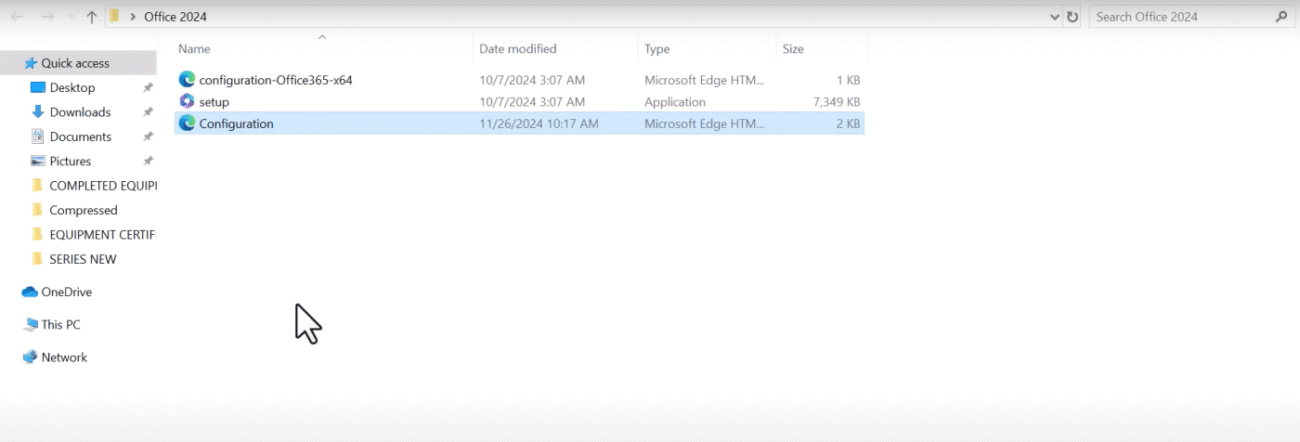
  1. Copy the downloaded configuration.xml file.
  2. Paste it into the Office 2024 folder on your desktop.
Now the folder should contain the Office Deployment Tool files and the XML config file.

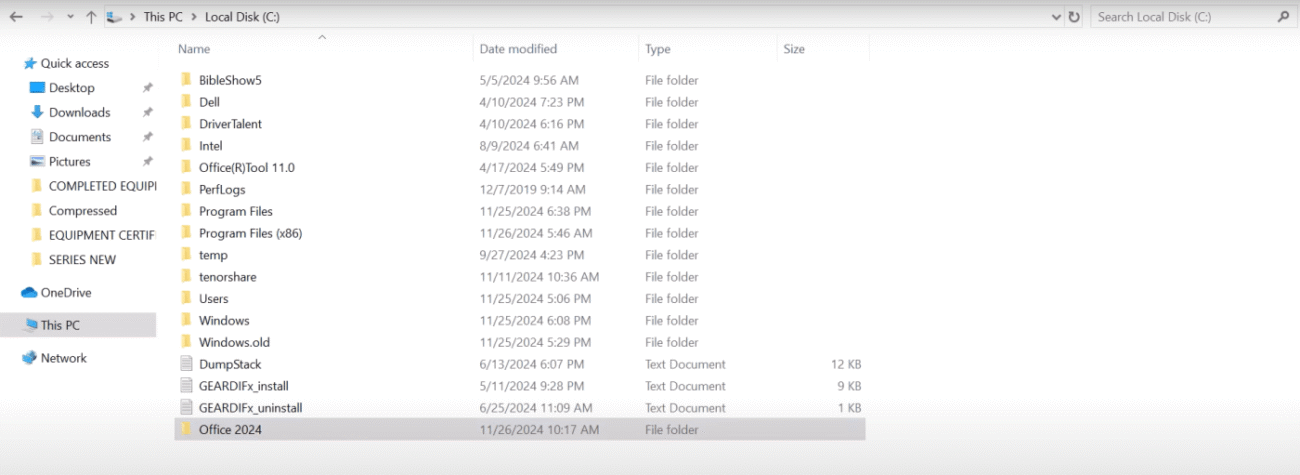
Step 5: Move the Folder to the C: Drive

  1. Cut the Office 2024 folder from the desktop.
  2. Paste it into the *C:* drive.

Final path should be: C:\Office 2024

Step 6: Install Office via Command Prompt

  1. In the Windows search bar, type CMD.
  2. Right-click on Command Prompt and choose Run as administrator.
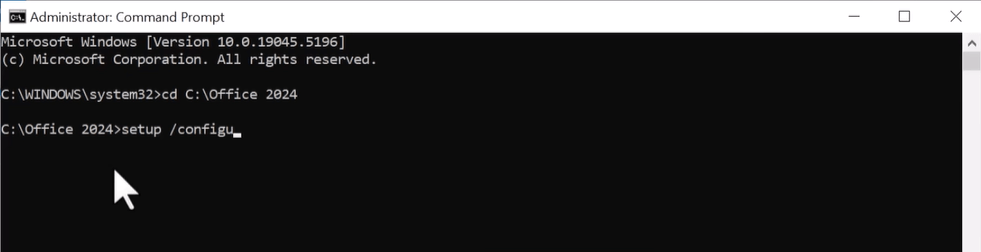
  3. In Command Prompt, type: cd C:\Office 2024
  4. Then press Enter to go to the setup folder.
  5. Now type: setup.exe /configure configuration.xml
  6. Press Enter to start installing Office.

The installation may take a few minutes depending on your internet speed and selected apps.

Step 7: Verify and Activate Office

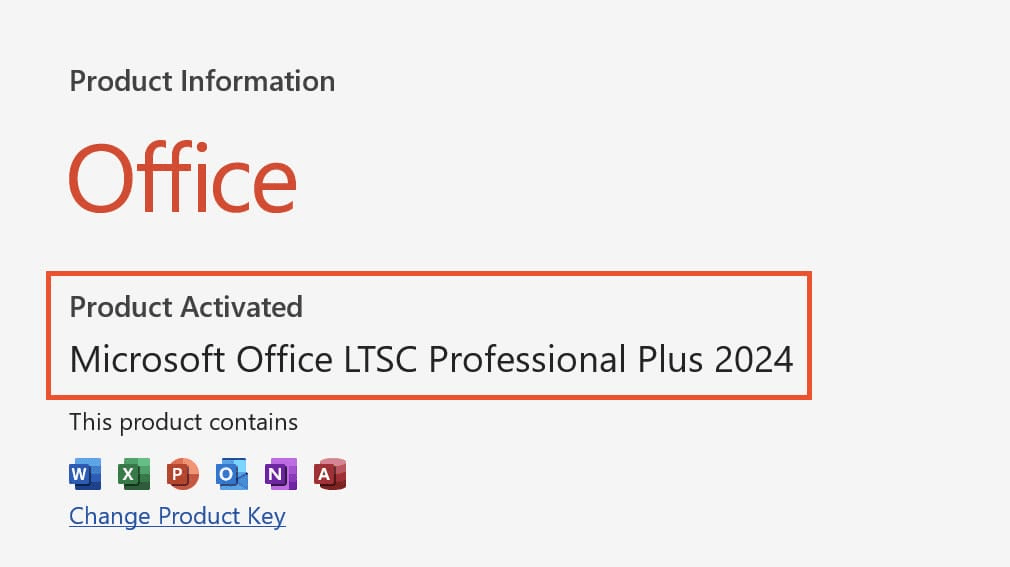
  1. After installation is complete, open Microsoft Word (or any other Office app you selected).
  2. An activation window will appear (If it doesn’t appear, go to the Account tab and click “Activate Office“.).
  3. Enter your product key when prompted.
  4. Follow the on-screen steps to complete activation.

Troubleshooting and Activation Issues

If you encounter any issues or require assistance, please email us at [email protected]. Our support team is available 24/7 to assist you.

Leave a Reply

Your email address will not be published. Required fields are marked *


Instant Delivery

Get instant delivery by email

Secure Payments

100% protected transactions

Money Back Guarantee

Doesn’t work? We’ll refund you

Lifetime Support

Always free technical support