You are typing a document in Microsoft Word. Maybe it is a school assignment about temperature, a recipe with cooking instructions, or a professional report mentioning geographic coordinates. Suddenly, you need to type that small circle that means “degrees” and you have no idea how to get it on the page.
Sound familiar? You are not alone. The degree symbol is one of those characters that does not appear on standard keyboards, which leaves many users searching online for the answer. The good news is that there are several quick and easy ways to insert it, whether you are on Windows or Mac.
Table of Contents
This complete guide walks you through every method for typing the degree symbol in Word, troubleshoots common problems, and gives you practical tips to speed up your workflow. By the end, you will know exactly how to put a degree symbol in Word with confidence.
Understanding the Degree Symbol
Before learning the methods, it helps to understand what the degree symbol is and why it matters.
Definition and Usage
The degree symbol is a small superscript circle ( ° ) that represents the unit of measurement for angles, temperatures, geographic coordinates, and arcs. You will see it after numbers in expressions like 25°C, 90°, or 40°N latitude.
The symbol has been part of standard typography for centuries, and it remains an essential character in scientific, technical, educational, and everyday writing. Despite its small size, it carries a precise meaning that words alone cannot always replace.
Importance of Writing
Using the proper degree symbol matters more than people realize. Writing “25 degrees Celsius” instead of “25°C” works in casual text, but in professional, academic, or technical documents, the symbol is the standard. It saves space, improves readability, and signals that you understand the conventions of clear technical writing.
Imagine reading a weather report, a math textbook, or a recipe. The degree symbol appears constantly. Knowing how to put the degree symbol in Word makes your documents look polished and professional.
Methods to Insert Degree Symbol in Microsoft Word
There are several different ways to type the degree symbol in Word. Each method works in slightly different situations, so it helps to know more than one.
Keyboard Shortcut for Degree Symbol
The fastest way to insert the symbol is by using a keyboard shortcut for the degree symbol. In Microsoft Word on Windows, the built-in shortcut is Ctrl + Shift + 2, then Spacebar. This works because Word interprets it as a “ring above” diacritic, and pressing space after it produces the standalone degree character.
However, the more reliable method most users prefer is the Alt code, which we will cover next.
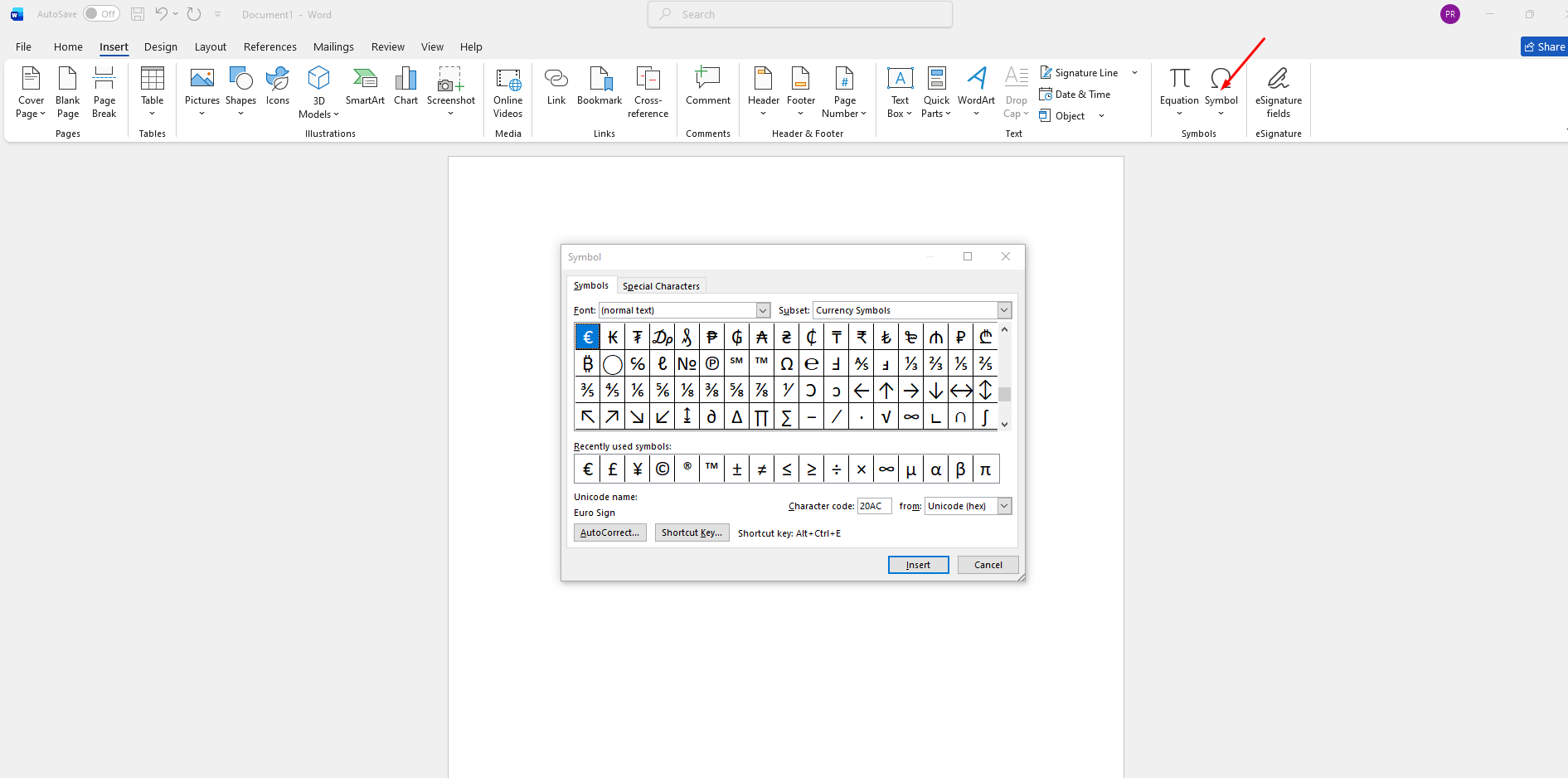
Using the Insert Menu
If shortcuts feel awkward, the Insert menu offers a visual, click-based approach.
Step 1: Place your cursor where you want the symbol to appear in your document.
Step 2: Click the Insert tab at the top of Word.
Step 3: On the right side of the ribbon, click Symbol, then select More Symbols.
Step 4: A dialog box opens. From the Font dropdown, choose “(normal text),” and from the Subset dropdown, select Latin-1 Supplement.
Step 5: Find the degree symbol ( ° ), click it, then click Insert. Close the window and your symbol appears in the document.
After you insert it once, the degree symbol shows up in the Recently Used Symbols list, making it even faster to access the next time.
Typing Degree Symbol in Word with Alt Code
The Alt code is the most popular method for typing the degree symbol in Word on Windows because it works in almost any application, not just Word.
Step 1: Place your cursor where you want the symbol.
Step 2: Make sure Num Lock is turned on.
Step 3: Hold down the Alt key.
Step 4: Using the numeric keypad on the right side of your keyboard, type 0176.
Step 5: Release the Alt key. The degree symbol appears instantly.
The Alt + 0176 method is reliable, easy to remember, and works in Word, Excel, PowerPoint, browsers, and most other Windows applications.
Example in action: If you are writing “The temperature reached 35°C,” type “The temperature reached 35,” then press Alt + 0176, then continue typing “C.” The result looks clean and professional every time.
A quick note: this method requires a numeric keypad. If you use a laptop without a separate number pad, you may need to enable a function key combination (often Fn + a set of letters that act as numbers) or use one of the other methods instead.
How to Create Degree Symbol in Word on Mac
Mac users have their own set of methods for inserting the degree symbol, and they are just as easy.
Keyboard Shortcuts for Mac Users
The standard shortcut for how to put a degree symbol in Word on Mac is Option + Shift + 8. Just press these three keys together at the same time, and the degree symbol appears.
This shortcut works system-wide on Mac not just in Word but also in Pages, Notes, Mail, Safari, and any other application that accepts text input. Once you memorize it, typing the degree symbol in Word becomes second nature.
Using the Character Viewer
If you prefer a visual approach or need to insert other special characters along with the degree symbol, the Character Viewer is your best friend.
Step 1: Place your cursor in the spot where you want the symbol.
Step 2: Press Control + Command + Space to open the Character Viewer.
Step 3: In the search box at the top, type “degree.”
Step 4: Click the degree symbol from the search results to insert it into your document.
You can also drag and drop the symbol from the Character Viewer directly into Word. The Character Viewer also keeps a Frequently Used list, so the more you use the degree symbol, the easier it becomes to access.
AutoCorrect Options for Quick Access
If you type the degree symbol regularly, even the fastest shortcut can start to feel repetitive. AutoCorrect in Word lets you create a custom shortcut that automatically replaces a chosen text with the degree symbol.
Setting Up AutoCorrect for Degree Symbol
Step 1: Open Microsoft Word and click File, then Options.
Step 2: In the Word Options window, click Proofing on the left side, then click AutoCorrect Options.
Step 3: On the AutoCorrect tab, find the “Replace” and “With” boxes.
Step 4: In the Replace box, type a short trigger phrase that you would not normally type by accident. A good example is ((d)) or \deg.
Step 5: In the With box, type or paste the degree symbol ( ° ). You can copy it from anywhere, including this article.
Step 6: Click Add, then OK to save the rule.
Now, whenever you type ((d)) or your chosen trigger, Word automatically replaces it with the degree symbol. This is one of the fastest ways to insert it, especially if you write about temperatures, angles, or coordinates often.
Tips for Customizing AutoCorrect Entries
Keep these tips in mind when setting up AutoCorrect entries. First, choose triggers that you would never type in normal writing combinations like \deg, ((d)), or xdeg are unlikely to appear naturally in your text. Second, you can create multiple entries for the same symbol if you are not sure which trigger you will remember best. Third, AutoCorrect entries you create in Word also work in Outlook, so the same shortcut can save time across email writing. Fourth, if you ever want to remove or change a trigger, return to the same AutoCorrect dialog and edit or delete it.
A practical example: a meteorology student who writes weather reports daily set up tempc to auto-correct to °C. Now, instead of typing the symbol manually for every temperature, they save several keystrokes per entry and over hundreds of reports, that adds up to real time saved.
Troubleshooting Common Issues
Even simple methods can fail sometimes. Here are the most common problems and how to fix them.
When the Degree Symbol Doesn’t Appear
If your Alt code is not working, the most likely cause is that Num Lock is turned off. Check the small indicator light on your keyboard or press the Num Lock key once and try again. Remember that Alt codes only work with the numeric keypad, not the row of numbers across the top of your keyboard.
Another common issue is using a laptop without a dedicated number pad. In this case, switch to one of the other methods the Insert menu, the Symbol dialog, or AutoCorrect which do not depend on the numeric keypad.
If you copy the degree symbol from a website and paste it into Word, sometimes it carries over odd formatting like a different font or color. Use the Paste Special option (Paste Special > Unformatted Text) to insert it cleanly without disrupting your document’s style.
Compatibility Issues with Different Word Versions
Most methods work across all modern versions of Microsoft Word, including Word 2016, 2019, 2021, 2024, and Microsoft 365. However, very old versions or stripped-down editions like Word for the web may not support every option.
If you are using Word Online (the browser version), the Alt code method may not work because browsers handle keyboard input differently. In that case, use the Insert > Symbol method or copy-paste from a trusted source.
When sharing a document with someone using a different version of Word or a different operating system, the degree symbol displays correctly across all platforms because it is a standard Unicode character (U+00B0). You do not have to worry about it breaking when your file is opened elsewhere.
If you are working in a non-Latin language version of Word, menu names may be translated, but the keyboard shortcuts and Alt codes remain the same.
Final Thoughts
Knowing how to put the degree symbol in Word is one of those small skills that pays off every time you need it. Whether you are writing a scientific report, a recipe, or a simple email about today’s temperature, having multiple methods at your fingertips means you are never stuck searching for a special character again.
To recap, Windows users have the Alt + 0176 code, the Insert > Symbol menu, the Ctrl + Shift + 2 shortcut, and custom AutoCorrect rules. Mac users have Option + Shift + 8 and the Character Viewer accessed with Control + Command + Space. AutoCorrect works on both platforms and is the smartest choice if you type the symbol frequently.
Pick the method that feels most natural to you, practice it a few times, and it will become an automatic part of your typing routine. With these tools, the degree symbol is never more than a keystroke or two away, and your documents will always look polished, professional, and precisely formatted.