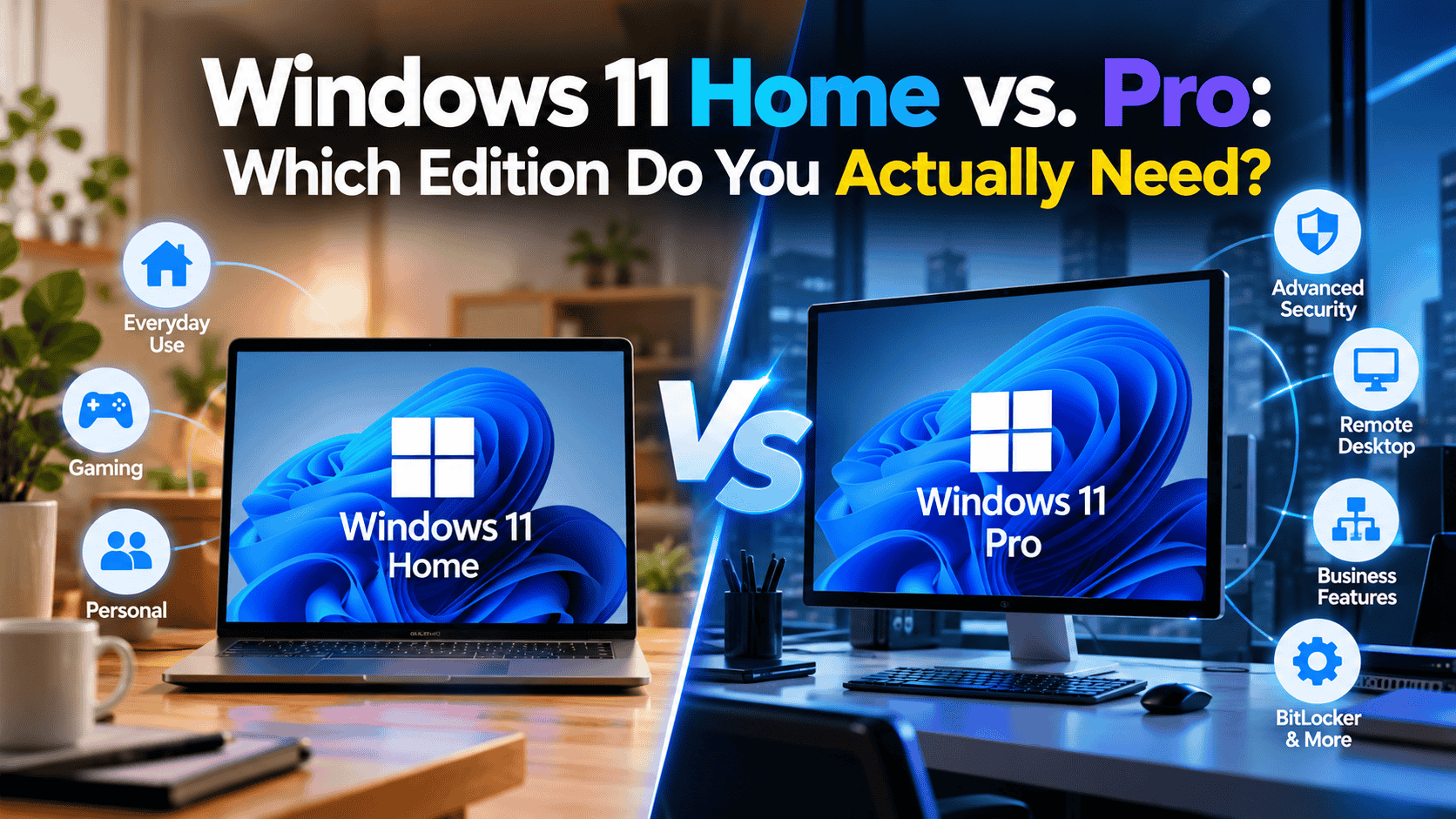
Most home users don’t need Windows 11 Pro. But some do, and choosing the wrong edition upfront costs either money (buying Pro you don’t use) or time (upgrading later because Home isn’t enough). This guide cuts through the feature list to help you make the right call quickly.
Table of Contents
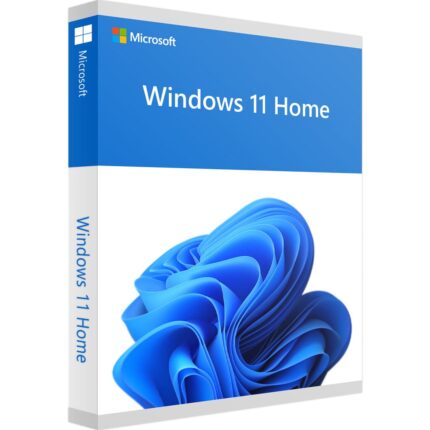
For most home users, Windows 11 Home is the right choice. It includes everything needed for everyday computing: web browsing, Microsoft Office, gaming, streaming, and general productivity. Windows 11 Pro adds features like BitLocker encryption, Remote Desktop host, Hyper-V, Windows Sandbox, and domain/Azure AD joining that matter to power users, IT professionals, and small business owners, but are unnecessary for typical home use.
Key Takeaways
- Windows 11 Home covers the needs of the vast majority of home users: gaming, productivity, creative work, and everyday tasks.
- Windows 11 Pro costs more and adds features primarily useful in business or advanced technical scenarios.
- The most commonly needed Pro features for home users are BitLocker (drive encryption) and Remote Desktop Host (accessing your PC remotely from another device).
- You can upgrade from Windows 11 Home to Pro at any time through Settings → System → Activation without reinstalling Windows.
- Both editions have the same system requirements, Windows Update, Microsoft Defender, gaming features (including DirectX 12 Ultimate, DirectStorage, and Auto HDR), and Microsoft Store access.
- Neither edition includes Microsoft Office, which is a separate purchase.
What’s the Same in Both Editions?
Before comparing differences, it’s worth knowing what you get in either edition. These features are identical across Windows 11 Home and Pro:
- Microsoft Defender Antivirus — built-in real-time malware protection
- Windows Hello — PIN, fingerprint, and facial recognition login
- Windows Update — security and feature updates from Microsoft
- Microsoft Store and Xbox app — games, apps, and Game Pass integration
- DirectX 12 Ultimate, DirectStorage, Auto HDR — full gaming feature set
- Snap Layouts and Virtual Desktops — multitasking tools
- Microsoft Edge browser
- OneDrive integration
- TPM 2.0 and Secure Boot support — hardware security features
- Wi-Fi 6 and Bluetooth support
These aren’t cut-down versions in Home they’re the full implementation, identical to Pro.
Features Only in Windows 11 Pro
These are the features available in Pro but not in Home. For each one, there’s a practical note on whether a typical home user is likely to need it.
BitLocker Drive Encryption
What it is: BitLocker encrypts your entire drive, so that if your laptop is stolen, your data cannot be read without your login credentials or a recovery key.
Do home users need it? Possibly. BitLocker is relevant for anyone who stores sensitive personal data financial documents, work files, or personal data on a laptop they carry outside the home. Desktop users in a secure home environment are lower risk.
Alternative in Home: Windows 11 Home includes Device Encryption on compatible devices (devices with TPM 2.0 and a Microsoft account). Device Encryption is less configurable than BitLocker but provides baseline drive protection for most home scenarios. Check by going to Settings → Privacy & Security → Device Encryption. If the toggle is available and on, your drive is protected.
Remote Desktop Host
What it is: Allows another device on the same network or over the internet to remotely control your Windows 11 PC using the Remote Desktop Protocol (RDP).
Do home users need it? Only if you regularly need to access your home PC from another location, or if you need to remotely support family members’ computers.
Important distinction: Both editions can connect to a remote PC (as a client). Only Pro can host an incoming Remote Desktop connection. If you need to connect to your home PC from your office or while travelling, you need Pro on the machine being accessed.
Alternative in Home: Third-party tools such as Chrome Remote Desktop and TeamViewer provide remote access functionality on Windows 11 Home at no cost, though with different performance and security characteristics to native RDP.
Hyper-V (Virtualization)
What it is: Microsoft’s built-in hypervisor lets you run virtual machines, separate operating system instances directly within Windows 11 Pro.
Do home users need it? Only if you actively run virtual machines for development, testing, or running a second OS (e.g. Linux alongside Windows). This is a technical feature used by developers and IT professionals.
Alternative in Home: Free virtualization tools such as VirtualBox run on Windows 11 Home and cover most hobbyist and developer use cases.
Windows Sandbox
What it is: A lightweight, isolated desktop environment that runs temporarily within Windows. Anything you do inside Sandbox is discarded when you close it; useful for safely opening suspicious files or testing software without risking your main system.
Do home users need it? Occasionally useful for security-conscious users who want to inspect unknown files. Not essential for most people.
Domain Join and Group Policy
What it is: Joining a Windows domain (used in enterprise IT environments) and managing local policy settings via Group Policy Editor.
Do home users need it? Almost never. Home networks don’t use Windows domains. Group Policy is occasionally used by advanced users to tweak system behaviour, but these changes are generally achievable through the Registry or Settings in Home.
Azure Active Directory (Azure AD / Entra ID) Join
What it is: Joining your PC to a Microsoft cloud-based identity management system used by organisations for managing employee devices and accounts.
Do home users need it? Only if your employer requires you to enrol a personal device into their Azure AD environment. This is a business IT requirement, not a personal computing need.
Windows 11 Home vs Pro: Feature Comparison Table
| Feature | Windows 11 Home | Windows 11 Pro |
|---|---|---|
| Core apps (Mail, Edge, Calculator, etc.) | ✅ | ✅ |
| Microsoft Defender Antivirus | ✅ | ✅ |
| Windows Hello (PIN, fingerprint, face) | ✅ | ✅ |
| Gaming features (DirectX 12, DirectStorage, Auto HDR) | ✅ | ✅ |
| Snap Layouts / Virtual Desktops | ✅ | ✅ |
| OneDrive integration | ✅ | ✅ |
| Device Encryption (basic) | ✅ on compatible devices | ✅ |
| BitLocker full drive encryption | ❌ | ✅ |
| Remote Desktop Host | ❌ | ✅ |
| Hyper-V virtualisation | ❌ | ✅ |
| Windows Sandbox | ❌ | ✅ |
| Group Policy Editor (gpedit.msc) | ❌ | ✅ |
| Domain Join | ❌ | ✅ |
| Azure AD / Entra ID Join | ❌ | ✅ |
| Windows Update for Business controls | ❌ | ✅ |
| Assigned Access (Kiosk mode) | ❌ | ✅ |
Who Should Choose Windows 11 Home?
Choose Home if your typical PC use looks like this:
- Web browsing, email, and social media
- Microsoft Office or Google Workspace documents
- Gaming (PC games, Xbox Game Pass, Steam)
- Video streaming (Netflix, YouTube, Disney+)
- Photo editing, creative apps, music production
- General family computing
- Basic home office work on a personal laptop
Home is also the right choice if you’re building or buying a gaming PC. Pro offers no gaming advantages whatsoever.
Can You Upgrade from Home to Pro Later?
Yes. Upgrading from Windows 11 Home to Pro does not require reinstalling Windows or wiping your data. The process is:
- Go to Settings → System → Activation.
- Select Upgrade your edition of Windows.
- Choose Open Store to purchase the Pro upgrade, or enter a Pro product key if you have one.
- Windows will unlock Pro features without reinstalling.
The upgrade is permanent and retains all your files, apps, and settings. This means there’s no real risk in starting with Home if your needs change, upgrading is straightforward.
A Note on Microsoft Account Requirements
Windows 11 Home requires a Microsoft account during initial setup on new installations (as of recent Windows 11 builds verify against the current Windows 11 release notes, as Microsoft has adjusted this requirement across updates). Windows 11 Pro allows setup with a local account without an internet connection during business configuration flows, though recent builds have also tightened this for consumer setups. If setting up with a local account is important to you, verify the current setup behaviour for the specific Windows 11 build you’re installing.
Conclusion
For home users, the honest answer is that Windows 11 Home is the better value in most cases. The Pro features that matter most to home users, primarily BitLocker and Remote Desktop Host, are genuinely useful only in specific situations. If you travel frequently with a laptop, work remotely and need to access your home PC, or run virtual machines, Pro is worth the additional cost. If you don’t recognize yourself in any of those scenarios, Home is the right edition.
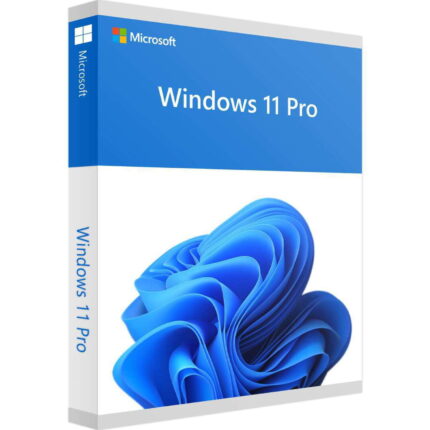
If you decide to go with Pro, review the product details and licence type before purchasing. See the Windows 11 Pro on Digitlogs for current edition details, compatibility, and delivery information.
5. FAQ
Q1: What is the main difference between Windows 11 Home and Pro?
The core difference is a set of Pro-exclusive features: BitLocker drive encryption, Remote Desktop Host, Hyper-V virtualization, Windows Sandbox, Group Policy Editor, and domain/Azure AD joining. Everything else gaming, security, apps, performance, updates is identical. Most home users don’t need these Pro-exclusive features.
Q2: Is Windows 11 Pro worth it for gaming?
No. Windows 11 Home and Pro have identical gaming features, including DirectX 12 Ultimate, DirectStorage, Auto HDR, Xbox Game Pass integration, and the Microsoft Store. Pro offers no gaming performance advantage over Home. For a dedicated gaming PC, Home is the appropriate and more cost-effective choice.
Q3: Can Windows 11 Home be upgraded to Pro?
Yes, at any time. Go to Settings → System → Activation, select “Upgrade your edition of Windows,” and either purchase the upgrade through the Microsoft Store or enter a valid Pro product key. The upgrade is in-place, with no reinstallation required, and your files, apps, and settings are preserved.
Q4: Does Windows 11 Home have BitLocker?
Windows 11 Home does not include the full BitLocker feature. However, compatible devices (those with TPM 2.0 and signed in with a Microsoft account) may have Device Encryption, a simplified version of drive encryption. Check under Settings → Privacy & Security → Device Encryption. If full BitLocker with advanced management options is required, Windows 11 Pro is needed.
Q5: Does Windows 11 Pro run faster than Home?
No. There is no documented performance difference between Windows 11 Home and Pro on equivalent hardware. Both editions run on the same codebase and have the same hardware requirements. Pro’s additional features do not add speed, and Home is not artificially limited in performance.
Q6: Do I need Windows 11 Pro to work from home?
Not necessarily. Working from home using web-based tools (Microsoft 365 in a browser, Google Workspace, Zoom, Teams) works equally well on both editions. You only need Pro if your employer specifically requires your device to join their Azure AD domain, or if you need to connect remotely to an office PC using Remote Desktop from your home machine.
Q7: What happens if I buy the wrong Windows 11 edition?
If you buy Home and later need Pro features, you can upgrade in-place without data loss (see the upgrade process above). If you buy Pro and only need Home features, you’ve paid more than necessary; Pro licences cannot be downgraded to Home. Starting with Home and upgrading later is a reasonable approach if you’re unsure.
Q8: Does Windows 11 Home require a Microsoft account?
As of recent Windows 11 builds, Home setup for personal use typically requires a Microsoft account and an internet connection during initial setup. Pro has additional local account setup flows intended for business use. This requirement has changed across Windows 11 updates; verify against the current Windows 11 release notes or Microsoft’s support pages for the build you’re installing.
Q9: What is Remote Desktop and do I need it?
Remote Desktop lets you control one Windows PC from another device over a network or the internet. The remote machine must be running Windows 11 Pro (or Windows 10 Pro) to host an incoming connection. If you only want to control another PC (not be controlled), both Home and Pro can do this as a client. Most home users don’t use Remote Desktop; third-party alternatives like Chrome Remote Desktop work on Home if needed.
Q10: Which edition is better for a home office or freelancer?
For most freelancers and home office users, Windows 11 Home is sufficient. Pro is worth considering if you need BitLocker for client data security on a laptop, or if you need to access a desktop from another location using Remote Desktop remotely. Otherwise, Home handles all productivity, communication, and creative software without limitation.