
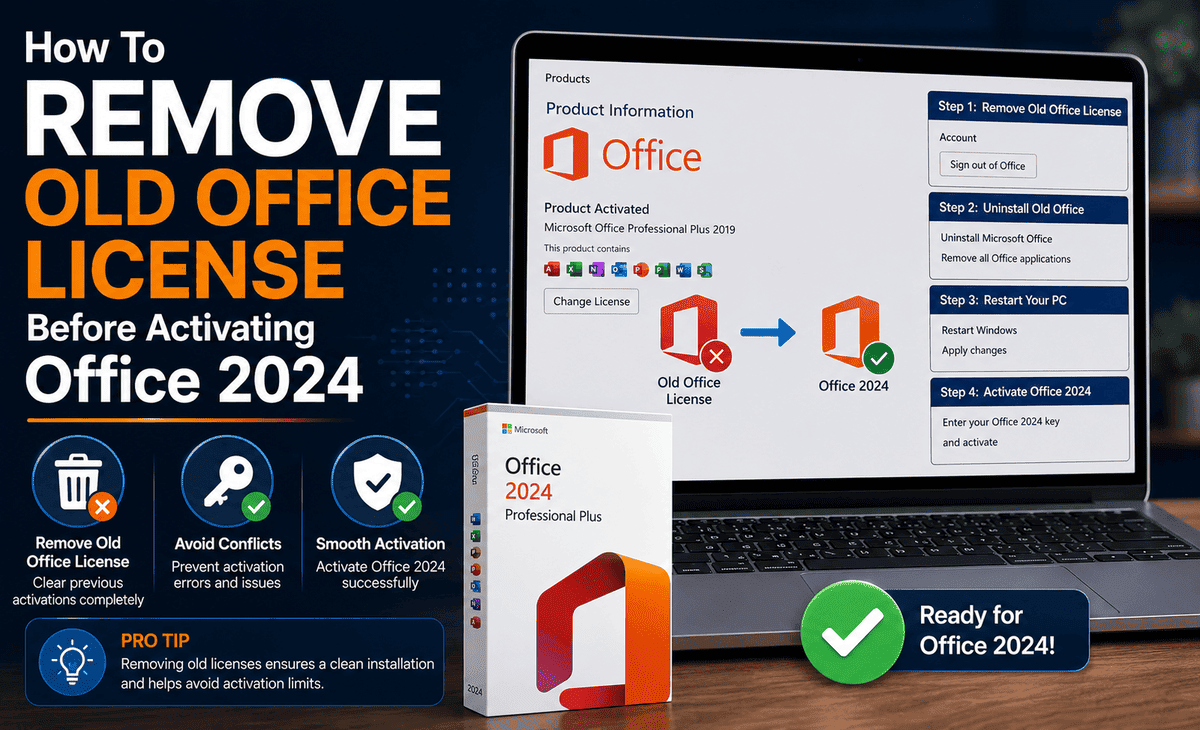
You just bought a shiny new copy of Office 2024 Pro Plus, you have your product key ready, and you are excited to start using the latest version of Word, Excel, and PowerPoint. You type in your key, click activate, and then error. The activation fails, or Office keeps showing the wrong version, or you get a confusing message about an existing license.
Sound familiar? This is one of the most common headaches people face when upgrading. The culprit is almost always an old Office license still lingering on your computer. When the previous license is not properly removed, it conflicts with your new installation and blocks activation.
Table of Contents
The good news is that removing an old Office license is simple once you know the right steps. This guide walks you through the entire process in plain English, so you can clear out the old license and get Office 2024 Pro Plus activated smoothly on the first try.
Why You Need to Remove the Old Office License First
Many people assume that installing a new version of Office automatically replaces the old one. Sometimes it does, but very often the old license stays behind in the background, causing problems.
When two Office licenses exist on the same computer, Windows gets confused about which one to use. This leads to several frustrating issues. You might see activation errors when entering your Office 2024 Pro Plus Key. Office might keep opening the old version instead of the new one. You could get repeated “unlicensed product” warnings. Or activation might appear to succeed but then fail a few days later.
Removing the old license clears the slate. It tells Windows and Office that the previous product is gone, leaving a clean path for activating Office 2024 without any interference. Think of it like clearing an old tenant out of an apartment before new tenants move in — everything goes smoother when the space is empty first.
Before You Begin: What to Prepare
Before removing your old Office license, take a few minutes to prepare so the process goes smoothly.
First, make sure you have your new Office 2024 Pro Plus Key ready and saved somewhere safe. You will need it for activation after removing the old license.
Second, back up any important documents, custom templates, or email data from Outlook. While removing a license does not normally delete your files, it is always wise to back up before making system changes.
Third, make sure you are logged into your computer with an administrator account. Removing licenses requires admin permissions, and you will run into errors without them.
Fourth, close all Office applications completely before you start. Open programs can lock files and prevent the removal process from working correctly.
Method 1: Uninstall the Old Office Completely
The simplest and most thorough way to remove an old Office license is to uninstall the entire old Office program. This removes both the software and its associated license.
Step 1: Open the Settings app by pressing Windows + I on your keyboard.
Step 2: Click on Apps, then click Installed Apps (or Apps & Features on some versions).
Step 3: Scroll through the list and find your old Microsoft Office installation. It might be named “Microsoft Office 2021,” “Microsoft 365,” “Office Professional Plus,” or similar.
Step 4: Click the three dots next to it (or click on the entry) and select Uninstall.
Step 5: Confirm the uninstall and follow the on-screen prompts. Windows will remove the old Office and its license.
Step 6: Restart your computer once the uninstall finishes. This clears any leftover processes.
After the restart, you can install Office 2024 Pro Plus fresh and activate it without conflicts. For most people, this method solves the problem completely.
Method 2: Remove the License Key Using Command Prompt
Sometimes you want to remove just the old license without uninstalling the entire Office program for example, if you are upgrading the same installation or the uninstall did not fully clear the license. This is where the command line comes in.
This method uses a tool called ospp.vbs, which manages Office licensing.
Step 1: Close all Office applications.
Step 2: Open Command Prompt as Administrator. Right-click the Start button and select “Terminal (Admin)” or “Command Prompt (Admin).”
Step 3: Navigate to your Office installation folder. For 64-bit Office on 64-bit Windows, type this command and press Enter:
cd C:\Program Files\Microsoft Office\Office16
If that folder does not exist, try:
cd C:\Program Files (x86)\Microsoft Office\Office16
(Note: Office 2016, 2019, 2021, and 2024 all use the “Office16” folder name internally.)
Step 4: View the currently installed license by typing:
cscript ospp.vbs /dstatus
This displays information about the installed license, including the last five characters of the product key. Note these last five characters — you will need them to remove the correct license.
Step 5: Remove the old license by typing this command, replacing XXXXX with the last five characters you noted:
cscript ospp.vbs /unpkey:XXXXX
Step 6: Press Enter. You should see a message confirming the product key was uninstalled successfully.
If you have multiple old licenses, repeat Step 5 for each one until they are all removed. Once cleared, you can proceed with activating Office 2024 using your new key.
Method 3: Clear Cached Credentials in Credential Manager
Sometimes even after uninstalling old Office or removing the license key, old sign-in credentials remain cached and cause activation problems. Clearing these can resolve stubborn issues.
Step 1: Press Windows + R, type control, and press Enter to open Control Panel.
Step 2: Click User Accounts, then click Credential Manager.
Step 3: Click “Windows Credentials.”
Step 4: Look for any entries that begin with “MicrosoftOffice” or reference Office licensing.
Step 5: Click each Office-related entry to expand it, then click Remove.
Step 6: Restart your computer.
This clears out any saved Office account information that might be interfering with activating Office 2024 Pro Plus with your new key
Step-by-Step: Activating Office 2024 After Removing the Old License
Once the old license is gone, activating Office 2024 is straightforward.
Step 1: Install Office 2024 Pro Plus if you have not already. Download it from Microsoft’s official setup page or run your installer.
Step 2: Open any Office application like Word or Excel.
Step 3: When prompted, click “Activate” or go to File, then Account.
Step 4: Click “Change Product Key” or “Activate Product” and enter your Office 2024 Pro Plus Key the full 25-character code.
Step 5: Click Next and let Office connect to Microsoft’s activation servers over the internet.
Step 6: Wait for the confirmation message. Once you see “Product Activated,” you are all set.
Step 7: Verify activation by going to File, then Account. It should display “Product Activated” under the product information.
Practical Tips for a Smooth Upgrade
Here are some real-world tips to make your transition seamless. First, always remove the old license before installing the new Office whenever possible; this prevents most conflicts before they happen. Second, keep your Office 2024 Pro Plus Key stored securely in a password manager or a safe document, because you will need it again if you ever reinstall. Third, make sure your internet connection is stable during activation, since the process requires contacting Microsoft’s servers.
Fourth, if you are switching from a Microsoft 365 subscription, sign out of the subscription within an Office app first by going to File, Account, and Sign Out before removing anything. Fifth, if you use the same computer for work and personal accounts, double-check that you are removing the correct license and not one your employer manages.
FAQ
Will removing my old Office license delete my documents?
No. Removing an Office license or uninstalling the Office program does not delete your personal files, documents, spreadsheets, or presentations. Those are stored separately on your computer or in the cloud. However, it is always good practice to back up important files before making any system changes.
Do I have to uninstall the old Office to activate Office 2024 Pro Plus?
Not always, but it is the most reliable approach. If you want to keep the old version, you can remove just the license using the Command Prompt method. However, uninstalling the old Office completely is the cleanest way to avoid conflicts when activating Office 2024.
What if my Office 2024 Pro Plus Key still will not activate after removing the old license?
If activation still fails, clear your cached credentials in Credential Manager, restart your computer, and try again. Also verify your internet connection is stable and that your key is genuine. If problems continue, the Microsoft activation troubleshooter or contacting your reseller can help resolve the issue.
Can I have two versions of Office installed at the same time?
Technically, it is possible in some cases, but it is not recommended. Two versions often conflict, cause activation errors, and create confusion about which version opens your files. For the smoothest experience, remove the old version before activating Office 2024 Pro Plus.
Where can I find my last five product key characters?
Open Command Prompt as Administrator, navigate to your Office folder, and run the command cscript ospp.vbs /dstatus. This displays the last five characters of any installed Office license, which you need to remove the correct key.
Conclusion
Removing your old Office license before activating Office 2024 Pro Plus is the single best thing you can do to ensure a smooth, error-free upgrade. Most activation problems come from old licenses lingering in the background, and clearing them out takes just a few minutes.
Start with the simplest approach: uninstalling the old Office completely through Settings. If you need more control, use the Command Prompt method to remove just the license key, and clear cached credentials if any stubborn issues remain. Once the old license is gone, activating Office 2024 with your new key is quick and painless.
Take a few minutes to prepare, follow the steps in order, and keep your Office 2024 Pro Plus Key stored safely for the future. Do it right the first time, and you will be enjoying the latest version of Office fully activated and conflict-free in no time.









