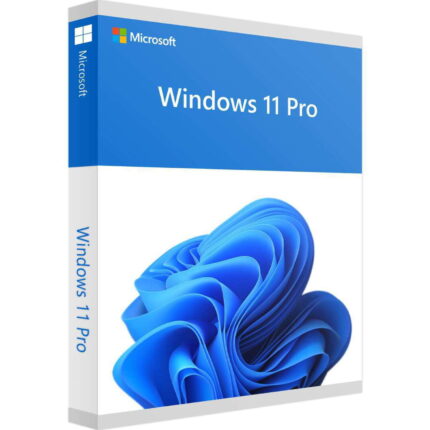
You bought a laptop, opened Settings, and saw “Windows 11 Home”. Now you need BitLocker for client files, or Remote Desktop for the office PC, and you’re looking for a Windows 11 Pro key. Or maybe your old Windows 10 machine stopped getting updates and you want to do it properly this time.
Table of Contents
Either way, a quick search throws up two kinds of results: lists of “free” keys that never actually activate anything, and shops selling Pro for a fraction of Microsoft’s price with no explanation. This guide fills the gap. You’ll learn which kind of key to buy, what a fair price looks like, and how to activate Pro, or upgrade Windows 11 Home to Pro, in about ten minutes without reinstalling anything.
Quick answer
- Need Pro? Only if you use BitLocker, Remote Desktop hosting, Hyper-V, Sandbox or business device management.
- Which key? Retail if you’ll move it to a new PC later; OEM if it stays on one machine.
- Already on Home? Enter your Pro key in Settings → System → Activation. Your files and apps stay put.
- Want one now? buy a genuine Windows 11 Pro key with instant email delivery.
What is a Windows 11 Pro key?
A Windows 11 Pro key, also called a Windows 11 Pro product key, is a 25-character code, formatted XXXXX-XXXXX-XXXXX-XXXXX-XXXXX, that proves you hold a licence for the Pro edition. You type it in once, Microsoft’s activation servers check it, and your PC is marked as genuine.
After that first check, Windows stores a digital licence tied to your hardware. That’s why a reinstall on the same PC usually activates by itself, with no key needed. If you sign in with a Microsoft account, the licence is linked to that account too, which helps later if you replace the motherboard.
One rule worth knowing up front: one key covers one PC at a time. A family with three laptops needs three keys. A key used on a second machine will either fail to activate or deactivate the first one.
Windows 11 Home vs Pro: do you actually need Pro?
Be honest with yourself here, because Pro isn’t automatically better. Both editions run the same apps, play the same games and get the same security updates. Pro adds tools for protecting data, running virtual machines and managing PCs remotely.
| Feature | Home | Pro | Who it matters to |
|---|---|---|---|
| BitLocker drive encryption | No (basic device encryption on some PCs) | Yes | Anyone carrying client or company data on a laptop |
| Remote Desktop (connect into this PC) | No | Yes | Small offices, people who work from home on an office PC |
| Hyper-V virtual machines | No | Yes | Developers, IT learners, anyone testing software |
| Windows Sandbox | No | Yes | Opening suspicious files or testing apps safely |
| Group Policy Editor | No | Yes | Locking down settings on shared or staff PCs |
| Join a domain / Microsoft Entra ID | No | Yes | Businesses with central IT or Microsoft 365 management |
| Control over update timing | Limited | More options | Anyone who can’t afford a surprise restart mid-project |
Examples: who should pay for Pro
- A freelance accountant keeps client tax files on a laptop she takes to cafés. If it’s stolen, BitLocker means the thief gets hardware, not data. Pro pays for itself the first time it matters.
- A two-person design studio wants to reach the office desktop (with the big GPU) from home. Remote Desktop hosting is Pro-only, so the office PC needs Pro; the home laptops don’t.
- A computer science student wants to run Linux and an old Windows build side by side. Hyper-V is built into Pro, with no third-party tools required.
Who can stay on Home
If you mainly browse, stream, game, use Office and store personal photos, Home does everything you need. A Windows 11 Home licence costs less, and the difference can go towards Microsoft Office or a good antivirus.
Decided you do need Pro, and you’re already on Home? You can upgrade Windows 11 Home to Pro in place without reinstalling. The steps are further down this guide.
Types of Windows 11 Pro keys explained
Every Windows 11 Pro license unlocks the same Pro features. What differs is where the key came from, who it’s meant for and whether you can move it to another PC.
| Key type | Meant for | Move to a new PC? | Activates permanently? |
|---|---|---|---|
| Retail | Individuals buying Windows on its own | Yes, one PC at a time | Yes |
| OEM | PC makers and system builders | No, locked to the first PC it activates | Yes |
| Volume (MAK / KMS) | Organisations with a Microsoft volume agreement | Managed by the organisation | Only inside that organisation |
| Generic / default key | Installing or switching edition | Not applicable | No, never |
| Digital licence | Created automatically after activation or upgrade | Via your Microsoft account (retail only) | Yes |
Retail
The “full” licence. If you build a new PC in three years, you deactivate the old one and use the same key on the new machine. It’s the most flexible option and, at Microsoft’s own price, the most expensive.
OEM
The licence that comes pre-installed on a Dell or Lenovo laptop. It’s married to that motherboard. Great value if the PC will stay your PC for its whole life; a poor fit if you upgrade hardware often.
Volume (MAK and KMS)
These exist for companies managing hundreds of PCs. A KMS key needs a KMS server on the company network, so it won’t activate a home PC. If someone sells you a “Pro key” that turns out to start with W269N, that’s a public KMS client key, and it won’t help you. If your business is growing into server licensing, see Windows Server editions explained.
Generic keys: why “free Windows 11 Pro keys” don’t activate
Microsoft publishes a default key for each edition. For Pro it’s VK7JG-NPHTM-C97JM-9MPGT-3V66T. It lets you install Pro or switch a Home PC to Pro. It does not activate Windows, not for 30 days and not for 90. Some popular articles claim otherwise. They’re wrong. You’ll still see “Windows is not activated” until you enter a real licence key.
Want the deeper version? Read our full guide to licence types.
Why are some Windows 11 Pro keys so cheap?
This is the question most guides dodge, so let’s answer it directly. In the US, Microsoft lists Windows 11 Pro at around $199, and the in-Settings upgrade from Home to Pro at around $99. Licence resellers often sell Pro keys for $15 to $40. That gap makes people suspicious, and it should make you careful.
Where lower-priced keys come from
Most genuine low-cost keys are OEM or surplus retail licences: stock bought in bulk from distributors, system builders and businesses that over-bought or retired hardware. Resellers pass on a lower per-key cost and skip the retail packaging and Microsoft’s own margin. The Windows you get is identical.
The catch is that rules on reselling licences vary by country, and Microsoft’s own terms say OEM licences are intended for system builders. A trustworthy seller will tell you exactly which type of key you’re buying and what happens if it ever stops working. One that won’t is telling you something too.
Red flags
- Prices under about $10. At that level the key is often a leaked volume key that Microsoft can block later.
- No company name, address or registration number anywhere on the site.
- No written replacement or refund policy.
- The key arrives with an “activator” tool or instructions to run a script. That’s piracy, and those tools are a common way malware gets onto PCs.
- Keys delivered as a photo or screenshot of someone else’s sticker.
Green flags
- A registered company you can look up (DIGITLOGS LTD, registered in England and Wales).
- A clear replacement guarantee written down before you pay.
- Instant delivery to your email, plus an invoice.
- A real support contact who answers activation questions.
- Reviews on an independent platform, not just on the shop’s own page.
DIGITLOGS LTD is a UK-registered company specializing in the distribution of genuine digital software licenses for individuals, professionals, educational users, and businesses worldwide.
How to buy a genuine Windows 11 Pro key safely
Run through this before you pay anyone, including us.
- Pick the right edition. You want “Windows 11 Pro”. Pro N lacks media apps and is mainly sold in Europe; Pro for Workstations is for high-end machines with server-grade hardware. Buy the wrong one and the key won’t match your install.
- Check the key type. Retail if you plan to move it to a future PC; OEM if this machine is a keeper.
- Read the replacement policy. How long does it last, and what do you need to show if activation fails?
- Pay with a protected method. A card or PayPal gives you a dispute route if something goes wrong. Bank transfer to a stranger doesn’t.
- Keep the email and invoice. If you ever need support from the seller, or need to prove your licence during a business audit, that’s your evidence.
What you’ll typically pay
| Where you buy | Typical price (USD) | What you get |
|---|---|---|
| Microsoft Store, full licence | ~$199 | Retail licence, direct from Microsoft |
| Microsoft Store, Home → Pro upgrade | ~$99 | Upgrade from an activated Home PC only |
| Big-box retailers | Varies, often close to Microsoft | Retail box or digital code |
| Licence resellers | ~$15–40 | Usually OEM or retail; check the seller |
If you’ve ticked the boxes above, you can get your Windows 11 Pro key from Digitlogs. The key arrives by email instantly. Setting up a new PC at the same time? Office 2024 Professional Plus and Office 2021 Professional Plus are available with the same delivery.
Registered UK company · Replacement guarantee · Secure payment
How to activate Windows 11 Pro with a product key
Pick the method that matches where you are. All three take a few minutes and need an internet connection.
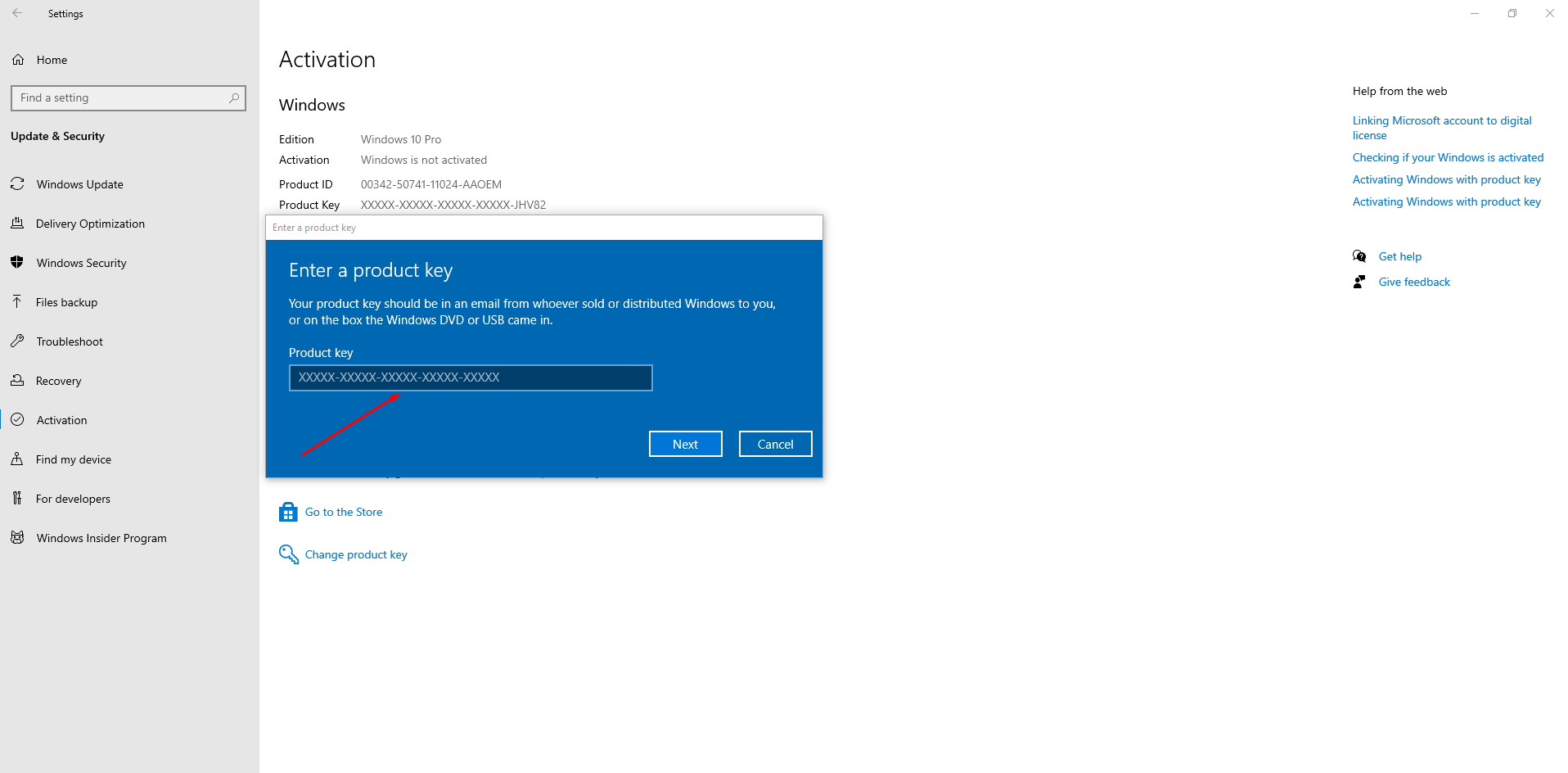
Method 1: Through Settings (the easy way)
- Press Windows + I to open Settings.
- Go to System → Activation.
- Next to “Change product key”, click Change.
- Type your 25-character Windows 11 Pro product key and click Next, then Activate.
- You should see “Windows is activated with a digital licence” within a minute or two.
Method 2: During a clean install
If you’re setting up a new build or wiping an old PC, download Windows 11 from Microsoft’s official page using the Media Creation Tool. When setup asks for a product key, enter yours, and it will install Pro and activate once you’re online.
No key handy yet? Click “I don’t have a product key”, choose Windows 11 Pro from the list, and activate later through Settings. Just make sure you pick Pro, not Home; picking the wrong edition here is the most common reason a Pro key “doesn’t work” afterwards.
Method 3: Command Prompt (when Settings won’t cooperate)
Sometimes the Settings screen throws a vague error. The command line usually gets past it.
- Search for cmd, right-click Command Prompt and choose Run as administrator.
- Install the key:
slmgr /ipk XXXXX-XXXXX-XXXXX-XXXXX-XXXXX - Activate it:
slmgr /ato - A small pop-up confirms success, or shows an error code you can look up in the table further down.
Don’t skip this: link the licence to your Microsoft account
Once activated, go back to Settings → System → Activation and make sure it says the licence is linked to your Microsoft account. If not, sign in with a Microsoft account. Here’s why it matters: say your motherboard dies next year. With the licence linked, you run the Activation Troubleshooter, choose “I changed hardware on this device recently”, pick your PC and you’re back. Without it, you’re digging through old emails for the key.
For more screenshots and edge cases, see our step-by-step activation guide.
How to upgrade Windows 11 Home to Pro without reinstalling
Good news: you don’t need to wipe anything. Going from Home to Pro is an in-place upgrade. Windows unlocks the extra features and restarts, and your files, apps and settings stay exactly where they were. On most PCs it takes 5 to 15 minutes.
Before you start: make sure Home is activated (Settings → System → Activation should say “Active”), save your open work, and plug in your laptop.
Route A: Enter your Pro key directly (works for most people)
- Open Settings → System → Activation.
- Click Change next to “Change product key”.
- Enter your Windows 11 Pro key and click Next.
- Click Start upgrade when prompted. Windows prepares the upgrade and restarts once or twice.
- After restart, check Settings → System → About. It should say Windows 11 Pro, and Activation should say Active.
Route B: If your key is rejected for the upgrade
Some keys refuse to perform the edition switch on a Home PC, even though they’re valid. The fix is to switch edition first, then activate.
- Temporarily disconnect from the internet (turn off Wi-Fi or unplug the cable). This stops Windows from trying to activate the generic key mid-switch.
- In Change product key, enter Microsoft’s generic Pro key: VK7JG-NPHTM-C97JM-9MPGT-3V66T.
- Let the upgrade run and restart. You’ll now be on Pro, showing “not activated”. That’s expected.
- Reconnect to the internet, go back to Change product key and enter your purchased Pro key. Windows activates within a minute.
What about the “Upgrade in Microsoft Store” button?
It works and it’s official, but you pay Microsoft’s upgrade price (around $99 in the US). If you already have a Pro key, you don’t need it.
Example: Say a small marketing agency buys five Home laptops on a deal, then realises it needs BitLocker for client contracts. There’s no need to return the laptops or reinstall: five Pro keys and Route A on each machine can be done over a lunch break, and nobody loses a file.
Get your Windows 11 Pro key: delivered by email, upgrade in 10 minutes
Registered UK company · Replacement guarantee · Secure payment
Moving from Windows 10? You may not need a new key at all
Windows 10 reached end of support on 14 October 2025, and the paid Extended Security Updates for home users run out in October 2026. If you’re still on Windows 10, now is the time to move, and the cheapest route may be the key you already own.
Does a Windows 10 Pro key work on Windows 11 Pro?
In practice, yes. A valid Windows 10 Pro retail or OEM licence generally activates Windows 11 Pro, because Microsoft treats them as the same edition family. You’ll find guides claiming a Windows 10 key “won’t activate Windows 11”. That isn’t what most people experience.
Two ways it plays out:
- Upgrading the same PC in place (Settings → Windows Update, or the Installation Assistant): the existing digital licence carries over, and you never type a key.
- Clean installing Windows 11 Pro: enter your old Windows 10 Pro key during setup or afterwards in Settings. It will usually activate.
First, check your hardware
Windows 11 needs TPM 2.0, Secure Boot and a supported processor (roughly Intel 8th gen / AMD Ryzen 2000 series or newer), plus at least 4 GB of RAM and 64 GB of storage. Run Microsoft’s free PC Health Check app; it tells you in seconds whether your PC qualifies and what’s missing.
If it fails only because TPM or Secure Boot is switched off, you can often turn them on in the BIOS (look for “fTPM”, “PTT” or “Security Device”). If the processor itself isn’t supported, a new PC is the safer route, and that’s when a new Windows 11 Pro key makes sense.
Comparing the two systems before you decide? Read Windows 10 vs Windows 11.
How to find or check your Windows 11 product key
Three quick checks answer most “what licence do I actually have?” questions.
Find the key built into your PC
Most branded laptops from the last decade store their OEM key in the firmware, not on a sticker. To read it, open PowerShell as administrator and run:
(Get-CimInstance SoftwareLicensingService).OA3xOriginalProductKey
If a key appears, that’s the licence your PC shipped with (usually Home). A blank result means there’s no embedded key, which is normal on custom-built PCs. Older guides use a wmic command for this; Microsoft is phasing wmic out, so the PowerShell line is the safer bet.
See what type of licence is active
In an administrator Command Prompt, run slmgr /dli. A small window shows the edition and the licence channel:
- RETAIL channel: a retail key; you can move it to another PC later.
- OEM_DM or OEM_COA channel: an OEM licence, tied to this hardware.
- VOLUME_KMSCLIENT or VOLUME_MAK: a volume licence. On a personal PC you bought a key for, that’s a warning sign worth raising with your seller.
Then run slmgr /xpr. “The machine is permanently activated” is what you want to see. An expiry date means a KMS-style activation that will lapse.
Check the Microsoft account link
Settings → System → Activation shows whether your licence is linked to your Microsoft account. If it says “Windows is activated with a digital license linked to your Microsoft account”, you’re covered for future hardware changes.
Windows 11 Pro activation errors and how to fix them
Most activation errors fall into four buckets: wrong edition, a typo, a network problem, or a key that’s been blocked. Find your code below.
| Error code | What it usually means | What to do |
|---|---|---|
| 0xC004F050 | The key isn’t valid for this edition | Check Settings → System → About. If it says Home, follow the Home → Pro upgrade steps above. Retype the key by hand. |
| 0xC004C003 | The activation server has blocked this key | The key has been used elsewhere or revoked. Contact the seller for a replacement. |
| 0xC004C060 | The key is no longer valid | Same as above; this often happens with cheap leaked volume keys. |
| 0xC004F074 | No KMS server could be reached | You’ve entered a KMS client key (for example one starting W269N). Use a retail or OEM Pro key instead. |
| 0x8007232B | DNS name doesn’t exist | Another KMS symptom. Same fix: replace it with a retail or OEM key. |
| 0x803F7001 | No valid licence found for this PC | Common after a reinstall or hardware change. Enter your key, or run the Activation Troubleshooter. |
| 0xC004F213 | No product key found on this device | Usually after a motherboard swap. Use the Troubleshooter and choose “I changed hardware on this device recently”. |
Still stuck? Try these in order
- Run the Activation Troubleshooter: Settings → System → Activation → Troubleshoot.
- Make sure the PC’s date, time and time zone are correct. A wrong clock can break the secure connection to Microsoft’s servers.
- Turn off any VPN or proxy and retry with
slmgr /ato. - Restart and try once more. Activation servers occasionally time out.
Seller or Microsoft: who should you contact?
If the error points at the key itself (blocked, invalid, already used), contact the seller with your order number and a screenshot of the error. If the key was accepted but activation broke after a hardware change or reinstall, Microsoft’s support is the right place. Either way, a reputable seller will help you work out which one it is. You can also check how our keys are delivered and replaced.
Frequently asked questions
Can I use one Windows 11 Pro key on two PCs?
No. One licence covers one PC at a time. A retail key can be moved to a new PC, but you need to stop using it on the old one first. For two PCs running at once, buy two keys.
Does a Windows 10 Pro key work on Windows 11 Pro?
Usually, yes. A valid Windows 10 Pro retail or OEM key generally activates Windows 11 Pro, whether you upgrade in place or do a clean install. Check your hardware with PC Health Check first.
Is it legal to buy a cheap Windows 11 Pro key?
It depends on the key and on where you live. Genuine OEM and surplus retail keys are sold by legitimate resellers at lower prices; leaked volume keys and activator tools are not legitimate. Buy from a registered company with a written replacement policy, and keep your invoice.
What’s the difference between an OEM and a retail key?
Both activate the same Windows 11 Pro. A retail key can move to another PC later; an OEM key stays locked to the first PC it activates. If the PC is a keeper, OEM is the better value.
Can I transfer my Windows 11 Pro license to a new computer?
Yes, if it’s a retail licence. Link it to your Microsoft account, then activate the new PC with the same key and stop using it on the old one. OEM licences can’t be transferred.
What happens if I don’t activate Windows 11 Pro?
Windows keeps running and still gets security updates. You’ll see an “Activate Windows” watermark, personalisation settings are locked, and you’ll get regular reminders. It’s also not compliant for business use.
Is the free generic Windows 11 Pro key enough to activate Windows?
No. The generic key VK7JG-NPHTM-C97JM-9MPGT-3V66T only installs Pro or switches a Home PC to Pro. Windows stays unactivated until you enter a real licence key.
Does a Windows 11 Pro licence expire?
Retail and OEM keys are perpetual licences. There’s no subscription and no expiry, and they keep receiving updates for as long as Microsoft supports Windows 11.
Can I upgrade from Home to Pro without losing my files?
Yes. Entering a Pro key on an activated Home PC runs an in-place upgrade. Your files, apps and settings stay put. It still makes sense to back up important work first.
What if my Windows 11 Pro activation stops working?
Note the error code, run the Activation Troubleshooter, and if the key itself is flagged as blocked or invalid, contact your seller with your order number and a screenshot.
The bottom line
Getting a Windows 11 Pro key comes down to three decisions:
- Do you need Pro? Yes if you rely on BitLocker, Remote Desktop, Hyper-V, Sandbox or business management. Otherwise Home is fine.
- Which key? Retail if you’ll move it to a future PC, OEM if this machine is a keeper. Skip anything that comes with an activator or has no replacement policy.
- How do you activate? Settings → System → Activation → Change product key. Already on Home? The same screen upgrades you in place.
If you’re ready, get Windows 11 Pro today and have Pro running before your coffee goes cold. Still weighing up options? Our full guide to licence types goes deeper on OEM, retail and volume.
Not sure which key fits your setup, or buying for a small team? Contact our support, and we’ll help you pick the right licence before you pay.