
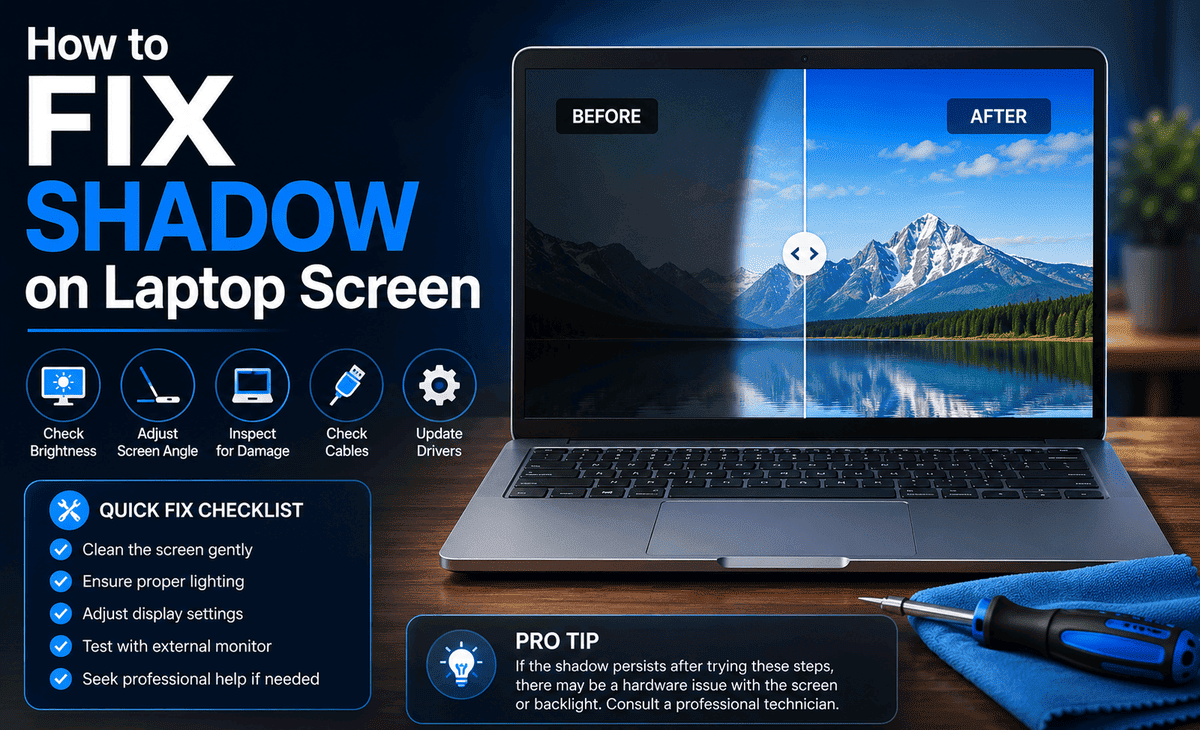
A black shadow creeping across your laptop screen is one of those problems that starts small and quickly becomes impossible to ignore. Maybe it appeared overnight after a bump or drop. Maybe it grew slowly over weeks in the corner of your display. Either way, working around a dark blotch on your screen is frustrating, distracting, and ultimately bad for your productivity.
The good news is that not every black shadow means your laptop is done for. Many cases are fixable, sometimes with a simple settings change, sometimes with a bit of cleaning, and sometimes with a screen replacement that is more affordable than you might expect.
Table of Contents
This guide walks you through exactly how to understand, diagnose, and fix a black shadow on your laptop screen using five practical solutions.
Understanding the Black Shadow Phenomenon
What Causes Black Shadows on Laptop Screens?
A black shadow on a laptop screen can have several different causes, and identifying the right one is the first step toward fixing it.
Physical damage is the most common culprit. Pressure on the screen from dropping the laptop, pressing on the lid, or squeezing it into a tight bag can crack the LCD layer beneath the glass or damage the backlight. This creates dark patches or spreading shadow-like areas that get worse over time.
A failing backlight is another frequent cause. The backlight illuminates the LCD panel from behind. When it starts to fail unevenly, certain areas of the screen appear darker than others, producing a shadowy effect particularly noticeable on light-colored backgrounds.
Dead or stuck pixels in clusters can also appear as dark blotches, especially as LCD screen problems develop with age or after a manufacturing defect surfaces.
Finally, software issues like corrupted display drivers or incorrect display settings can sometimes create visible screen artifacts that mimic the appearance of hardware damage.
Common Symptoms Associated with Display Issues
Recognizing the symptoms helps you narrow down the cause before trying any fix. Look for dark patches that appear on specific areas of the screen and stay in the same position regardless of what is on screen; this usually points to a hardware issue. Shadows that shift, flicker, or change depending on the screen content may indicate display artifacting caused by a graphics problem. Screen discoloration around the edges, especially gradual darkening at the corners, typically signals a backlight issue. Any patches that bleed or spread after physical pressure confirm LCD damage.
Diagnosing the Problem
Identifying Potential Hardware Issues
Before touching any settings or replacing parts, do a quick diagnostic. Take a photo of your screen and compare it to the display. If the shadow appears in the photo, it is a hardware problem. If the shadow does not appear in the photo, it could be an optical illusion or a software issue.
Next, connect your laptop to an external monitor. If the external monitor looks perfect with no shadow or discoloration, the problem is definitely in your laptop’s screen or its connection not the graphics card. If the shadow also appears on the external monitor, you are likely dealing with a graphics card malfunction rather than a screen problem.
Graphics Card Malfunction
If the black shadow or display artifacting appears on both your laptop screen and an external monitor, your graphics card is the likely source. Modern laptops use either integrated graphics built into the processor or a dedicated GPU. A malfunctioning GPU can produce dark patches, corrupted pixels, and screen discoloration across all connected displays.
Test this by running a graphics stress tool like FurMark or checking your GPU temperature in Task Manager. Overheating is a common trigger for graphics card malfunction and can cause visual artifacts that look like shadows.
LCD Screen Problems
If the external monitor is fine, your laptop screen has an LCD screen problem. The two most common internal issues are a cracked LCD layer and a failing backlight. A cracked LCD usually shows a clear point of impact with spider-web cracks spreading outward, and dark ink-like patches spreading from that point. A failing backlight creates a more diffuse darkening, often worse at the edges or corners, that changes in brightness as the laptop warms up.
Software Troubleshooting Techniques
Before assuming the worst, always rule out software causes first since they cost nothing to fix.
Display Artifacting
Display artifacting visual glitches like distorted shapes, flickering pixels, or dark patches that move or change often comes from outdated, corrupted, or incorrectly installed graphics drivers. Open Device Manager by right-clicking the Start button, expand Display Adapters, right-click your graphics card, and select Update driver. Choose automatic search and install any available updates. Restart your laptop and observe whether the shadow persists.
If the problem started after a recent Windows update, try rolling back the driver by selecting “Properties” on your graphics card in Device Manager, going to the Driver tab, and clicking “Roll Back Driver.”
Screen Discoloration
If the issue looks more like screen discoloration than a hard-edged shadow, check your display settings. Press Windows + I, go to System, then Display. Disable Night Light if it is enabled. Run the built-in calibration tool by searching “Calibrate display color” in the Start menu and following the wizard steps. Also check for any active color filters under Accessibility settings, which can sometimes create visible tinting or darkening effects.
Solution 1: Adjusting Display Settings
Changing Brightness and Contrast
Sometimes the black shadow effect is worsened or even caused by extreme brightness or contrast settings. On your laptop keyboard, find the brightness function keys (usually Fn + brightness symbols) and try increasing brightness to see if the shadow lightens. In Display Settings, click “Advanced display settings” and adjust brightness and contrast manually.
Also check your graphics card’s own control panel. NVIDIA users can open the NVIDIA Control Panel and navigate to “Adjust desktop color settings” to fine-tune brightness, contrast, and gamma. AMD users have the AMD Radeon Software for the same purpose. Correcting these values often reduces visible shadowing on displays that are not physically damaged.
Updating Graphics Drivers
As covered in the software section, updated graphics drivers can eliminate display artifacting and screen discoloration. Download the latest driver directly from NVIDIA, AMD, or Intel’s official website rather than relying on Windows Update alone, as manufacturers often release driver updates faster than Microsoft distributes them. Do a clean install using the “Custom Installation” option and check the “Perform a clean install” box to remove any corrupted leftover driver files.
Solution 2: Performing a Laptop Screen Replacement
When to Consider Replacement
If your diagnosis confirmed a cracked LCD layer, a spreading dark patch after physical damage, or a backlight failure that software and driver fixes cannot resolve, a laptop screen replacement is the right path forward. Replacement is worth considering when the shadow covers more than 20 percent of the screen, when it is actively spreading, or when it makes the laptop difficult to use for daily work.
Step-by-Step Replacement Guide
Step 1: Order the correct replacement screen for your exact laptop model. Search your laptop model number (found on a sticker on the bottom) plus “replacement screen” to find compatible panels. Verify the size, resolution, and connector type before purchasing.
Step 2: Completely power off your laptop and remove the battery if possible.
Step 3: Gently pry off the plastic bezel around the screen using a plastic spudger or guitar pick. Work slowly around the edges to avoid cracking it.
Step 4: Unscrew the metal brackets holding the screen panel in place. There are usually two to four screws on each side.
Step 5: Tilt the old panel forward carefully, disconnect the video cable from the back of the panel, and set the old screen aside.
Step 6: Connect the video cable to the new panel, seat it in the brackets, and reverse the assembly steps. Power on and test before fully closing the bezel.
If you are not comfortable with this process, any local laptop repair shop can do the replacement affordably.
Solution 3: Regular Laptop Maintenance Practices
Cleaning Your Laptop Screen and Internal Components
Dirt, dust, and debris can worsen LCD screen problems and contribute to overheating that triggers graphics card malfunction. Clean your screen regularly with a microfiber cloth and a small amount of screen-safe cleaner. Never use paper towels or rough cloths, as they can scratch the coating.
Every six months, use compressed air to blow out dust from the vents and fan openings. Heavy dust buildup raises internal temperatures, stresses the GPU, and can cause display artifacts to appear.
Monitoring Temperature and Performance
Download a free tool like HWMonitor or HWiNFO to check your GPU and CPU temperatures while the laptop runs. If GPU temperatures regularly exceed 90°C, overheating is likely contributing to your display issues. Consider applying new thermal paste to the CPU and GPU (a job for a technician if you are not experienced) and ensure the laptop is always used on a hard, flat surface that does not block the vents.
Solution 4: Utilizing External Monitors
Benefits of External Display Options
While you work on fixing your laptop screen or wait for replacement parts, connecting an external monitor lets you keep working productively without eye strain. External monitors are also useful as a long-term diagnostic tool if the shadow is absent on the external display, you have confirmed the issue is isolated to the laptop panel.
How to Connect and Configure External Monitors
Step 1: Connect your external monitor using an HDMI, DisplayPort, USB-C, or VGA cable depending on your laptop’s available ports.
Step 2: Press Windows + P to open the projection menu. Select “Extend” to use both screens, or “Second screen only” to use just the external monitor while your laptop lid is open.
Step 3: Go to Settings, System, Display to arrange your displays, set the resolution, and configure the refresh rate for the external monitor.
This setup keeps you productive at zero cost while you pursue the right permanent fix for your laptop screen.
Conclusion
A black shadow on your laptop screen does not have to be the end of the road. Start by checking an external monitor to determine whether the issue is the screen itself or the graphics card. Rule out software causes with a driver update and display settings check. Adjust your brightness, contrast, and colour calibration. If hardware damage is confirmed, a laptop screen replacement is affordable and in many cases something you can do at home. Practice regular laptop maintenance to prevent overheating from making things worse. And use an external monitor in the meantime to stay productive.
If the shadow is spreading rapidly, if the screen shows physical signs of liquid damage or a cracked LCD, or if you are uncomfortable performing a screen replacement yourself, take your laptop to a certified technician. Hardware diagnostics, GPU servicing, and screen replacement are all standard repair jobs that most shops can complete quickly and at a reasonable cost. Acting sooner rather than later prevents the damage from spreading further and keeps your repair costs lower.









