
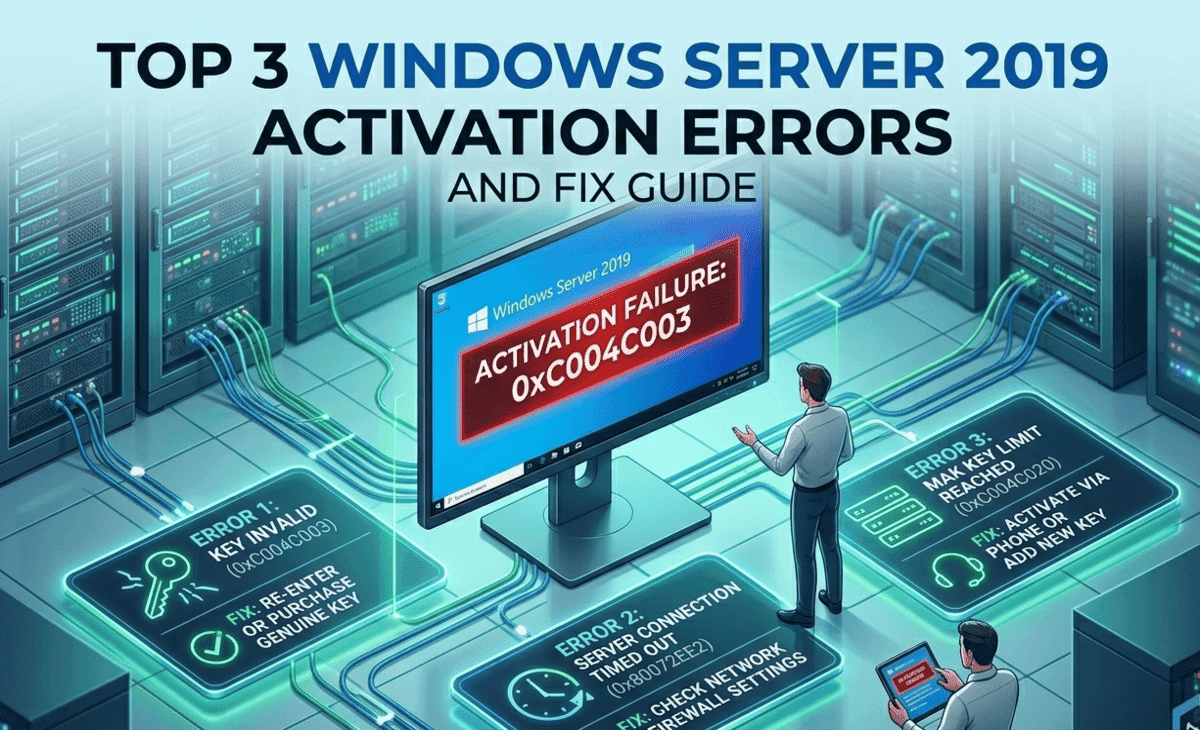
You’ve just set up your server, everything looks good and then boom. A red activation warning stares back at you. If you’re running Windows Server 2019, activation errors can feel overwhelming, especially if you’re not a seasoned IT professional.
Here’s the truth: most activation errors are not signs of something deeply broken. They’re usually caused by a license mismatch, a network hiccup, or a simple configuration issue. And almost all of them can be fixed without calling in a specialist.
Table of Contents
In this guide, we’ll cover the top 3 activation errors in Windows Server 2019, explain exactly why each one happens, and walk you through clear, beginner-friendly steps to resolve them. By the end, you’ll know exactly what to do the next time one of these errors shows up on your screen.
Why Windows Server 2019 Activation Matters
Before we get into the errors, let’s quickly cover why activation is so important.
Windows Server 2019 uses a licensing system to verify that your copy of the software is genuine and properly licensed for your environment. Without activation, your server will run in a limited mode certain features may be locked, the desktop background might turn black, and you’ll get frequent warning messages that can interrupt your workflow.
In business and enterprise environments, an unactivated server can also cause compliance issues. So fixing activation errors isn’t just about comfort it’s about keeping your systems running legally and efficiently.
Error #1 0xC004F074: The Key Management Service (KMS) Could Not Be Contacted
What This Error Means
This is one of the most common activation errors on Windows Server 2019, especially in corporate or data center environments. The full message usually reads something like:
“The Software Licensing Service reported that the computer could not be activated. No Key Management Service (KMS) could be contacted.”
In plain English: your server is trying to activate through a KMS host a central server inside your organization that handles license activation for multiple machines but it can’t find or reach it.
Why Does It Happen?
- Your KMS host server is offline or not configured.
- There’s a firewall blocking the connection to the KMS host (typically port 1688).
- The DNS record for the KMS host is missing or incorrect.
- Your server is trying to use KMS activation, but you actually have a retail or MAK (Multiple Activation Key) license.
How to Fix Error 0xC004F074
Step 1: Check if your KMS host is reachable.
Open Command Prompt as Administrator and type:
ping your-kms-server-name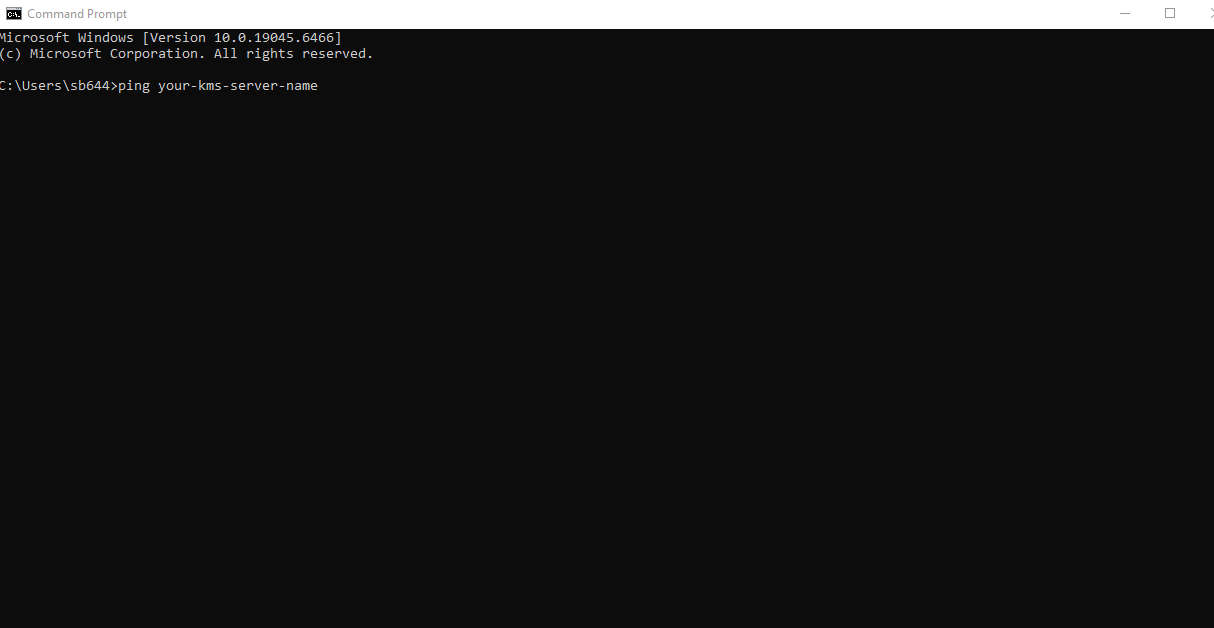
If you get no response, the KMS server may be offline or the name may be wrong. Contact your IT administrator to confirm the KMS host address.
Step 2: Set the KMS host manually.
If you know the address of your KMS server, you can point your Windows Server 2019 machine to it directly:
slmgr /skms your-kms-server-name:1688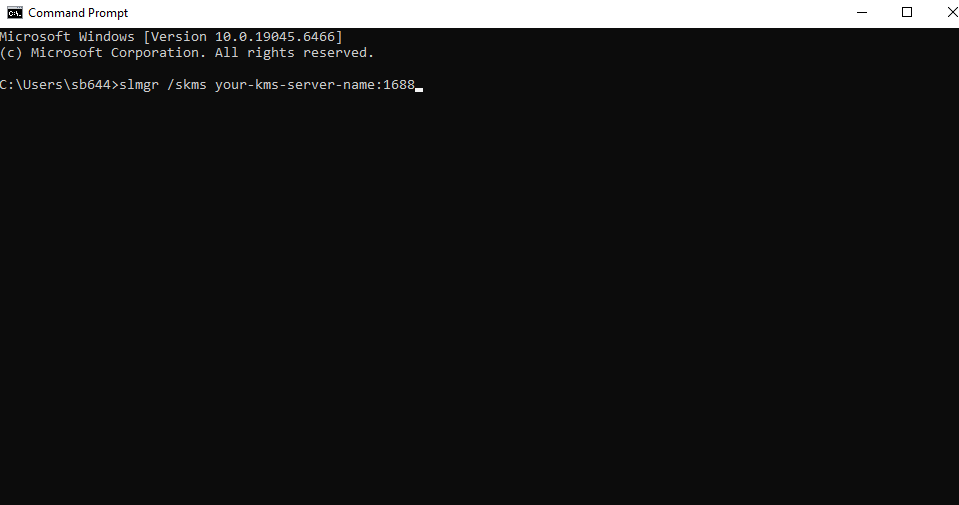
Then trigger activation:
slmgr /atoStep 3: Check firewall rules.
Make sure port 1688 is open between your server and the KMS host. If a firewall is blocking it, activation will always fail. Ask your network team to verify this if needed.
Step 4: Switch to MAK activation if KMS isn’t available.
If you don’t have a KMS environment, use a MAK key instead. Enter it like this:
slmgr /ipk YOUR-MAK-KEY-HERE
slmgr /ato
Practical Tip: In smaller organizations without a dedicated KMS server, MAK activation is often the easier and more reliable choice. KMS is designed for environments with 5 or more servers needing activation.
Error #2 0xC004C003: The Activation Server Determined the Specified Product Key Is Blocked
What This Error Means
This error is a bit more serious-sounding, but it’s still fixable. The message says:
“The activation server determined that the specified product key has been blocked.”
This means Microsoft’s activation servers have flagged your product key either because it’s been used too many times, it was reported as stolen or fraudulent, or it simply isn’t valid for Windows Server 2019.
Why Does It Happen?
- You’re using a product key that has been blacklisted by Microsoft.
- The key was purchased from an unauthorized or unreliable seller.
- You’re using a key intended for a different Windows Server edition (for example, a Standard key on a Datacenter install, or vice versa).
- A Volume License key has exceeded its allowed activation count.
How to Fix Error 0xC004C003
Step 1: Verify the edition of your Windows Server 2019 installation.
Open Command Prompt as Administrator and type:
dism /online /get-currenteditionCompare the result with the edition your product key is meant for. A Standard key won’t work on a Datacenter installation, and the other way around.
Step 2: Double-check where you purchased the key.
If you bought your key from a third-party marketplace, there’s a chance it’s a grey-market or invalid key. Always purchase Windows Server licenses from Microsoft directly, or from a Microsoft-authorized reseller. This is the most common cause of this specific error.
Step 3: Contact Microsoft Support.
If you believe your key is legitimate and you’re still getting this error, call Microsoft’s Volume Licensing Service Center or use their online support chat. Have your proof of purchase ready. Microsoft can investigate whether the key was flagged by mistake and issue a replacement if needed.
Step 4: Use the Volume Licensing Service Center (VLSC).
If your organization has a Volume License agreement, log in to Microsoft VLSC at licensing.microsoft.com to retrieve a valid product key. Volume license keys are managed there, and you may simply need to grab the correct one for your installation.
Practical Tip: Never buy Windows Server product keys from auction sites or unknown sellers. The short-term savings almost never outweigh the hassle of dealing with a blocked key.
Error #3 0x8007007B: The Filename, Directory Name, or Volume Label Syntax Is Incorrect
What This Error Means
This one has a confusing error message that sounds like a file system problem, but it’s actually an activation issue. The full message is:
“The filename, directory name, or volume label syntax is incorrect.”
In the context of Windows Server 2019 activation, this error almost always means the activation server address is formatted incorrectly or your server is trying to activate against a DNS name that doesn’t resolve properly.
Why Does It Happen?
- The KMS server address was entered with a typo or incorrect format.
- DNS isn’t resolving the KMS hostname correctly.
- A script or Group Policy Object (GPO) set the wrong activation server address.
- You’re trying to use a DNS-based KMS address that simply doesn’t exist in your network.
How to Fix Error 0x8007007B
Step 1: Check the currently configured KMS server address.
In Command Prompt (as Administrator), type:
slmgr /dlvThis shows your current activation settings, including the KMS server address. Look carefully at the server name or IP address. Even a single extra space or a missing character can trigger this error.
Step 2: Clear the existing KMS configuration.
If the address looks wrong, remove it completely:
slmgr /ckmsThis clears the configured KMS address so Windows can try to find one automatically via DNS.
Step 3: Re-enter the correct KMS address.
If automatic discovery doesn’t work, re-enter it manually using the exact format:
slmgr /skms kmsserver.yourdomain.com:1688Make sure there are no spaces, and the port number (1688) is included.
Step 4: Test DNS resolution.
From your server, open Command Prompt and type:
nslookup kmsserver.yourdomain.comIf the DNS lookup fails, the hostname doesn’t resolve meaning no amount of activation attempts will work until DNS is corrected. Work with your network administrator to fix the DNS record or use an IP address instead.
Practical Tip: If DNS is unreliable in your environment, try using the KMS server’s IP address directly instead of its hostname. It’s less elegant, but it gets the job done while you sort out the DNS issue.
General Tips for Preventing Windows Server 2019 Activation Errors
These habits can save you a lot of headaches down the road:
- Always document your product keys and license types in a secure, central location. Losing track of which key belongs to which server is one of the biggest causes of activation problems.
- Match your key to your edition. Before installing, confirm you have the right key for Standard vs. Datacenter. Mismatches cause instant activation failures.
- Keep your server connected to the internet or your KMS host during activation. Trying to activate on an isolated network without proper setup almost always results in errors.
- Set a calendar reminder for license renewals. Volume and subscription licenses have expiry dates. An expired license will deactivate your server automatically.
- Use
slmgr /dlvregularly to check your current activation status and license expiry. It takes 10 seconds and can prevent surprises.
FAQ — Windows Server 2019 Activation
Q1: Can Windows Server 2019 run without activation?
Yes, but only in a degraded state. Without activation, some features become inaccessible, the desktop background turns black, and warning messages appear regularly. For production environments, always activate as soon as possible.
Q2: What is the difference between KMS and MAK activation for Windows Server 2019?
KMS (Key Management Service) activates multiple machines through a central server on your network great for larger organizations. MAK (Multiple Activation Key) activates each server individually through Microsoft’s internet servers better for smaller setups or standalone servers.
Q3: How do I check the current activation status of Windows Server 2019?
Open Command Prompt as Administrator and run slmgr /dli for a basic summary, or slmgr /dlv for detailed licensing information including expiry dates and activation type.
Q4: I bought a Windows Server 2019 key online and it’s showing as blocked. What should I do?
Contact Microsoft Support with your proof of purchase. If the key came from an unauthorized seller, you may need to purchase a legitimate license. Microsoft’s support team can verify whether the block was an error and advise next steps.
Q5: Will fixing activation errors delete my server data or settings?
No. Activation is purely a licensing verification process. Running activation commands or re-entering product keys does not affect your server’s files, configurations, roles, or applications.
Conclusion
Activation errors on Windows Server 2019 are common, but they’re rarely a crisis. Whether you’re dealing with a KMS host that can’t be reached, a blocked product key, or a DNS formatting issue, every one of these problems has a clear solution and you don’t need years of IT experience to work through them.
The key is to stay calm, understand what the error code is actually telling you, and follow the steps methodically. Start with the simplest fix first. Check your connectivity, verify your key type, confirm your addresses are correct, and use Microsoft’s built-in tools like slmgr to diagnose what’s going on.
And remember: when in doubt, Microsoft Support is there for exactly these situations especially if you have a legitimate license and the activation servers are being stubborn.
Your server deserves to run at full capacity. With this guide in hand, you’ve got everything you need to make that happen.









