
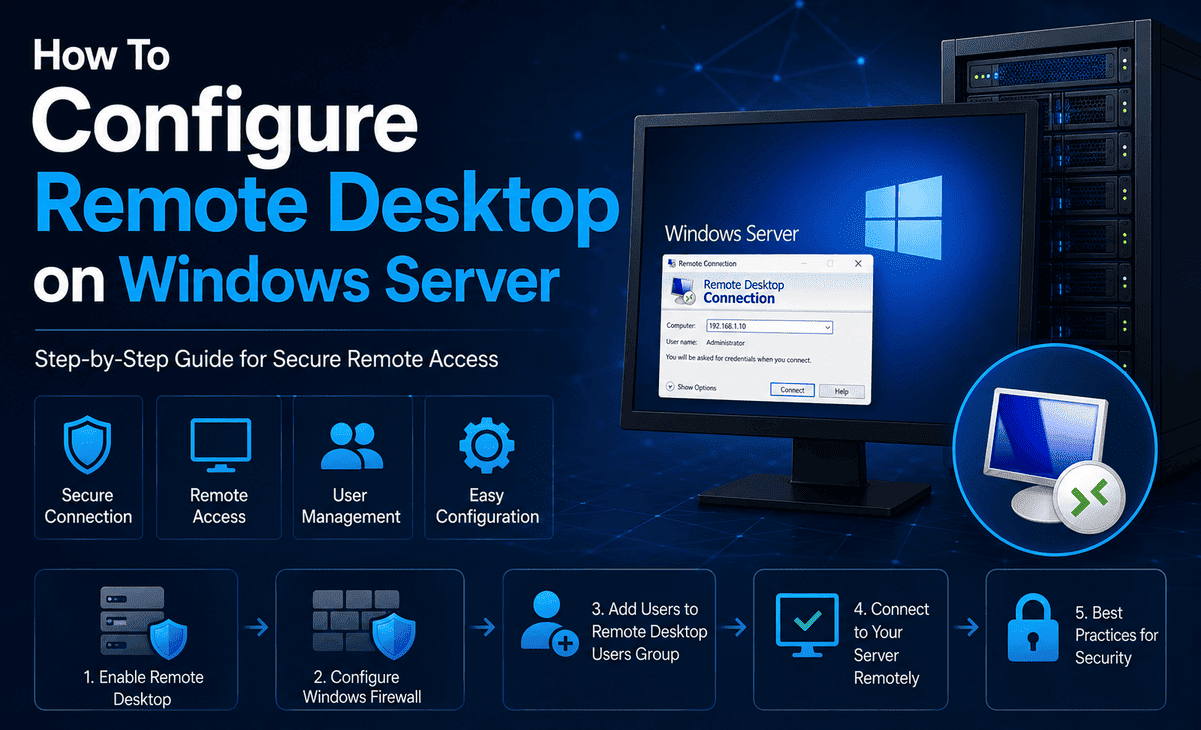
Imagine being able to control your office server from your home laptop, fix a problem from a coffee shop, or manage your business systems while travelling. That is exactly what Remote Desktop on Windows Server lets you do. It is one of the most useful features for IT admins, business owners, and developers, and once you set it up properly, you wonder how you ever managed without it.
But here is the catch. Configuring Remote Desktop is not as simple as flipping a switch. You need to enable the right settings, open firewall ports, manage user permissions, and secure your connection so hackers cannot break in. Skip a step, and you might end up locked out of your own server or, worse, expose it to the internet without protection.
Table of Contents
This guide walks you through everything you need to know in plain English. Whether you are running Windows Server 2022 Standard or the newer Windows Server 2025 Standard, by the end of this article you will have a fully working, secure Remote Desktop setup.
What Is Remote Desktop on Windows Server?
Remote Desktop is a built-in feature in Windows Server that lets you connect to your server from another computer and use it as if you were sitting right in front of it. You see the desktop, run programs, open files, and manage settings all over the network or internet.
This works through the Remote Desktop Protocol (RDP), Microsoft’s secure technology for sending screen, keyboard, and mouse data between two computers. When you connect, your local machine becomes a window into the server.
Remote Desktop is included free with every Windows Server installation, including Windows Server 2022 Standard and Windows Server 2025 Standard. For basic administration (up to two simultaneous admin connections), you do not need any additional licenses. For multi-user setups with many simultaneous Remote Desktop sessions, you need Remote Desktop Services CALs, which we will cover later.
The Problem: Why Beginners Struggle with Remote Desktop Setup
Many people try to set up Remote Desktop and run into the same issues. They enable the feature but cannot connect because Windows Firewall blocks the port. They configure ports but forget to add the right users to the Remote Desktop Users group. They expose the server to the internet without proper security and get attacked by automated bots that try to brute-force passwords.
These problems all share the same root cause: skipping steps or doing them out of order. A proper Remote Desktop setup requires enabling the feature, configuring firewall rules, managing user access, and applying security best practices in the right sequence.
The good news is that once you understand the process, it takes only about 15 minutes from start to finish.
Before You Begin
Before configuring Remote Desktop, make sure you have a few things ready.
First, you need administrator access to your Windows Server. Without admin rights, you cannot enable Remote Desktop or change firewall settings.
Second, decide who will need remote access. Make a list of the user accounts that should be allowed to connect.
Third, find your server’s IP address. You can do this by opening Command Prompt and typing ipconfig. Note both the internal IP and, if connecting from outside your network, your public IP.
Fourth, ensure your server is fully updated. Run Windows Update before starting, especially on Windows Server 2022 Standard or Windows Server 2025 Standard, to make sure all security patches are installed.
Step 1: Enable Remote Desktop on Windows Server
The first step is turning on the Remote Desktop feature itself. There are several ways to do this let us go through the easiest method using Server Manager.
Step 1.1: Log in to your Windows Server with an administrator account.
Step 1.2: Open Server Manager. It usually launches automatically when you sign in. If not, click the Server Manager icon in the taskbar.
Step 1.3: In Server Manager, click “Local Server” in the left pane.
Step 1.4: On the right side, find the “Remote Desktop” entry. It will likely show “Disabled.” Click on the word “Disabled.”
Step 1.5: A System Properties window opens. Under the “Remote Desktop” section, select “Allow remote connections to this computer.”
Step 1.6: A pop-up may warn you that the firewall will be configured automatically. Click OK to proceed.
Step 1.7: Click Apply, then OK to close the window.
Remote Desktop is now enabled on your Windows Server.
Alternative Method Using Settings
You can also enable Remote Desktop through Settings, especially in Windows Server 2025 Standard, which has a more modernized interface.
Open Settings, click System, then click Remote Desktop, and toggle the switch to On. Confirm the prompt that appears, and the feature is enabled instantly.
Step 2: Configure Windows Firewall for Remote Desktop
By default, Windows Server blocks most incoming connections. Enabling Remote Desktop usually adds the right firewall rule automatically, but it is worth verifying.
Step 2.1: Open Server Manager, click Tools, and select Windows Defender Firewall with Advanced Security.
Step 2.2: In the left pane, click “Inbound Rules.”
Step 2.3: Scroll through the list and look for “Remote Desktop – User Mode (TCP-In).” It should be enabled (shown with a green checkmark). If it is not, right-click it and select Enable Rule.
Step 2.4: Also enable “Remote Desktop – User Mode (UDP-In)” for better performance on modern connections.
Step 2.5: By default, Remote Desktop uses TCP port 3389. If you ever change this port for security reasons, make sure to update your firewall rule accordingly.
Step 3: Add Users to the Remote Desktop Users Group
By default, only members of the Administrators group can connect via Remote Desktop. To grant access to other users, you need to add them to the Remote Desktop Users group.
Step 3.1: Open the System Properties window again. The fastest way is to right-click “This PC,” select Properties, then click “Remote Desktop” on the right pane, then “Select users that can remotely access this PC.”
Step 3.2: In the Remote Desktop Users dialog box, click Add.
Step 3.3: Type the username you want to grant access to. You can add multiple users separated by semicolons.
Step 3.4: Click Check Names to verify the usernames are correct. Click OK.
Step 3.5: The user(s) now appear in the Remote Desktop Users list. Click OK to save.
Practical tip: Avoid using generic accounts like “Guest” or “User” for remote access. Create specific accounts for each person who needs remote access and assign strong, unique passwords.
Step 4: Connect to Your Windows Server Remotely
Now it is time to test the connection from another computer.
Step 4.1: On the computer you want to connect from, open the Start menu and search for “Remote Desktop Connection.” Open the app.
Step 4.2: In the “Computer” field, type your server’s IP address. For local network connections, use the internal IP. For internet connections, use the public IP or domain name.
Step 4.3: Click Connect. A login screen will appear.
Step 4.4: Enter the username and password of an authorized account on the server. Click OK.
Step 4.5: If you see a certificate warning, you can click “Yes” to proceed (though for production servers, you should configure a proper SSL certificate).
Step 4.6: You should now see your Windows Server desktop in the Remote Desktop window. Congratulations you are connected.
Step 5: Secure Your Remote Desktop Setup
This is the most important step that many beginners skip. An unsecured Remote Desktop setup is a major security risk, especially if exposed to the internet.
Enable Network Level Authentication (NLA)
Network Level Authentication requires users to authenticate before a full Remote Desktop session is created. This blocks many automated attacks.
Go to System Properties, click the Remote tab, and make sure “Allow connections only from computers running Remote Desktop with Network Level Authentication” is checked. This option is enabled by default on Windows Server 2022 Standard and Windows Server 2025 Standard.
Use Strong Passwords
Every account allowed to use Remote Desktop should have a long, complex password. A minimum of 12 characters with a mix of uppercase, lowercase, numbers, and symbols is a good baseline.
Change the Default Port (Optional)
Attackers constantly scan the internet for port 3389. Changing the default port adds a small layer of obscurity. Open the Registry Editor, navigate to HKEY_LOCAL_MACHINE\System\CurrentControlSet\Control\Terminal Server\WinStations\RDP-Tcp, find the “PortNumber” value, and change it to a different number (between 1024 and 65535). Restart the server and update your firewall rule for the new port.
Set Up a VPN
For internet-facing Remote Desktop access, the safest approach is to require a VPN connection first. This way, your Windows Server’s RDP port is never directly exposed to the internet, and only authenticated VPN users can reach it.
Enable Account Lockout
Configure account lockout policies through Group Policy so that accounts get temporarily locked after several failed login attempts. This stops brute-force attacks cold.
Practical Tips for a Smooth Remote Desktop Experience
First, always keep your Windows Server fully patched; security updates often fix RDP-related vulnerabilities. Second, use Remote Desktop’s local resources options to redirect printers, clipboards, and drives between your client and server, which makes day-to-day work much smoother. Third, if you need multiple simultaneous user sessions beyond the two-admin limit, you will need to install the Remote Desktop Services role and purchase RDS CALs for each user or device. Fourth, monitor your server’s Event Viewer regularly for failed login attempts; they are the first sign of an attack. Fifth, on Windows Server 2025 Standard, take advantage of the improved security defaults and consider using SMB over QUIC for encrypted remote connections in hybrid setups.
FAQ
Is Remote Desktop free on Windows Server?
Yes. Remote Desktop is included free with every Windows Server license, including Windows Server 2022 Standard and Windows Server 2025 Standard. For basic administration, you can have up to two simultaneous Remote Desktop sessions for admins without any extra licensing. For more users or full Remote Desktop Services, you need to purchase RDS CALs separately.
Can I use Remote Desktop over the internet safely?
Yes, but only with proper security. Never expose port 3389 directly to the internet without protection. The safest approach is to require a VPN connection before users can access Remote Desktop. Combine this with strong passwords, Network Level Authentication, and account lockout policies for maximum security.
What is the difference between Remote Desktop and Remote Desktop Services?
Remote Desktop is the basic feature included in Windows Server that allows administrators to connect remotely. Remote Desktop Services (RDS) is a full enterprise role that supports multiple simultaneous user sessions, application publishing, and session-based desktops for many users at once. RDS requires additional licensing through RDS CALs.
Does Remote Desktop work between different Windows versions?
Yes. The Remote Desktop client built into Windows 10, Windows 11, and Mac OS can connect to any version of Windows Server, including Windows Server 2022 Standard and Windows Server 2025 Standard. The protocol is backward and forward compatible across modern versions.
Why can I enable Remote Desktop but still cannot connect?
The most common reasons are firewall rules blocking the connection, the user account not being added to the Remote Desktop Users group, or network routing problems between client and server. Double-check each step in this guide, and if you are connecting over the internet, verify port forwarding on your router and any cloud firewall rules.
Conclusion
Configuring Remote Desktop on Windows Server transforms how you manage your systems. It gives you the freedom to administer your Windows Server 2022 Standard or Windows Server 2025 Standard from anywhere, save time, and respond to issues instantly no matter where you are.
The key is following the steps in order. Enable Remote Desktop, configure your firewall, add the right users, test the connection, and most importantly, secure it properly. Skipping the security step is the single biggest mistake new admins make, and it can have serious consequences.
Take the time to set it up right the first time, and your Remote Desktop setup will serve you reliably for years. With a properly configured and secured Windows Server, you have the power to manage everything from your office, your home, your favourite cafe, or even another country all with just a few clicks.
Your server is now in your pocket. Use it wisely.









