
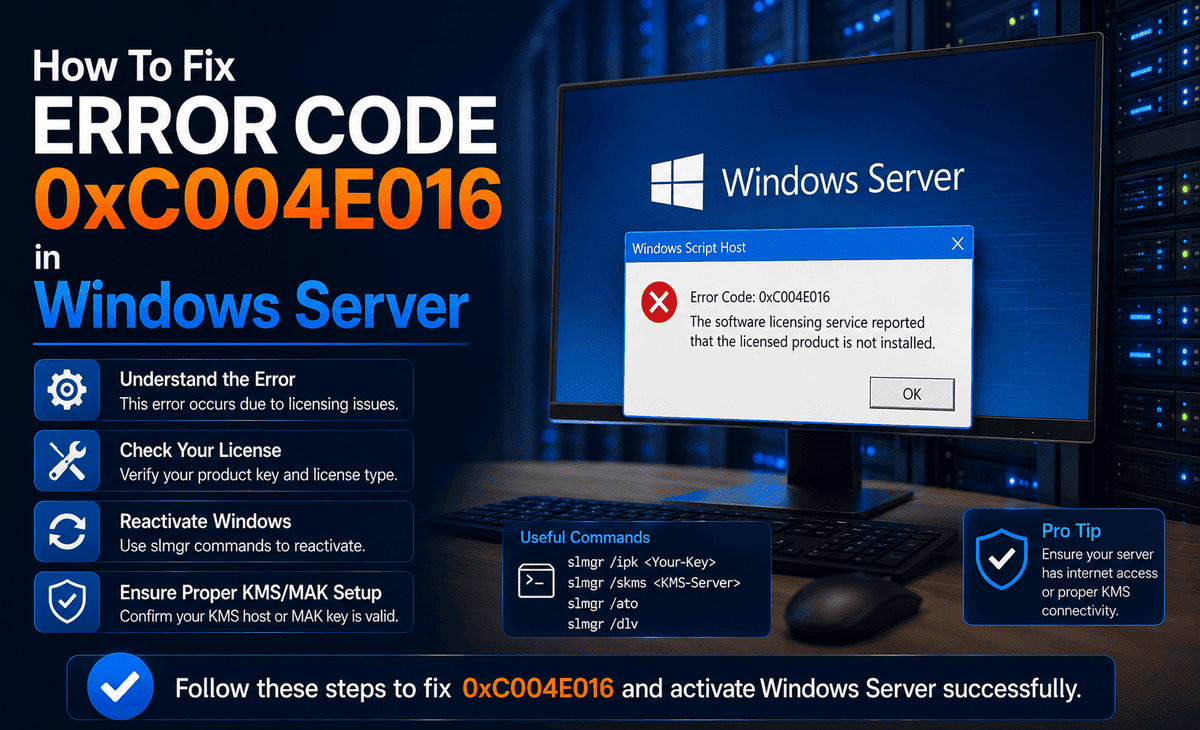
You are setting up your Windows Server, you enter your product key to activate it, and instead of a success message, you get hit with a frustrating error: 0xC004E016. Suddenly your activation is blocked, and you are left staring at a cryptic code wondering what went wrong.
If this sounds like your situation, take a deep breath; you are not alone, and this is a fixable problem. Error Code 0xC004E016 in Windows Server is a common activation issue, and in most cases it comes down to a simple mismatch between your product key and the edition or version of Windows Server you installed.
Table of Contents
This step-by-step guide explains exactly what causes this Windows Server activation error and walks you through every solution. Whether you are a beginner setting up your first server or an admin troubleshooting a deployment, by the end of this article you will know how to fix Error 0xC004E016 and get your server properly activated.
What Is Error Code 0xC004E016 in Windows Server?
Error Code 0xC004E016 is an activation error that appears when you try to activate Windows Server with a product key that does not match your installation. In simple terms, Windows is telling you: “This key does not belong to this version or edition of Windows Server.”
The official error message usually reads something like “The product key you entered didn’t work” or references that the specified product key is invalid or unsupported by the current edition. It is essentially a compatibility problem between the key and the operating system.
This is different from a network or server-side activation problem. The 0xC004E016 error specifically points to a key-versus-edition mismatch, which is actually good news; it means the fix is usually straightforward once you understand what is happening.
Common Causes of the Windows Server Activation 0xC004E016 Error
Understanding why this error happens helps you fix it faster. Here are the most common causes.
Wrong edition key. This is the number one cause. You might be trying to use a Windows Server Standard key on a Datacenter installation, or a Datacenter key on a Standard installation. Each edition requires its own specific key.
Wrong version key. Using a key meant for a different version entirely, like trying to activate Windows Server 2022 with a Windows Server 2019 key, triggers this error.
KMS and MAK key confusion. Mixing up a Key Management Service (KMS) host key with a Multiple Activation Key (MAK), or using the wrong type of key for your activation method, causes the 0xC004E016 error.
Evaluation version installed. If you installed an evaluation (trial) version of Windows Server, a retail or volume key may not activate it directly. Evaluation editions need to be converted first.
Corrupted licensing data. Occasionally, the activation files or licensing store on the server become corrupted, causing valid keys to be rejected.
Now that you know the causes, let us go through the solutions one by one.
Solution 1: Verify You Are Using the Correct Edition Key
Since the most common cause is an edition mismatch, the first step is confirming which edition of Windows Server you actually have installed.
Step 1: Open Command Prompt as Administrator. Right-click the Start button and select “Command Prompt (Admin)” or “Windows PowerShell (Admin).”
Step 2: Type the following command and press Enter:
DISM /online /Get-CurrentEdition
Step 3: Note the edition displayed. It will show something like “ServerStandard” or “ServerDatacenter.”
Step 4: Compare this to the product key you are trying to use. Make sure your key matches the exact edition. A Standard key works only with Standard, and a Datacenter key works only with Datacenter.
Step 5: If you discover a mismatch, you need either the correct key for your installed edition, or you need to change your edition to match your key (covered in Solution 3).
This simple check resolves the majority of 0xC004E016 errors.
Solution 2: Confirm Your Windows Server Version
If the edition matches but you still get the error, the next step is verifying your Windows Server version.
Step 1: Press Windows + R to open the Run dialogue.
Step 2: Type winver and press Enter.
Step 3: A window appears showing your exact Windows Server version, for example, Windows Server 2019, 2022, or 2025.
Step 4: Confirm that your product key was issued for this specific version. A Windows Server 2022 key will not activate Windows Server 2019, and vice versa.
Step 5: If the version does not match your key, you will need the correct key for your installed version, or you will need to install the version that matches your key.
Solution 3: Change the Windows Server Edition to Match Your Key
If you have a valid key but it is for a different edition than what is installed, you can change your edition to match the key instead of buying a new key. This is common when someone installs Standard but has a Datacenter key.
Step 1: Open Command Prompt as Administrator.
Step 2: Check your current edition and available target editions by typing:
DISM /online /Get-TargetEditions
Step 3: To change to the edition matching your key, use this command, replacing the edition name and key with your actual values. For example, to upgrade to Datacenter:
DISM /online /Set-Edition:ServerDatacenter /ProductKey:XXXXX-XXXXX-XXXXX-XXXXX-XXXXX /AcceptEula
Step 4: Replace the Xs with your actual product key and ServerDatacenter with your target edition if different.
Step 5: Press Enter and wait for the process to complete. The server will need to restart.
Step 6: After restarting, your edition now matches your key, and activation should succeed.
Note that you can generally move from a lower edition to a higher one (Standard to Datacenter), but moving from a higher to a lower edition is not supported and requires a clean reinstall.
Solution 4: Convert an Evaluation Version to Full Version
If you installed an evaluation (trial) version of Windows Server, your retail or volume key may not activate it directly. You need to convert it first.
Step 1: Open Command Prompt as Administrator.
Step 2: Confirm you have an evaluation version by typing:
DISM /online /Get-CurrentEdition
If the edition name ends in “Eval,” you have an evaluation version.
Step 3: For Standard evaluation, convert using:
DISM /online /Set-Edition:ServerStandard /ProductKey:XXXXX-XXXXX-XXXXX-XXXXX-XXXXX /AcceptEula
For Datacenter, replace ServerStandard with ServerDatacenter.
Step 4: Replace the Xs with your genuine product key.
Step 5: Press Enter, let the conversion complete, and restart the server. Your evaluation version is now a full, activatable version.
Solution 5: Use the Correct Activation Method (KMS vs MAK)
If your organization uses volume licensing, make sure you are using the right type of key for your activation method.
A MAK (Multiple Activation Key) activates each machine individually against Microsoft’s servers. A KMS (Key Management Service) key activates machines against a local KMS host on your network.
Step 1: Determine which method your organization uses. If unsure, check with your IT administrator.
Step 2: To install a MAK key, open Command Prompt as Administrator and type:
slmgr /ipk XXXXX-XXXXX-XXXXX-XXXXX-XXXXX
Then activate with:
slmgr /ato
Step 3: For KMS client setup, install the appropriate public KMS client setup key (available from Microsoft’s documentation for your specific version and edition), then point to your KMS host:
slmgr /skms your-kms-server:1688
slmgr /ato
Step 4: Using the correct key type for your method resolves activation errors caused by KMS and MAK confusion.
Solution 6: Reset the Licensing Components
If none of the above work and you suspect corrupted licensing data, resetting the activation components can help.
Step 1: Open Command Prompt as Administrator.
Step 2: Clear the current product key from the registry:
slmgr /upk
Step 3: Clear the product key from the registry store:
slmgr /cpky
Step 4: Reinstall your correct product key:
slmgr /ipk XXXXX-XXXXX-XXXXX-XXXXX-XXXXX
Step 5: Attempt activation again:
slmgr /ato
Step 6: Restart your server and verify the activation status by typing slmgr /xpr.
This clears out any corrupted or conflicting license data and gives your key a fresh attempt at activation.
Practical Tips to Avoid Activation Errors
Here are some real-world tips to prevent the 0xC004E016 error and other activation issues. First, always double-check that your product key matches both the edition and version of Windows Server before you install. Second, keep your keys clearly labelled and organized; note whether each key is for Standard or Datacenter, and which version it belongs to. Third, if you use volume licensing, keep your KMS and MAK keys separate and clearly marked to avoid mixing them up. Fourth, before activating, ensure your server’s date, time, and time zone are set correctly, as incorrect time settings can interfere with activation. Fifth, always buy genuine keys from Microsoft or authorized resellers; counterfeit or grey-market keys frequently cause activation errors and can be deactivated later.
FAQ Section
What does Error Code 0xC004E016 mean in Windows Server?
Error Code 0xC004E016 means the product key you are using does not match the edition or version of Windows Server installed on your machine. It is a compatibility error, usually caused by trying to activate Standard with a Datacenter key (or vice versa) or using a key from a different Windows Server version.
How do I fix the Windows Server activation 0xC004E016 error?
Start by verifying your installed edition with DISM /online /Get-CurrentEdition and your version with winver. Make sure your key matches both. If there is a mismatch, either use the correct key or change your edition to match the key using the DISM Set-Edition command. Converting an evaluation version to full is also a common fix.
Can I activate Windows Server Standard with a Datacenter key?
No. Each edition requires its own specific key. A Datacenter key will not activate a Standard installation. However, you can use the DISM Set-Edition command to upgrade your Standard installation to Datacenter so it matches your Datacenter key.
Why does my evaluation version of Windows Server show error 0xC004E016?
Evaluation versions cannot be activated directly with retail or volume keys. You must first convert the evaluation edition to a full edition using the DISM Set-Edition command with your genuine product key; then activation will work.
Does error 0xC004E016 mean my product key is fake?
Not necessarily. In most cases, the key is genuine but simply does not match your installed edition or version. However, if you have confirmed that your edition and version match the key and it still fails, then the key itself may be invalid — in which case you should contact your reseller or Microsoft.
Conclusion
Error Code 0xC004E016 in Windows Server looks intimidating, but it is one of the more straightforward activation errors to fix. In nearly every case, the problem is a simple mismatch between your product key and the edition or version of Windows Server you have installed.
Start by confirming your installed edition and version, then make sure your key matches both. If there is a mismatch, you can often change your edition to match the key using the DISM command rather than buying a new key. If you installed an evaluation version, converting it to full resolves the error. And if you use volume licensing, double-check that you are using the right KMS or MAK key for your activation method.
Work through the solutions in order, and you will have your Windows Server activated and fully licensed in no time. Keep your keys organized, buy only genuine licenses, and verify your edition and version before installing, and you will avoid this Windows Server activation error entirely in the future.
Your server is just a few commands away from being properly activated. Follow the steps, stay patient, and you will get there.









