
Table of Contents
Introduction
Many users today worry about buying genuine software licenses online. With digital products becoming more popular, it is important to understand the correct and safe process for downloading and activating productivity software.
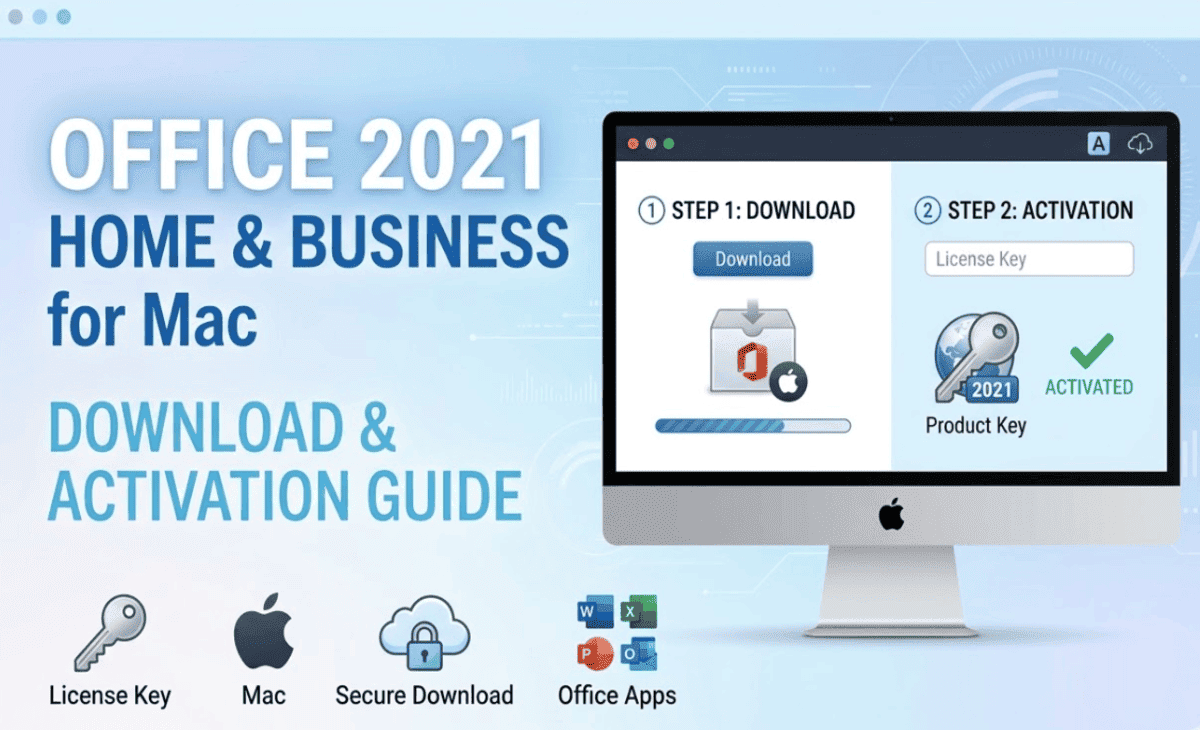
Office 2021 Home & Business for Mac is a one-time purchase productivity suite designed for professionals, remote workers, and small business owners. If you recently purchased a digital license or are planning to buy one, this complete Office 2021 Home & Business Download Activation guide will help you install and activate the software correctly.
This article explains everything in simple language, so even non-technical users can follow the steps confidently.
What is Office 2021 Home & Business for Mac
Office 2021 Home & Business for Mac is a one-time purchase productivity software package designed for professionals, home users, and small businesses who need essential office applications on macOS devices. Unlike subscription-based plans, this version allows users to pay once and use the software on a single Mac for long-term, everyday work.
The suite includes widely used applications such as Microsoft Word, Excel, PowerPoint, and Outlook, which help users create documents, manage data, prepare presentations, and handle business communication efficiently.
Key Features
- One-time license with no recurring monthly or yearly fees
- Offline access to core Office applications after activation
- Optimised performance for macOS environment
- Classic interface suitable for both beginners and experienced users
- Security updates and stability improvements from Microsoft
Who Should Use It
Office 2021 Home & Business is ideal for:
- Small business owners managing daily operations
- Freelancers and remote workers
- Students and home users who prefer a permanent license
- IT professionals setting up office software on Mac systems
Overall, Office 2021 Home & Business for Mac provides a reliable and cost-effective solution for users who want traditional desktop productivity tools without committing to a subscription service.
System Requirements for Mac
Before starting the Office 2021 Home & Business Download, it is important to make sure your Mac meets the minimum system requirements. This helps avoid installation errors and ensures smooth performance.
Minimum Requirements
- Operating System: A supported version of macOS (recent supported releases recommended)
- Processor: Intel processor or Apple Silicon (M1, M2, or newer)
- Memory (RAM): Minimum 4 GB (8 GB recommended for better performance)
- Storage Space: Around 10 GB of available disk space
- Display: Standard resolution display (1280 × 800 or higher)
- Internet Connection: Required for download, activation, and updates
Keeping your Mac updated improves compatibility and reduces activation issues.
How to Download Office 2021 Home & Business for Mac
Follow the steps below to complete the Office 2021 Home & Business Download process safely.
Step-by-Step Download Guide
- Open Safari, Chrome, or any web browser on your Mac.
- Visit the official Microsoft account website.
- Sign in using the Microsoft account linked to your Office purchase.
- Navigate to the Services & Subscriptions section.
- Find Office 2021 Home & Business for Mac in your product list.
- Click the Install button to begin downloading the installer file.
- Wait until the .pkg setup file is fully downloaded.
Installation Process on macOS
After completing the Office 2021 Home & Business Download, the next step is to install the software properly on your Mac. The installation process is simple and usually takes only a few minutes.
Step-by-Step Installation Guide
- Open the Downloads folder on your Mac.
- Locate the Office installer (.pkg file) you downloaded.
- Double-click the file to start the installation.
- The Office installer window will appear. Click Continue.
- Read and accept the software license agreement.
- Choose the destination drive where you want to install Office.
- Click Install and enter your Mac login password if prompted.
- Wait for the installation progress bar to complete.
- Click Close once the installation is finished.
After Installation
- Open Finder → Applications to see installed Office apps.
- Launch Word, Excel, PowerPoint, or Outlook to begin activation.
- You can also add Office apps to the Dock for quick access.
Once installation is complete, you can proceed to the activation process to unlock full features.
How to Activate Office 2021 on Mac
Activation connects your license to your Microsoft account and enables full features.
Activation steps
- Open Microsoft Word or Excel.
- The activation window will appear automatically.
- Sign in with your Microsoft account.
- Enter your product key if prompted.
- Complete the online activation process.
After activation, you can use Office apps without interruption.
Re-activation tip
If you reinstall macOS or change devices, you may need to activate again using the same account.
How to Update Office After Activation
Keeping Office updated improves security and performance.
Enable automatic updates
- Open any Office application
- Go to Help → Check for Updates
- Turn on automatic updates
Manual update method
- Open Microsoft AutoUpdate tool
- Select Update Now
Regular updates help maintain compatibility with newer macOS versions.
Common Download & Activation Issues (Fix Guide)
During the Office 2021 Home & Business Download Activation process, some users may experience technical or licensing-related issues. Most problems are easy to fix by following the correct troubleshooting steps.
Below are the most common issues and practical solutions.
1. Invalid Product Key Error
This issue usually appears when the entered key does not match the Office edition or is typed incorrectly.
How to fix
- Carefully re-enter the product key and check for typing mistakes
- Confirm that the license is for Office 2021 Home & Business for Mac
- Make sure the key has not already been used on another device
- Sign in with the correct Microsoft account linked to the purchase
2. Activation Limit Reached
Office licenses are typically valid for a single device. You may see this error if activation was already completed elsewhere.
How to fix
- Sign out of Office on the old or unused device
- Remove the device from your Microsoft account settings
- Try activating again after restarting the Mac
3. Download Stuck or Installer Not Starting
Sometimes the installer may stop downloading or fail to open.
How to fix
- Check your internet connection and restart the download
- Clear browser cache and download the installer again
- Ensure enough free disk space is available
- Restart the Mac and try again
4. Office Apps Not Opening After Installation
In some cases, apps may not launch due to compatibility or permission issues.
How to fix
- Update macOS to the latest supported version
- Install the latest Office updates
- Reinstall Office if the problem continues
- Check system security settings and allow app permissions
5. Sign-in or Activation Window Not Appearing
If Office opens without showing the activation prompt, manual activation may be required.
How to fix
- Open an Office app and go to Account → Activate Product
- Sign out and sign in again with your Microsoft account
- Restart the system and relaunch the application
6. Slow Performance After Activation
Performance issues can occur on older Mac systems or when storage is almost full.
How to fix
- Close background applications
- Free up storage space
- Disable unnecessary startup programs
- Keep Office and macOS updated
By following these troubleshooting steps, most Office 2021 Home & Business Download Activation issues can be resolved quickly. Proper system preparation and correct license usage help ensure a smooth installation and long-term productivity experience.
Tips to Use Office 2021 Efficiently on Mac
After completing the Office 2021 Home & Business Download Activation, using the software efficiently can improve productivity and help you get better performance from your Mac. Below are some practical tips that both beginners and experienced users can follow.
1. Keep Office and macOS Updated
Regular updates improve security, compatibility, and overall performance.
Best practices
- Enable automatic updates in Microsoft AutoUpdate
- Install macOS updates when available
- Restart your Mac occasionally after updates
2. Use Keyboard Shortcuts to Save Time
Keyboard shortcuts help you complete tasks faster without using the mouse frequently.
Common useful shortcuts
- Command + S → Save document
- Command + C / V → Copy and paste
- Command + Z → Undo action
- Command + P → Print file
Learning shortcuts in Word, Excel, and PowerPoint can significantly improve workflow efficiency.
3. Organise Files with Cloud Storage
Although Office 2021 Home & Business for Mac works offline, using cloud storage improves accessibility and backup safety.
Recommended approach
- Save important files in OneDrive or other trusted cloud services
- Enable automatic document saving
- Maintain organised folders for business documents
4. Optimise Mac Performance for Office Tasks
Smooth performance ensures faster file handling and reduces application crashes.
Performance tips
- Close unused apps running in the background
- Maintain sufficient free storage space
- Avoid opening large files simultaneously
- Use Activity Monitor to manage system resources
5. Use Templates and Built-in Features
Office applications include ready-made templates and tools that reduce manual work.
Examples
- Use business templates in Word for reports and invoices
- Apply Excel formulas and charts for financial tracking
- Use PowerPoint themes for professional presentations
- Set up email rules and folders in Outlook
6. Protect Your License and Data
Proper license management prevents activation problems in the future.
Safety tips
- Store your product key securely
- Link the license to your Microsoft account
- Create regular backups of important documents
These simple practices help maximize the value of Office 2021 Home & Business for Mac.
Office 2021 vs Microsoft 365 on Mac
Choosing between a one-time purchase and subscription depends on your usage needs.
| Feature | Office 2021 Home & Business | Microsoft 365 |
|---|---|---|
| Payment model | One-time purchase | Monthly / yearly subscription |
| Offline usage | Yes | Yes |
| Feature updates | Security updates only | Regular feature updates |
| Cloud storage | Limited | Included |
| Multi-device support | Single device | Multiple devices |
Best choice guidance
- Choose Office 2021 for long-term cost savings
- Choose Microsoft 365 for collaboration and cloud features
Conclusion
Office 2021 Home & Business remains a reliable productivity solution for Mac users who prefer a stable and subscription-free experience. By following the correct Office 2021 Home & Business Download Activation steps, users can install and activate the software safely and avoid common licensing issues.
For small businesses, IT professionals, and home office users, this version offers essential tools needed for document creation, financial tracking, presentations, and communication. Understanding proper installation, updates, and troubleshooting ensures smooth long-term usage.
FAQ – Questions about Microsoft Office 2024 Standard
1. How do I start the Office 2021 Home & Business Download on Mac?
To begin the Office 2021 Home & Business Download, sign in to your Microsoft account and go to the Services & Subscriptions section. From there, select your product and download the official installer file for macOS.
2. Can I use Office 2021 Home & Business for Mac without a subscription?
Yes. Office 2021 Home & Business for Mac is a one-time purchase software. After successful activation, you can use the included applications without paying monthly or yearly fees.
3. What apps are included in Office 2021 Home & Business?
This version typically includes Microsoft Word, Excel, PowerPoint, and Outlook. These applications help users manage documents, data analysis, presentations, and professional email communication.
4. Do I need internet access to activate Office 2021 on Mac?
Yes. An internet connection is required during the Office 2021 Home & Business Download Activation process. After activation, core features can be used offline.
5. Can I transfer my Office 2021 Home & Business license to another Mac?
In most cases, the license is valid for one device at a time. If you change your Mac, you may need to deactivate the previous installation and sign in again on the new device.
6. What should I do if Office activation fails on Mac?
First, verify your product key and Microsoft account details. Then check your internet connection, update macOS, and restart the system. If the issue continues, reinstalling Office usually resolves activation problems.
7. Is Office 2021 Home & Business suitable for small business use?
Yes. It is designed for home offices, freelancers, and small businesses that need reliable productivity tools without ongoing subscription costs.
8. How can I update Office after activation on Mac?
Open any Office app, go to the Help menu, and select Check for Updates. Keeping Office updated ensures better security, performance, and compatibility with newer macOS versions.









