
Table of Contents
Introduction
Upgrading to a new PC or replacing a motherboard is exciting, but it can quickly become stressful when Windows 11 suddenly shows as unactivated. Many users don’t realise that a Windows licence is tied to specific hardware, and moving it isn’t always straightforward.
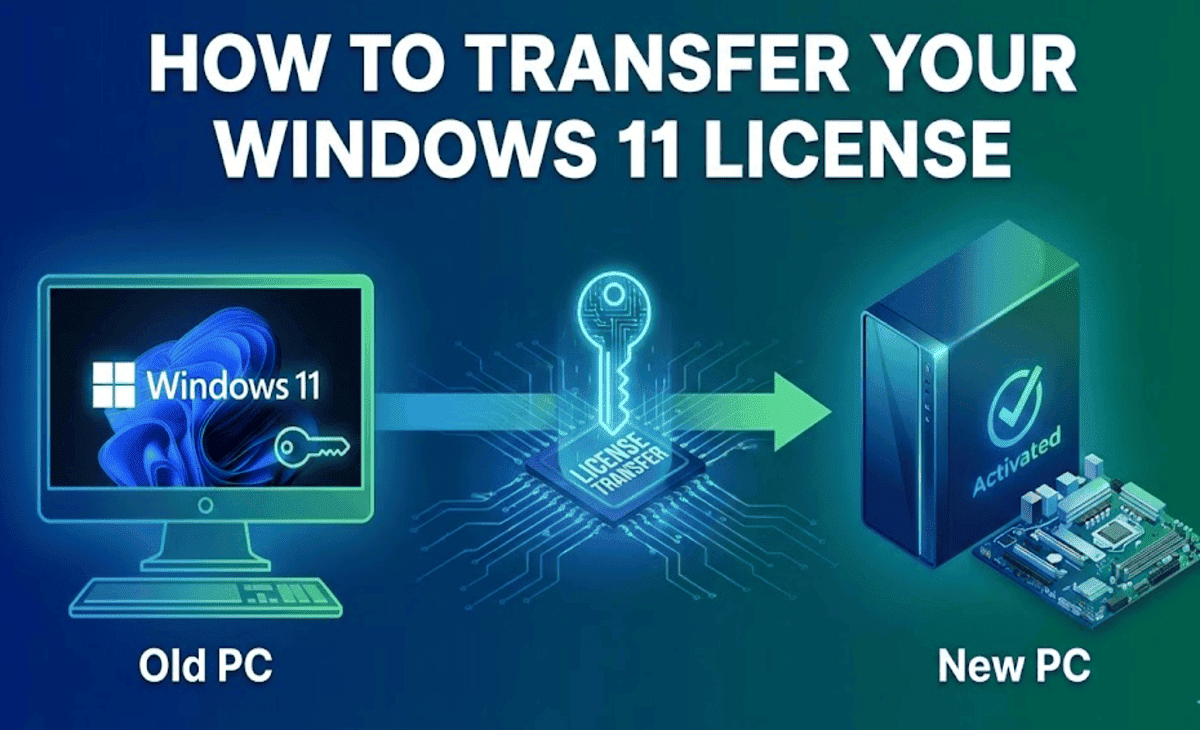
The good news is that transferring your Windows 11 licence is absolutely possible in most cases. This guide walks you through everything you need to know from understanding your licence type to completing the transfer successfully in clear, simple steps.
Understanding Your Windows 11 Licence Type
Before you attempt any transfer, you must first identify what type of Windows 11 licence you own. Not all licences are transferable, and using the wrong method can leave you with an unactivated system.
Retail Licence
A retail licence is the most flexible option. If you Buy Windows 11 as a standalone product either as a physical box or a digital licence from an authorized retailer you own a retail licence. This type can be transferred to a new PC or motherboard.
OEM Licence
An OEM (Original Equipment Manufacturer) licence comes pre-installed on a PC purchased from a manufacturer like Dell, HP, or Lenovo. This licence is permanently tied to the original device’s motherboard and cannot be legally transferred to a new machine.
Volume Licence
Volume licences are used by businesses and organisations managing multiple devices. These follow specific licensing agreements and are managed through Microsoft’s Volume Licensing Service Centre (VLSC). Transfer rules vary by agreement type.
Digital Licence (Linked to Microsoft Account)
A digital licence linked to your Microsoft account offers the most straightforward transfer process. If your Windows 11 licence is connected to your account, reactivation on new hardware is significantly easier.
Quick Check: Not sure which licence you have? Go to Settings > System > Activation to see your activation status and licence type.
Before You Start: Essential Preparation Steps
Taking a few minutes to prepare before your hardware upgrade can save hours of troubleshooting later.
- Link your licence to a Microsoft account if you haven’t already (covered in the next section)
- Note your Windows product key use a tool like ShowKeyPlus or ProduKey to retrieve it if needed
- Sign in to your Microsoft account on the current PC to verify the licence is registered
- Back up all important data before making any hardware changes
- Ensure a stable internet connection is available for reactivation
How to Link Your Windows 11 Licence to a Microsoft Account
Linking your licence to your Microsoft account before the hardware change makes reactivation much smoother. Here’s how:
- Open Settings from the Start menu
- Navigate to System > Activation
- Under “Activation state,” select Add a Microsoft account
- Sign in with your Microsoft account credentials
- Follow the on-screen prompts to link the licence
Once linked, your licence is stored in Microsoft’s servers under your account, making it retrievable from any compatible device.
Step-by-Step: How to Transfer Your Windows 11 Licence to a New PC
Step 1: Deactivate Windows on the Old PC
If you’re moving a retail digital licence, it’s best practice to deactivate it on the old machine first. Open Command Prompt as Administrator and type:
slmgr /upkThis removes the product key from the current installation. Then run:
slmgr /cpkyThis clears the key from the registry for added security.
Step 2: Install Windows 11 on the New PC
Download the official Windows 11 installation media from Microsoft’s website using the Media Creation Tool. Install Windows 11 on your new PC and skip the activation step for now by selecting “I don’t have a product key” during setup.
Step 3: Activate Using Your Product Key
Once Windows 11 is installed and running on the new machine:
- Go to Settings > System > Activation
- Select Change product key
- Enter your 25-character product key
- Click Next and follow the prompts
- Windows will connect to Microsoft’s servers to verify and activate
Step 4: Use the Activation Troubleshooter (If Needed)
If automatic activation fails, the built-in troubleshooter can help:
- Go to Settings > System > Activation
- Click Troubleshoot under the activation status
- Select I changed hardware on this device recently
- Sign in with the Microsoft account linked to your licence
- Select your current device from the list and click Activate
How to Transfer a Windows 11 Licence After a Motherboard Replacement
Replacing a motherboard is treated by Windows as a significant hardware change in some cases, it’s treated as an entirely new computer. Here’s what to do:
For Digital Licences Linked to a Microsoft Account
- After installing the new motherboard, boot into Windows 11
- If Windows shows as unactivated, go to Settings > System > Activation
- Click Troubleshoot
- Select I changed hardware on this device recently
- Sign in to your Microsoft account
- Choose the device you’re reactivating and click Activate
For Retail Licences with a Product Key
Follow the same Steps 3 and 4 from the previous section. Enter your product key and activate online.
For OEM Licences
Unfortunately, OEM licences cannot be transferred after a motherboard replacement since the licence is tied to the original board. In this case, you would need to purchase a new digital licence from an authorized provider.
Activating Windows 11 by Phone (Alternative Method)
If online activation isn’t working, Microsoft offers telephone activation as a fallback:
- Open Command Prompt as Administrator
- Type
slui 4and press Enter - Select your country/region
- Call the displayed Microsoft activation number
- Follow the automated system, providing your Installation ID when requested
- Enter the Confirmation ID provided by the automated system
- Windows 11 will activate successfully
Common Errors and How to Fix Them
Error Code: 0xC004C003 — “Activation Server Determined the Specified Product Key Has Been Blocked”
This typically means the key is invalid or has been flagged. Verify your key is legitimate and contact your provider or Microsoft Support.
Error Code: 0xC004F061 — “This Licence Requires a Qualifying OS”
This error appears when an upgrade licence is used on a clean installation. Ensure you’re upgrading from a qualifying previous Windows version.
Error Code: 0x803F7001 — “Windows Isn’t Activated”
This is a general activation failure usually caused by hardware changes. Use the Activation Troubleshooter and sign in to your Microsoft account to resolve it.
Error Code: 0xC004E016 — “The Product Key Is Invalid”
Double-check your product key for typos. Ensure the key matches your Windows 11 edition (Home vs. Pro). If purchased digitally, contact your provider for verification.
Windows Keeps Losing Activation After Restart
This can indicate a deeper system issue or an improperly removed previous installation. Run sfc /scannow in an elevated Command Prompt to repair system files.
Understanding Digital Licences and Legal Compliance
When purchasing a new Windows 11 digital licence for a replacement or upgrade, it’s important to buy from authorized and trustworthy sources only.
A legitimate digital licence will:
- Be delivered electronically from a verified reseller
- Activate successfully through Microsoft’s official servers
- Come with documentation or proof of purchase
- Include seller support in case of activation issues
- Comply fully with Microsoft’s End User Licence Agreement (EULA)
Avoid purchasing from unverified third-party marketplaces that offer suspiciously low prices. These often distribute OEM volume keys that may activate initially but become deactivated by Microsoft at a later date leaving your business or personal system non-compliant and unsupported.
Purchasing a genuine digital licence protects your data, ensures you receive regular security updates, and keeps your system fully compliant with software regulations.
Frequently Asked Questions
Can I transfer a Windows 11 OEM licence to a new PC?
No. OEM licences are permanently tied to the original device’s motherboard and cannot be legally transferred. You will need to purchase a new retail digital licence for your new machine.
Does replacing RAM or a GPU affect my Windows 11 licence?
Minor hardware changes like RAM or GPU upgrades generally don’t affect Windows activation. Motherboard or CPU replacements are the most likely to trigger reactivation requirements.
How many times can I transfer a retail Windows 11 licence?
A retail licence can be transferred multiple times, but it can only be active on one device at a time. You must deactivate it on the old device before activating it on a new one.
What if I don’t remember my Microsoft account password?
Use Microsoft’s account recovery process at account.microsoft.com to regain access. Once recovered, you can use the Activation Troubleshooter to reactivate Windows on your new hardware.
Can I use the same Windows 11 product key on two computers?
No. A standard retail or OEM licence permits activation on one device only. Using the same key on two computers simultaneously violates Microsoft’s licensing terms and will result in one or both devices becoming deactivated.
What’s the difference between a digital licence and a product key?
A product key is a 25-character alphanumeric code used to activate Windows. A digital licence is an activation method that doesn’t require a product key instead, it’s linked directly to your hardware or Microsoft account, allowing activation without manually entering a key.
Conclusion
Transferring your Windows 11 licence to a new PC or after a motherboard replacement is entirely manageable when you understand your licence type and follow the correct process. The key steps are simple: identify your licence type, link it to your Microsoft account before making changes, deactivate it on the old device, and reactivate it on the new hardware using the Activation Troubleshooter or your product key.
Planning ahead makes the entire process smooth and stress-free, ensuring your new system is fully activated, compliant, and ready for use from day one.
If you’re looking for a digital Windows licence with secure delivery and activation support, choose a trusted provider who offers genuine Microsoft products and comprehensive customer assistance.









