

Upgrading from Windows Home to Pro unlocks advanced features like BitLocker encryption, Remote Desktop, and enhanced security options, making it ideal for professionals and businesses. This step-by-step guide will walk you through checking your current Windows edition, upgrading to Pro using a generic key, and activating your new version. Follow these simple instructions to complete the upgrade seamlessly and enjoy the full benefits of Windows 11 Pro.
Table of Contents
Step 1: Verify Your Windows Edition
Before proceeding with the upgrade, check your current Windows edition:
- Press Win + I to open Settings.
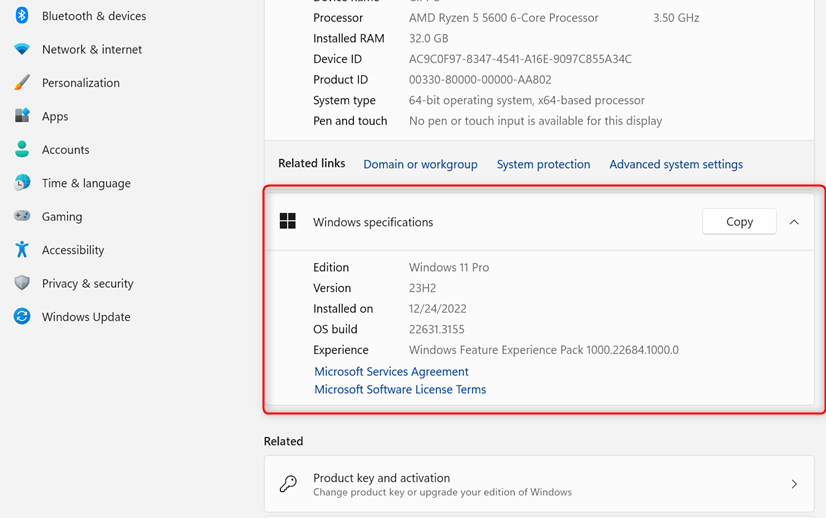
- Navigate to System > About.
- Under Windows specifications, find the Edition.
- If it displays Windows Home, you are eligible to upgrade to Pro.
Note: If you need to download Windows 10 or 11, select the appropriate option below.
Step 2: Upgrade to Windows Pro
If your device is running Windows Home, follow these steps to upgrade:
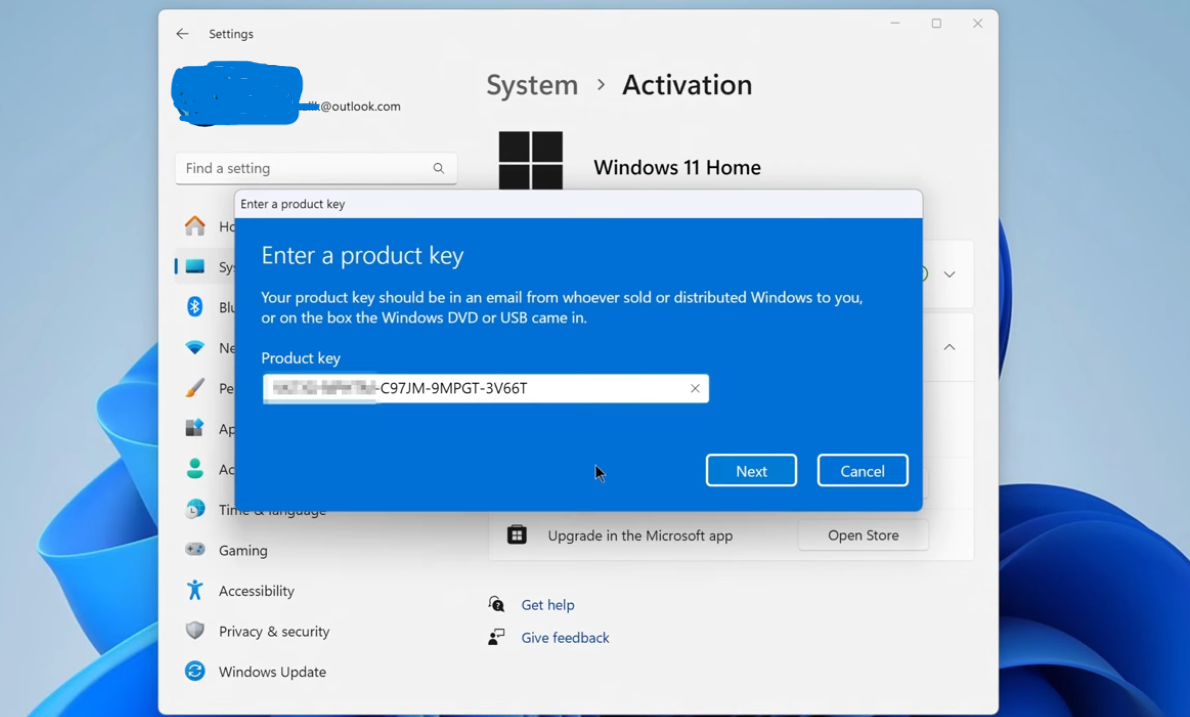
- Open Settings > System > Activation.
- Click on Change product key or Upgrade your edition of Windows.
- Enter one of the generic upgrade keys provided by Microsoft:
VK7JG-NPHTM-C97JM-9MPGT-3V66T(Windows 11 Pro)W269N-WFGWX-YVC9B-4J6C9-T83GX(Windows 10 Pro)
- Click Next, then select Start Upgrade.
- Wait while your system upgrades to Windows Pro. Your PC may restart several times during this process.
Important: The generic keys mentioned above are official Microsoft upgrade keys that allow you to upgrade your edition but do not activate Windows. You will need a valid license key for activation in the next step.
Step 3: Activate Windows Pro
Once the upgrade is complete, activate your new edition:
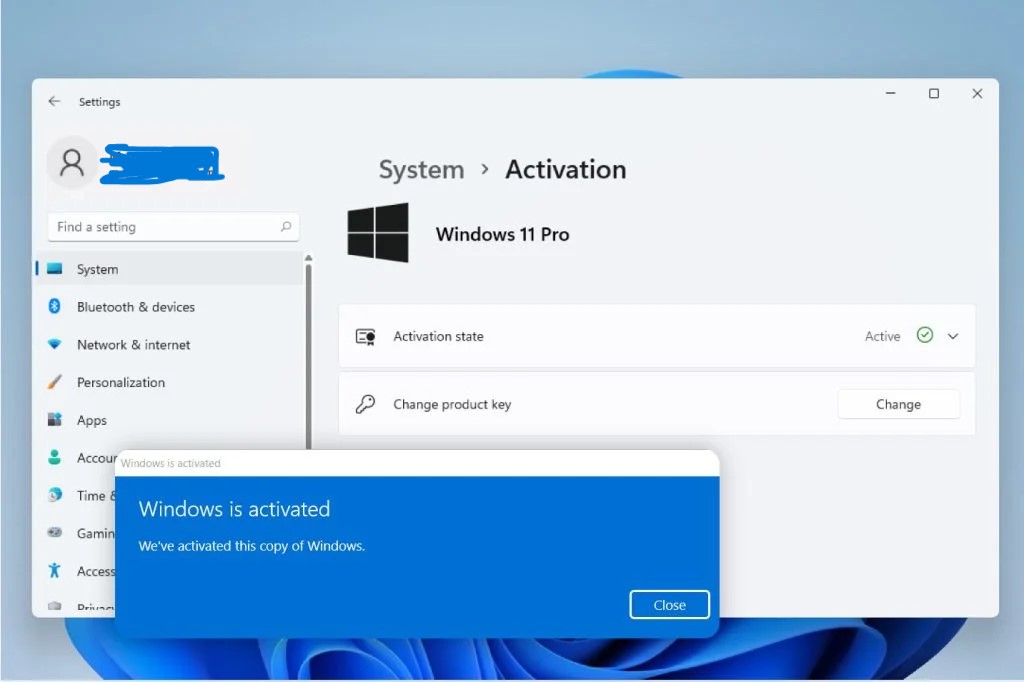
- Return to Settings > System > Activation.
- Click on Change product key.
- Enter your valid Windows Pro license key.
- Click Next and then Activate to complete the process.
- Restart your PC to apply the changes and fully activate Windows Pro.
What’s New in Windows Pro?
After upgrading, you’ll have access to:
- BitLocker Drive Encryption – Protect your data with full-disk encryption
- Remote Desktop – Access your PC from anywhere
- Group Policy Management – Advanced system configuration options
- Windows Sandbox – Run applications in an isolated environment
- Hyper-V – Create and manage virtual machines
- Assigned Access – Configure devices for single-purpose use
Troubleshooting and Activation Support
If you experience any issues during activation or need assistance, our support team is here to help. Reach out to us anytime via at https://digitlogs.com/contact-us/ or email us at [email protected]. We’re available 24/7 to ensure a smooth setup process.
Frequently Asked Questions (FAQ)
Q: Will the upgrade process delete any of my personal files or installed programs?
A: No. The entire process is a non-destructive, in-place upgrade. All your documents, photos, and installed applications will remain fully intact.
Q: Why do I need two separate keys (Generic and Purchased)?
A: The Generic Key is necessary to trigger the edition switch in the operating system files. Your Purchased Key is necessary for the final legal activation with Microsoft’s servers. Using the purchased key first often leads to server rejection due to the initial edition mismatch.
Q: How long does the entire upgrade take?
A: Typically, the whole process, including the mandatory single reboot, takes less than 15 to 20 minutes from start to finish.
Q: What is the recommended minimum free disk space for the upgrade?
A: While the process is small, it’s generally recommended to have at least 20 GB of free disk space to allow the system ample room for file unpacking and temporary updates during the conversion phase.









