
Introduction
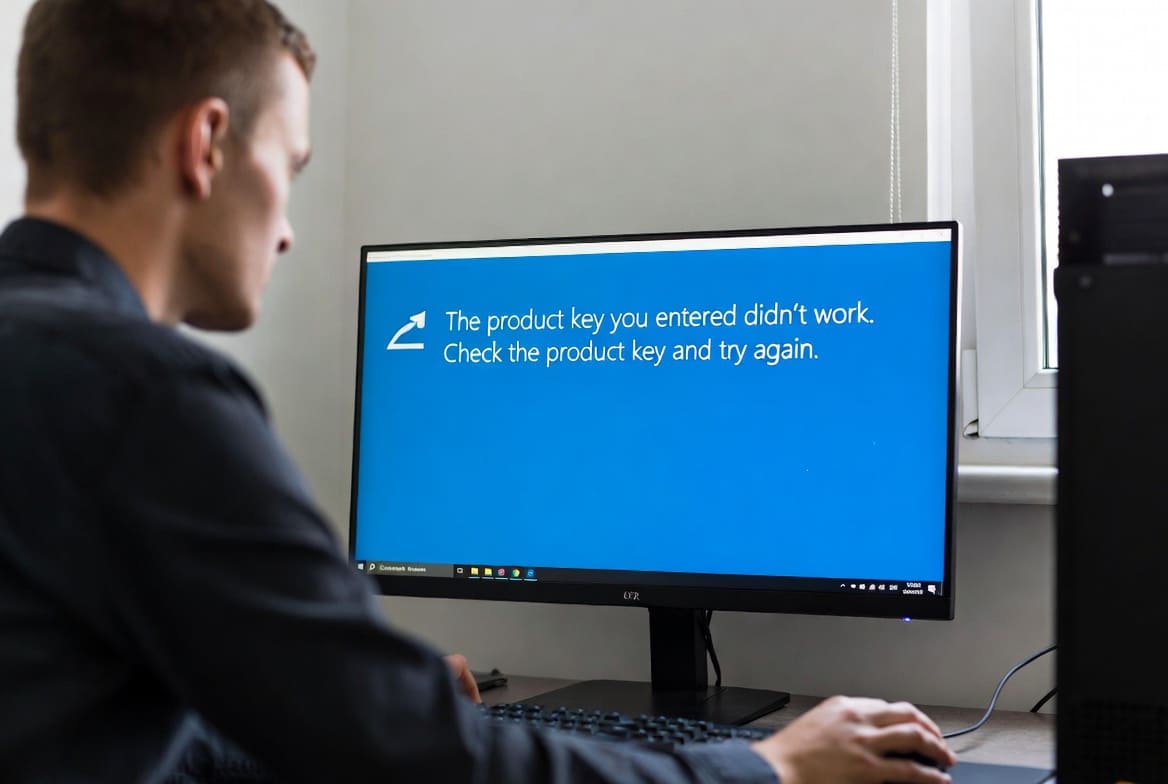
Few errors are more frustrating during Windows Server 2022 installation or activation than seeing “The product key you entered didn’t work” after carefully entering your 25-character licence key. This message appears during setup or when attempting post-installation activation, blocking you from completing deployment and putting your server infrastructure project on hold.
This error doesn’t always mean your product key is invalid or incorrect. Multiple factors can trigger this message, including edition mismatches where your key doesn’t correspond to the Windows Server edition you’re installing, regional restrictions on certain licence types, connectivity problems preventing key validation with Microsoft’s servers, or incorrect key entry with easily confused characters. Understanding the specific cause helps you apply the right solution quickly.
For IT administrators managing enterprise server infrastructure, activation problems create cascading delays affecting project timelines, application deployments, and business operations. Whether you’re deploying a single server or managing large-scale infrastructure rollouts, knowing how to diagnose and resolve product key errors systematically minimises downtime and maintains deployment schedules.
This comprehensive guide walks you through understanding why Windows Server 2022 rejects product keys, provides systematic troubleshooting to identify your specific issue, offers proven solutions for different license types and scenarios, and ensures proper activation that maintains licensing compliance and operational functionality.
Understanding Windows Server 2022 Product Keys
Before troubleshooting, understanding different Windows Server licence types and their corresponding keys helps identify the root cause.
Types of Windows Server 2022 Licences
Retail Licences: Purchased individually from Microsoft or authorized retailers for single-server use. These include unique 25-character product keys and can transfer between servers.
OEM Licences: Pre-installed on new servers by manufacturers. OEM keys are tied to the original hardware and typically printed on a Certificate of Authenticity label attached to the server.
Volume Licences: Purchased by organizations through Microsoft Volume Licensing programs (Open License, Select, Enterprise Agreement). Volume licensing uses two activation methods:
Generic Volume License Keys (GVLK): Pre-installed keys that activate through Key Management Service (KMS) or Multiple Activation Key (MAK) systems rather than direct Microsoft activation.
Multiple Activation Keys (MAK): Specific keys for volume licensing that activate directly with Microsoft’s servers, tracking activation count against the purchased quantity.
Evaluation Keys: Free 180-day evaluation licences for testing purposes. These convert to fully licensed installations by entering a retail or volume licence key before expiration.
Edition-Specific Product Keys
Windows Server 2022 comes in multiple editions, and product keys are edition-specific:
Windows Server 2022 Standard: For servers with limited virtualization needs (2 VMs per licence).
Windows Server 2022 Datacenter: For highly virtualized environments (unlimited VMs per physical server).
Windows Server 2022 Essentials: Designed for small businesses (up to 25 users, 50 devices).
Critical Point: A Standard product key will NOT activate Datacenter edition and vice versa. The key must match the exact edition you’re installing.
Common Reasons Keys Are Rejected
Edition Mismatch: The most common cause using a Standard key when installing Datacenter, or vice versa.
Already Used Keys: The product key has reached its activation limit. Retail keys typically allow one activation; volume MAK keys have specific activation counts.
Regional Restrictions: Some keys are region-locked and won’t activate in different geographical regions.
Invalid or Counterfeit Keys: Keys from unauthorized sources may be invalid, already blocked, or not genuine Microsoft keys.
Character Entry Errors: Simple typos or character confusion (0 vs O, 1 vs I vs l) during manual entry.
Expired Evaluation Period: Attempting to activate an expired evaluation installation with an evaluation key.
Key Type Wrong for Activation Method: Using a retail key on a system configured for KMS activation, or attempting to activate a GVLK manually.
Initial Diagnostic Steps
Start with basic diagnostics to identify the specific problem affecting your activation.
Verify Your Windows Server Edition
Before attempting activation, confirm which edition you’ve installed:
During Installation:
Step 1: During Windows Server setup, the edition selection screen shows available options.
Step 2: Verify you selected the correct edition matching your product key (Standard, Datacenter, or Essentials).
Step 3: Note whether you selected “Desktop Experience” or “Server Core” (both use the same product key, so this distinction doesn’t affect activation).
After Installation:
Step 1: Open Command Prompt as administrator.
Step 2: Run this command to display edition information:
DISM /online /Get-CurrentEditionStep 3: The output shows your current edition (e.g., “ServerStandard” or “ServerDatacenter”).
Step 4: Verify this matches your product key’s edition.
Step 5: To see all possible edition targets for changing editions:
DISM /online /Get-TargetEditionsCheck Product Key Validity
Verify your product key meets basic validity requirements:
Character Count: Ensure the key contains exactly 25 characters in five groups of five (XXXXX-XXXXX-XXXXX-XXXXX-XXXXX).
Character Set: Valid keys use only uppercase letters A-Z and numbers 0-9. No special characters, lowercase letters, or spaces except the hyphens separating groups.
Common Confusion: These characters are often confused:
- 0 (zero) vs O (letter O)
- 1 (one) vs I (letter i) vs l (lowercase L)
- 5 vs S
- 8 vs B
Documentation Review: Cross-reference the key against your purchase documentation, email confirmation, or Certificate of Authenticity label to ensure accuracy.
Verify Internet Connectivity
Product key validation requires communication with Microsoft’s activation servers:
Step 1: Ensure your server has active internet connectivity.
Step 2: Test connectivity to Microsoft activation servers:
ping activation.sls.microsoft.comStep 3: Successful ping responses indicate basic connectivity. Failures suggest network, firewall, or DNS problems.
Step 4: For servers behind firewalls, ensure these outbound connections are allowed:
- TCP port 443 (HTTPS) to activation.sls.microsoft.com
- TCP port 80 (HTTP) for legacy activation methods
Step 5: Test from a web browser by visiting microsoft.com to confirm general internet access works.
Check Activation Status
View current activation status to understand your starting point:
Step 1: Open Command Prompt as administrator.
Step 2: Check basic activation status:
slmgr.vbs /dliStep 3: Review the displayed information:
- Name: Shows Windows edition name
- Description: Indicates licence type (Retail, OEM, Volume)
- License Status: Current state (Licensed, Grace Period, etc.)
Step 4: Get detailed activation information:
slmgr.vbs /dlvStep 5: Look for:
- Product Key Channel (Retail, OEM, Volume:GVLK, Volume:MAK)
- Partial Product Key (last 5 characters)
- Activation ID and Application ID
- Any error messages or codes
This information helps identify whether the system expects a specific type of key.
Solution 1: Verify Edition and Install Correct Media
The most common cause of key rejection is edition mismatch. Ensure you’re installing the edition matching your product key.
Identifying Your Key’s Edition
Check Purchase Documentation: Your invoice, email confirmation, or Certificate of Authenticity should explicitly state the edition (Standard, Datacenter, or Essentials).
Retail Packaging: If you purchased physical media, the box clearly indicates the edition.
Volume Licensing Service Center: Organizations with volume licensing can verify key details in the VLSC portal at microsoft.com/licensing/servicecenter.
Contact Vendor: If uncertain, contact your Microsoft reseller or licensing provider to confirm your key’s edition.
Reinstalling with Correct Edition
If you installed the wrong edition:
Step 1: Back up any data or configuration if you’ve already started working on the server.
Step 2: Obtain Windows Server 2022 installation media for the correct edition.
Step 3: Boot from installation media and reinstall Windows Server.
Step 4: During setup, carefully select the edition matching your product key:
- Windows Server 2022 Standard
- Windows Server 2022 Datacenter
- Windows Server 2022 Essentials
Step 5: Complete installation and enter your product key when prompted.
Step 6: If the key works during installation, you’ve confirmed edition mismatch was the issue.
Using DISM to Change Editions (If Possible)
Some edition changes are possible post-installation without reinstalling:
Upgrade from Standard to Datacenter:
Step 1: Ensure you have a valid Datacenter product key.
Step 2: Open Command Prompt as administrator.
Step 3: Change the edition:
DISM /online /Set-Edition:ServerDatacenter /ProductKey:XXXXX-XXXXX-XXXXX-XXXXX-XXXXX /AcceptEulaStep 4: Replace the X’s with your actual Datacenter key.
Step 5: Restart when prompted.
Step 6: After restart, verify the edition changed:
DISM /online /Get-CurrentEditionNote: You can upgrade from Standard to Datacenter but cannot downgrade from Datacenter to Standard using this method.
Solution 2: Enter Product Key Through Command Line
When the graphical activation interface rejects your key, using command-line activation often succeeds.
Using slmgr.vbs for Activation
Step 1: Open Command Prompt as administrator.
Step 2: Install the product key:
slmgr.vbs /ipk XXXXX-XXXXX-XXXXX-XXXXX-XXXXXReplace the X’s with your actual product key.
Step 3: Wait for the confirmation dialog indicating the product key was installed successfully.
Step 4: Activate Windows:
slmgr.vbs /atoStep 5: Wait for the activation process to complete. You should see a message indicating successful activation.
Step 6: Verify activation status:
slmgr.vbs /dliStep 7: Confirm “License Status: Licensed” appears.
Why Command Line Works When GUI Fails
The command-line method bypasses certain GUI validation checks and communicates more directly with the Software Protection service. It also provides more detailed error messages if activation fails, helping diagnose specific issues.
Interpreting Error Codes
If command-line activation fails, note the error code displayed:
0xC004F050: Product key is invalid for this edition 0xC004C003: Activation server reported the key is blocked 0xC004C008: Activation server reported the key has been blocked for this specific product 0xC004C020: Multiple Activation Key has exceeded its limit 0xC004F074: Cannot contact Key Management Service (for GVLK keys)
These specific error codes point to precise problems requiring targeted solutions.
Solution 3: Resolve Volume Licensing Activation Issues
Volume licensed servers use different activation methods that require specific configuration.
Understanding GVLK Keys
Generic Volume License Keys are pre-configured keys that don’t activate directly with Microsoft. They’re designed to work with:
Key Management Service (KMS): An organizational server that provides local activation for volume licensed clients.
Multiple Activation Key (MAK): Direct activation with Microsoft’s servers using a key that tracks activation count.
GVLK Identification: If you see “Volume:GVLK” in your activation status, your server is configured for KMS activation.
Configuring KMS Activation
If your organization uses KMS:
Step 1: Obtain your KMS server hostname or IP address from your IT department.
Step 2: Open Command Prompt as administrator.
Step 3: Configure the KMS server:
slmgr.vbs /skms kms-server.yourdomain.com:1688Replace with your actual KMS server address.
Step 4: Activate using KMS:
slmgr.vbs /atoStep 5: Verify activation:
slmgr.vbs /dliStep 6: You should see “License Status: Licensed” with KMS activation details.
Troubleshooting KMS Connectivity:
If KMS activation fails:
- Verify network connectivity to the KMS server
- Ensure firewall allows TCP port 1688
- Check that the KMS server is running and properly activated
- Verify DNS SRV records for automatic KMS discovery
Using Multiple Activation Keys (MAK)
If your organization uses MAK instead of KMS:
Step 1: Ensure you have the correct MAK product key (not GVLK).
Step 2: Install the MAK:
slmgr.vbs /ipk YOUR-MAK-KEYStep 3: Activate online with Microsoft:
slmgr.vbs /atoStep 4: If online activation fails due to firewall restrictions, use phone activation:
slui.exe 4Step 5: Follow the phone activation wizard to complete activation.
MAK Activation Limits:
Each MAK has a specific activation count. If you receive error 0xC004C020 (exceeded activation limit), contact your licensing administrator to:
- Verify activation count hasn’t been exhausted
- Request additional activations if needed
- Potentially issue a new MAK if the current one is depleted
Solution 4: Fix Character Entry and Typo Issues
Simple character confusion or typos frequently cause key rejection. Systematic verification eliminates these common errors.
Character Confusion Prevention
Problem Characters:
Zero vs Letter O: 0 (zero) and O (letter O) look identical in many fonts. Keys use only one or the other, never mixed.
One vs I vs lowercase L: 1 (one), I (capital i), and l (lowercase L) appear similar. Windows keys use only numbers and uppercase letters, so lowercase L never appears.
Five vs S: In some fonts, 5 and S look similar. Verify which your key uses.
Eight vs B: Less common but still confusing in certain fonts.
Systematic Key Verification
Step 1: Locate your original product key documentation (email, Certificate of Authenticity, VLSC portal).
Step 2: Create a text file and carefully type the product key from the original source.
Step 3: Review each character individually, comparing against the source.
Step 4: For ambiguous characters, try both possibilities systematically if verification against source is impossible.
Step 5: Copy the verified key from the text file and paste it into the activation interface or command prompt.
Step 6: Using copy-paste eliminates re-entry errors that cause character mistakes.
Using Copy-Paste for Activation
GUI Activation:
Step 1: Open Settings > System > Activation.
Step 2: Click “Change product key.”
Step 3: Paste your verified key into the field.
Step 4: Click Next to activate.
Command Line Activation:
Step 1: Open Command Prompt as administrator.
Step 2: Type slmgr.vbs /ipk (note the space after /ipk).
Step 3: Right-click and paste your verified key.
Step 4: Press Enter to execute.
Copy-paste eliminates manual typing errors that cause character confusion.
Solution 5: Address Regional and Licensing Restrictions
Some product keys have geographical or usage restrictions that prevent activation in certain situations.
Regional Key Restrictions
Certain volume licence keys are region-specific:
Geographic Locking: Some keys purchased through regional licensing programs only activate in specific countries or regions.
Symptoms: The key appears valid but activation fails with errors indicating geographical restrictions.
Verification: Check with your licensing provider or Volume Licensing Service Center to confirm key geography.
Solutions:
- If deploying in a different region, obtain keys appropriate for that location
- Contact Microsoft licensing support to verify whether your key has regional restrictions
- For global organizations, ensure you use appropriate keys for each deployment region
Evaluation to Production Conversion Issues
Converting evaluation installations to fully licensed systems sometimes encounters problems:
Evaluation Status Check:
Step 1: Verify whether your installation is evaluation:
slmgr.vbs /dliStep 2: If Description shows “EVAL” or mentions evaluation, you have an evaluation installation.
Converting Evaluation to Licensed:
Step 1: Ensure your installation hasn’t exceeded the 180-day evaluation period.
Step 2: Install your retail or volume licence key:
slmgr.vbs /ipk YOUR-PRODUCT-KEYStep 3: Activate immediately:
slmgr.vbs /atoStep 4: Verify the evaluation status is removed:
slmgr.vbs /dliExpired Evaluation Installations:
If the evaluation period expired before entering a valid key:
- Some features may be restricted
- You may need to reinstall Windows Server with proper licensing media
- Contact Microsoft support for guidance on recovering expired evaluation systems
OEM Key Activation on Different Hardware
OEM keys are permanently tied to the original hardware:
Hardware Binding: OEM licences activate only on the specific server where originally installed or purchased.
Symptom: OEM key works on the original server but fails when attempting to use it on different hardware.
Verification: Check your licence documentation to determine if it’s OEM or retail.
Solutions:
- For hardware changes, OEM licences cannot transfer; purchase new licensing for the replacement server
- Retail licences can transfer between servers after deactivating on the original hardware
- For organizations with volume licensing, MAK keys provide flexibility for hardware changes
Solution 6: Use Phone Activation for Connectivity Issues
When internet connectivity prevents online activation, phone activation provides an alternative method.
When Phone Activation Is Needed
Network Restrictions: Servers in secured environments where internet access is blocked or restricted.
Firewall Limitations: Organizational firewalls preventing activation server communication.
Offline Systems: Servers in isolated environments without network connectivity.
Failed Online Activation: When online activation repeatedly fails despite valid keys and correct configuration.
Phone Activation Process
Step 1: Open Command Prompt as administrator.
Step 2: Launch the phone activation interface:
slui.exe 4Step 3: The Windows activation by phone wizard opens.
Step 4: Select your country/region from the dropdown menu.
Step 5: Click “Next” to see the toll-free activation phone number for your region.
Step 6: Call the displayed number using a phone.
Step 7: The automated system prompts you to enter an installation ID.
Step 8: The installation ID is displayed on your screen in groups of numbers.
Step 9: Use your phone keypad to enter each group of numbers when prompted.
Step 10: After entering all groups, the automated system provides a confirmation ID.
Step 11: Write down all confirmation ID numbers carefully.
Step 12: Return to your computer and enter the confirmation ID in the wizard.
Step 13: Click “Activate Windows” to complete activation.
Step 14: Verify activation succeeded:
slmgr.vbs /dliPhone Activation Troubleshooting
Invalid Installation ID: If the automated system reports your installation ID is invalid, verify you entered all digits correctly and try again.
Cannot Reach Automated System: If the phone number doesn’t connect, check that you selected the correct country/region and verify the number is dialed correctly with any required international prefixes.
Confirmation ID Not Working: Ensure you recorded all confirmation ID digits accurately and entered them exactly as provided.
Transfer to Agent: If the automated system cannot complete activation, it may transfer you to a Microsoft activation agent who can assist manually.
Solution 7: Clear Activation Cache and Reset Licensing State
Corrupted activation data sometimes prevents valid keys from working. Resetting the licensing state resolves these issues.
Backing Up Current State
Before resetting licensing state, document current configuration:
Step 1: Record current activation status:
slmgr.vbs /dlv > activation-backup.txtStep 2: This saves detailed licensing information to a text file for reference.
Clearing Activation Tokens
Step 1: Open Command Prompt as administrator.
Step 2: Stop the Software Protection service:
net stop sppsvcStep 3: Navigate to the licensing tokens directory:
cd %windir%\system32\spp\store\2.0Step 4: Rename the tokens.dat file to preserve it:
ren tokens.dat tokens.dat.oldStep 5: Delete cache folder contents:
cd cache
del /q *.*
cd ..
Step 6: Restart the Software Protection service:
net start sppsvcStep 7: Install your product key fresh:
slmgr.vbs /ipk YOUR-PRODUCT-KEYStep 8: Attempt activation:
slmgr.vbs /atoThis process creates fresh licensing state, often resolving persistent key rejection issues.
Rearm Activation (Last Resort)
Windows Server allows limited rearms that reset the grace period:
Warning: Windows Server provides only a limited number of rearms (typically 3-6). Use this sparingly as a last resort.
Step 1: Check remaining rearm count:
slmgr.vbs /dlvLook for “Remaining Windows rearm count.”
Step 2: If rearms remain, execute:
slmgr.vbs /rearmStep 3: Restart the server when prompted.
Step 4: After restart, install your product key:
slmgr.vbs /ipk YOUR-PRODUCT-KEYStep 5: Activate:
slmgr.vbs /atoRearming provides additional grace period time to resolve activation problems while keeping your server functional.
Verifying Activation and Ensuring Compliance
After successfully activating Windows Server 2022, verify proper activation and maintain compliance.
Confirming Successful Activation
Step 1: Open Command Prompt as administrator.
Step 2: Check activation status:
slmgr.vbs /dliStep 3: Verify you see:
- License Status: Licensed
- Activation expiration: (No expiration for permanent activation, or next renewal date for KMS)
Step 4: Check detailed information:
slmgr.vbs /dlvStep 5: Confirm all details are correct:
- Name shows correct Windows Server edition
- Description indicates proper licence channel
- No error messages or warnings
Step 6: Restart the server to ensure activation persists after reboot.
Step 7: After restart, verify activation status remains “Licensed.”
GUI Verification
Step 1: Open Settings.
Step 2: Navigate to System > Activation.
Step 3: Confirm you see “Windows is activated” with your edition displayed.
Step 4: No activation watermarks should appear on the desktop.
Step 5: Full functionality should be available without restrictions.
Documentation for Compliance
Maintain Records:
- Product key used for activation
- Purchase documentation showing legitimate acquisition
- Activation date and method (retail, MAK, KMS)
- Server inventory showing physical hardware details
- Licence assignment records
Regular Verification:
- Periodically check activation status remains valid
- For KMS activation, ensure servers can reach KMS hosts
- Monitor for any activation expiration warnings
- Document any activation changes or troubleshooting
Proper documentation ensures compliance during potential audits and simplifies future troubleshooting or server migrations.
Preventing Future Product Key Issues
Implementing preventive measures minimizes activation problems with future deployments.
Best Practices for Key Management
Secure Storage: Store product keys in password managers, secure documentation systems, or encrypted storage accessible only to authorized IT staff.
Key Mapping: Maintain a mapping document showing which keys are used for which servers, including purchase dates and activation methods.
Licence Tracking: Use software asset management tools to track server licences, activation status, and compliance across your infrastructure.
Verification Before Purchase: When purchasing additional licences, verify edition, region, and licence type match your requirements.
Authorized Vendors: Purchase only from Microsoft or authorized resellers to ensure valid, legitimate product keys.
Deployment Automation
For organizations deploying multiple servers:
Answer Files: Use unattended installation answer files (autounattend.xml) that include correct product keys for automated deployment.
Configuration Management: Tools like System Center Configuration Manager or PowerShell DSC can standardize server deployment including proper licensing and activation.
Testing: Test new product keys on a single server before deploying across multiple systems to verify they work correctly.
Documentation: Maintain deployment runbooks documenting correct procedures, edition selection, and activation methods.
Volume Licensing Management
For organizations using volume licensing:
KMS Infrastructure: Maintain reliable, highly available KMS hosts for consistent activation across volume licensed servers.
MAK Tracking: Monitor MAK activation counts to ensure sufficient capacity remains before exhausting key limits.
License Reconciliation: Regularly reconcile deployed servers against purchased volume licences to maintain compliance.
Software Assurance: Consider Software Assurance for enhanced rights and benefits including version upgrades and licence mobility.
Frequently Asked Questions (FAQs)
Can I use a Windows Server 2019 product key to activate Windows Server 2022?
No, Windows Server product keys are version-specific. A Windows Server 2019 key will not activate Windows Server 2022. Each major Windows Server version requires its own corresponding product key. If you have Software Assurance on your Windows Server 2019 licences, you’re entitled to upgrade to Windows Server 2022 at no additional cost by accessing new product keys through the Volume Licensing Service Center. Contact your Microsoft licensing provider to obtain appropriate Windows Server 2022 keys.
Why does my product key work on one server but not another?
Several factors can cause this situation. Retail and OEM keys typically allow only one active installation—if the key is already activated on one server, it won’t work on another until deactivated from the first. The servers might be running different Windows Server editions (one Standard, one Datacenter), and the key only matches one edition. Hardware differences, particularly for OEM keys permanently tied to original hardware, prevent the same key from working on different servers. Network or firewall configurations might differ between servers, affecting one server’s ability to communicate with activation servers.
What should I do if I lost my product key?
For retail purchases, check your email confirmation, Microsoft account at account.microsoft.com under Services & subscriptions, or the Certificate of Authenticity if you purchased physical media. For OEM systems, look for the Certificate of Authenticity label physically attached to the server. For volume licensing, access the Volume Licensing Service Center at microsoft.com/licensing/servicecenter with your organizational credentials. If you still cannot locate the key, contact Microsoft support with proof of purchase—they may be able to help recover or reissue your key.
Can I change from Standard to Datacenter edition after activation?
Yes, you can upgrade from Windows Server 2022 Standard to Datacenter edition using the DISM command with a valid Datacenter product key. This performs an in-place edition upgrade without reinstallation, preserving all data, configurations, and applications. However, you cannot downgrade from Datacenter to Standard using this method—downgrades require reinstallation. The edition upgrade requires purchasing appropriate Datacenter licensing for your server’s core count before performing the conversion to maintain compliance.
How many times can I activate Windows Server with the same product key?
This depends entirely on your licence type. Retail licences typically allow one active installation but can be transferred between servers after deactivating from the original. OEM licences are permanently tied to the original hardware and cannot transfer to different servers. Volume licensing MAK keys have specific activation counts purchased with the licence—anywhere from 5 to thousands of activations depending on the agreement. KMS activation doesn’t consume activations per se—clients periodically renew with the KMS host. Check your specific licence agreement or contact your vendor to determine your key’s activation allowance.
Will my server stop working if activation fails?
No, Windows Server 2022 doesn’t immediately stop functioning if activation fails. You enter a grace period during which the server operates normally but displays activation reminders. The grace period typically lasts 180 days for retail and volume licences. During this time, you can troubleshoot and resolve activation issues without service interruption. However, you should resolve activation promptly to maintain compliance, ensure full functionality, and receive all updates. After the grace period expires, some features may become restricted, though critical services generally continue operating.
Conclusion
“The product key you entered didn’t work” errors on Windows Server 2022 stem from various causes, but systematic troubleshooting identifies and resolves the specific issue affecting your installation. Edition mismatches, where your product key doesn’t correspond to the Windows Server edition you’re installing, represent the most common cause and are easily corrected by reinstalling the matching edition or using DISM to upgrade Standard to Datacenter.
Character entry errors, volume licensing configuration issues, network connectivity problems, and regional restrictions each require targeted solutions ranging from careful key verification to proper KMS configuration to phone activation workarounds. Understanding your licence type—retail, OEM, volume MAK, or volume GVLK determines which troubleshooting approaches apply to your situation and ensures you use appropriate activation methods.
The command-line activation tools (slmgr.vbs) often succeed where graphical interfaces fail, providing more direct communication with the Software Protection service and clearer error messages for diagnosis. For persistent issues, clearing activation cache, resetting licensing state, or using phone activation provides alternative paths to successful activation when standard methods encounter obstacles.
Proper licence management through secure key storage, accurate documentation, and regular compliance verification prevents future activation problems while ensuring your organization maintains proper licensing compliance. For volume licensed environments, maintaining reliable KMS infrastructure or tracking MAK activation counts provides the foundation for smooth, consistent server deployments.
Remember that valid product keys from legitimate sources should activate successfully when correctly matched to edition and properly configured for your activation method. If you’ve exhausted troubleshooting options with a key you believe is valid, contact Microsoft support with your purchase documentation they can verify key authenticity, check for backend issues, and provide assistance specific to your licensing situation.
For organizations planning Windows Server infrastructure and needing legitimate Windows Server 2022 digital licences, work with trusted Microsoft partners or authorized resellers who provide proper licensing documentation, activation support, and guidance ensuring compliant deployments that activate successfully from the start.