
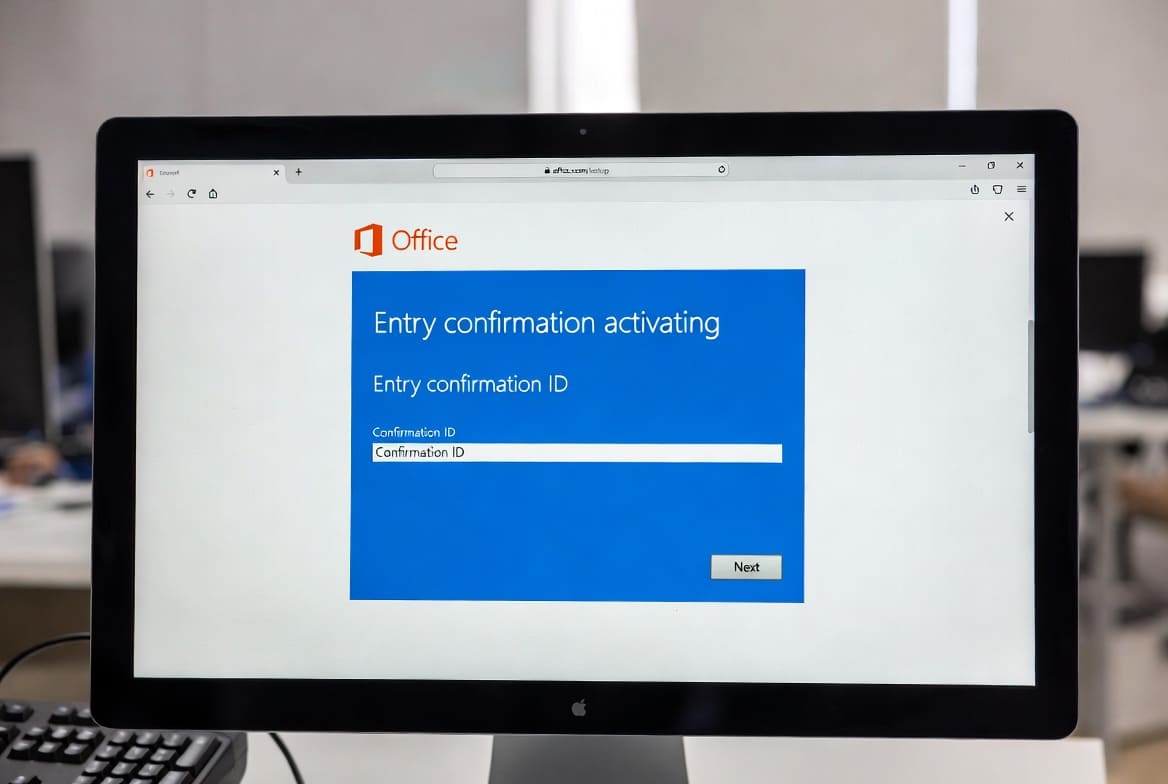
Microsoft offers several choices to activate your office (online or by phone). In this article, we will help you to activate properly any office by choosing “activation by phone” choice.
Before you start activation, make sure to install the office from the official online setup link or from a offline setup direct link and open excel or word or any other office app.
Follow these steps to generate your Confirmation ID (CID) using the Microsoft Visual Support portal.
Step 1: Generate your Installation ID (IID)
Open any Office application (like Word or Excel).

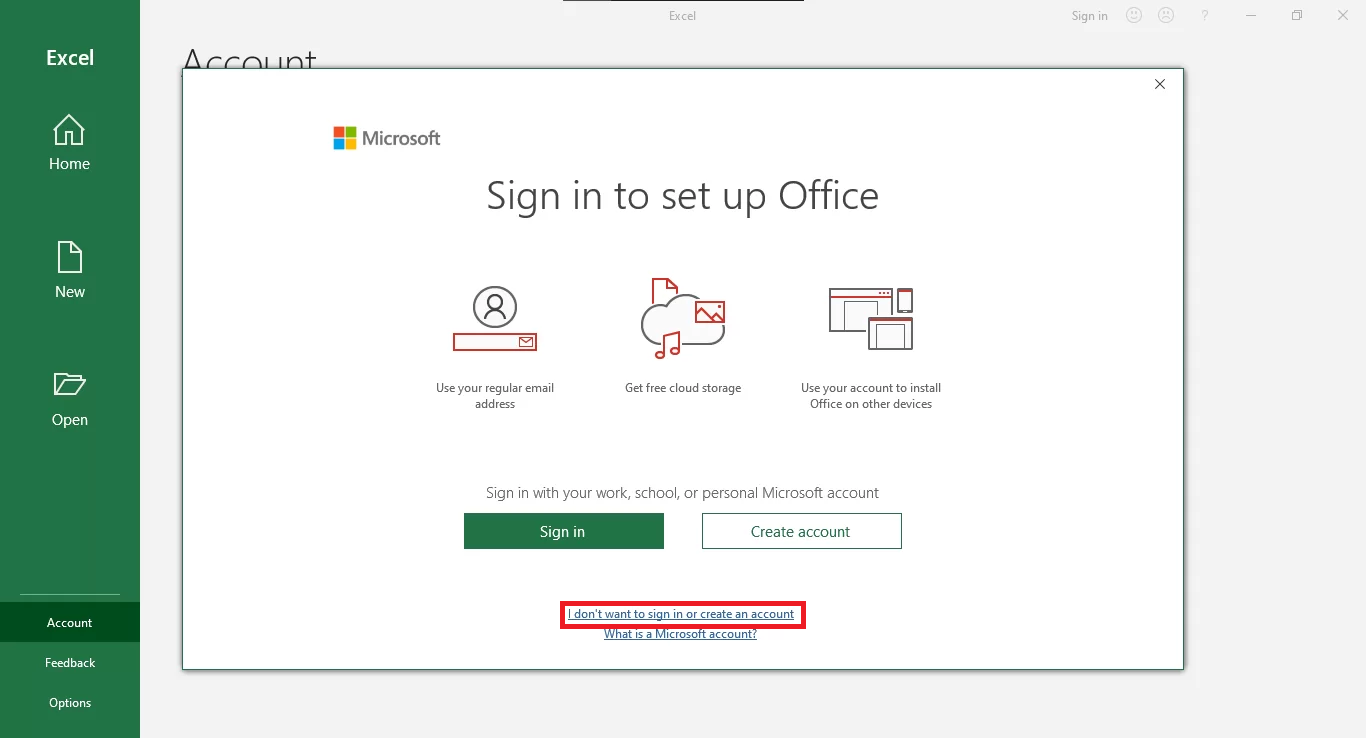
Click “I don’t want to sign in or create an account” to save time or if you want, you can sign in to your Microsoft account or create a new one.
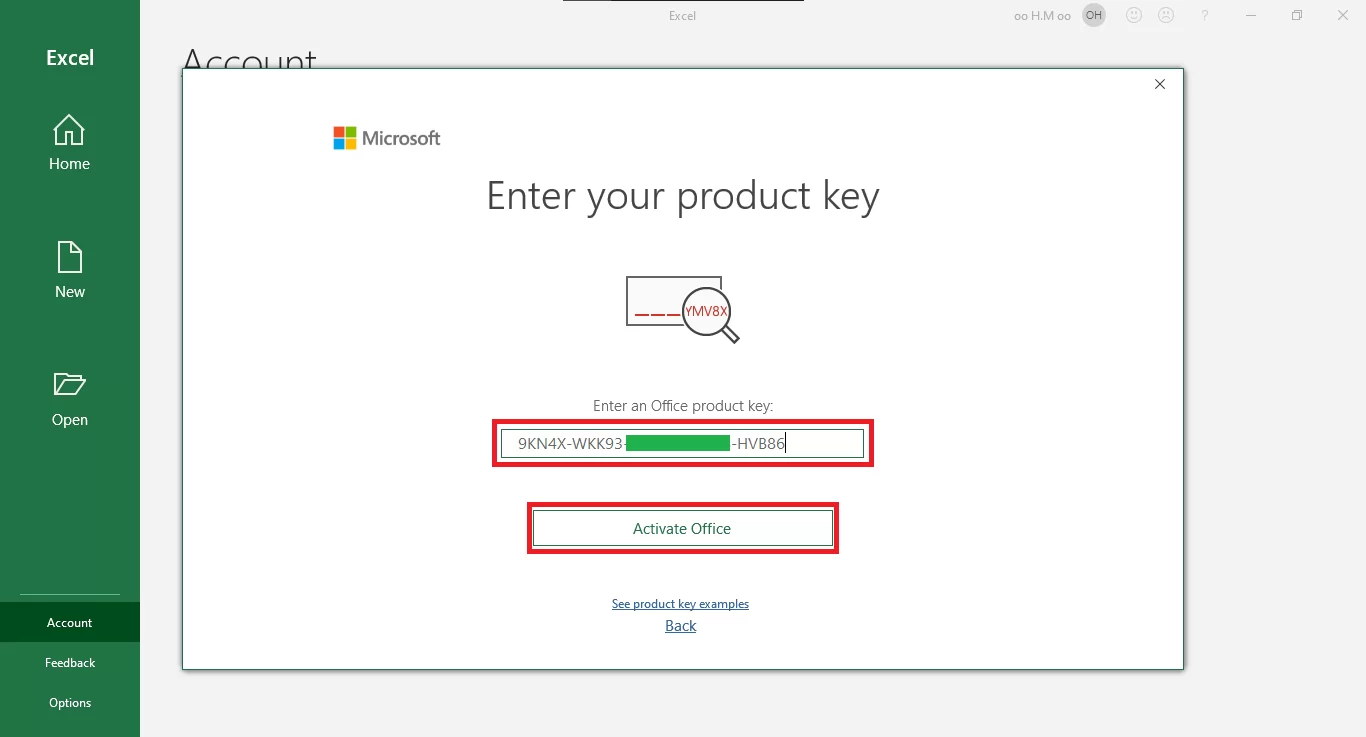
Enter your valid product key purchased. Then, click in “Activate Office”.
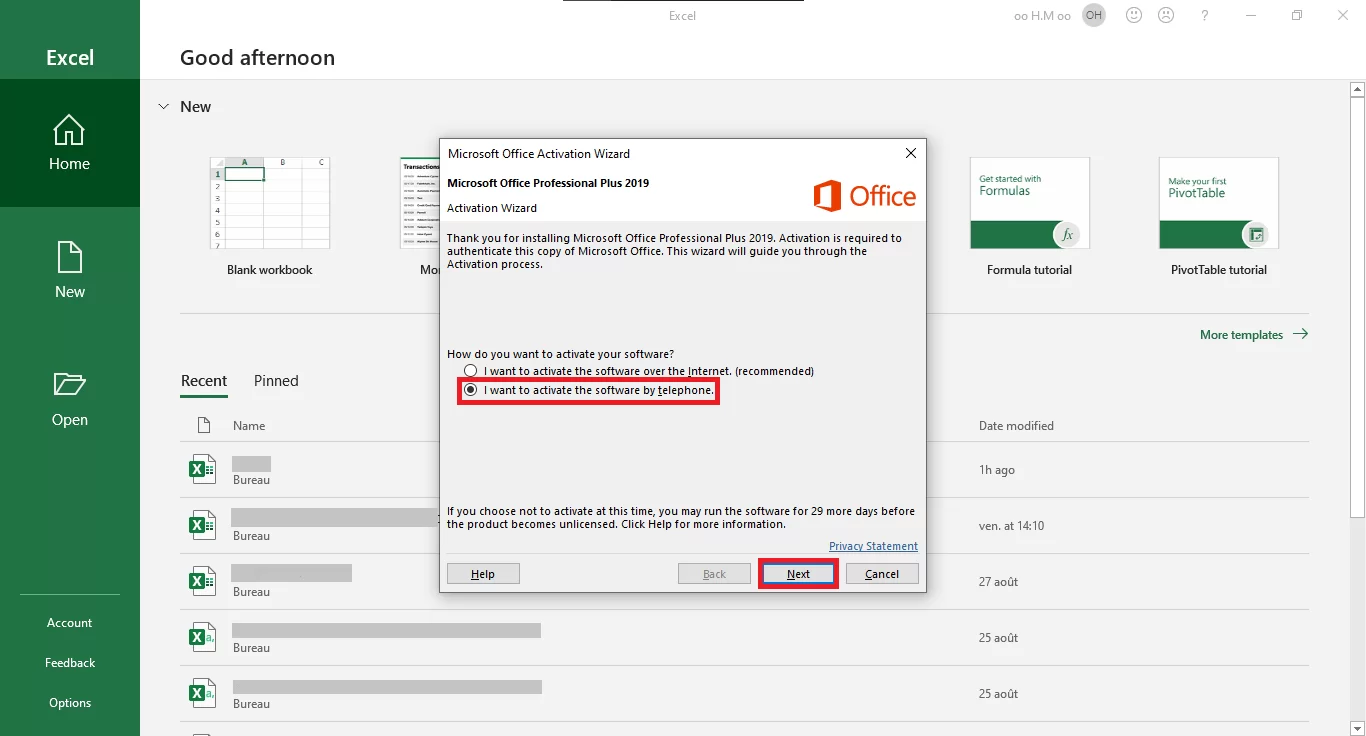
Choose “I want to activate the software by phone”. Then, Click “Next”.
An Installation ID will be generated. (In our example we got 9 groups of 7 numbers).

Step 2: Access the Microsoft Activation Portal
Open your web browser and go to: visualsupport.microsoft.com
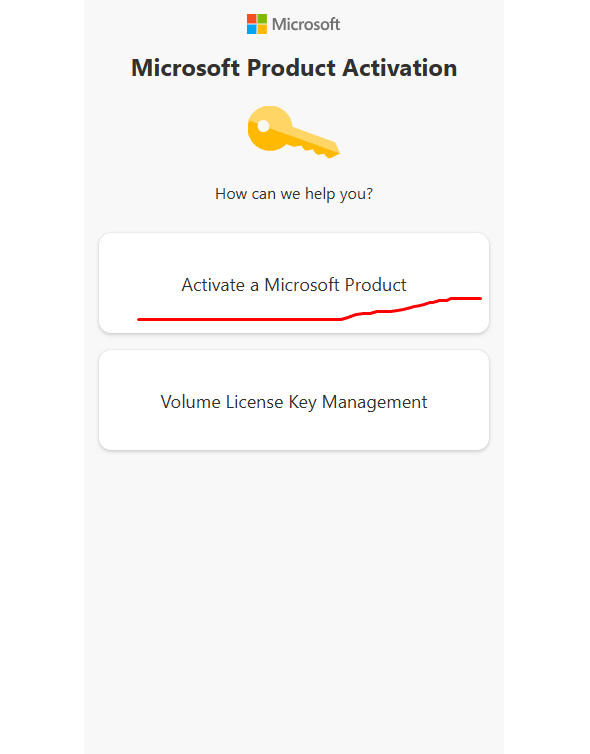
As per your screenshot, select the following options when prompted:
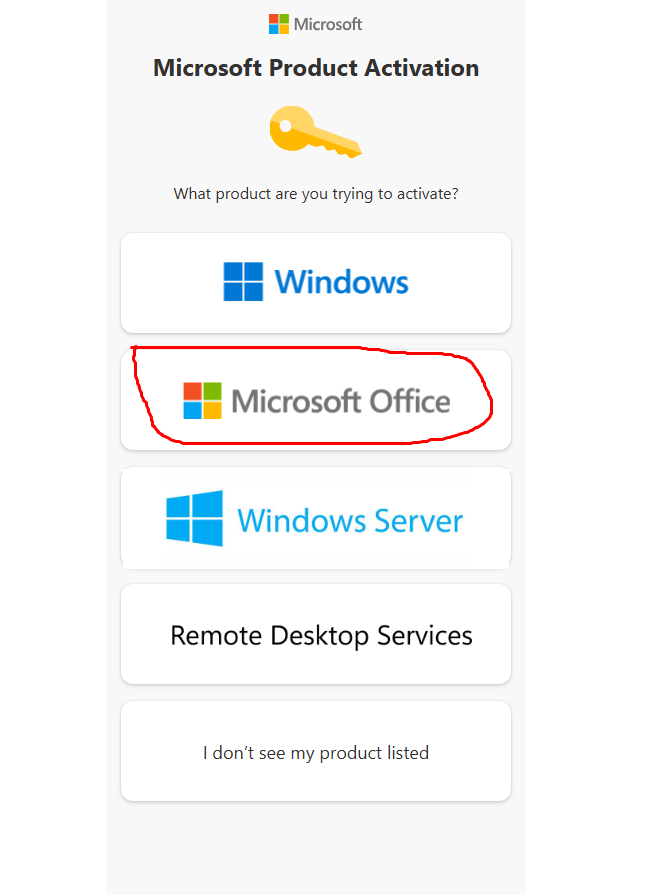
Product: Microsoft Office.
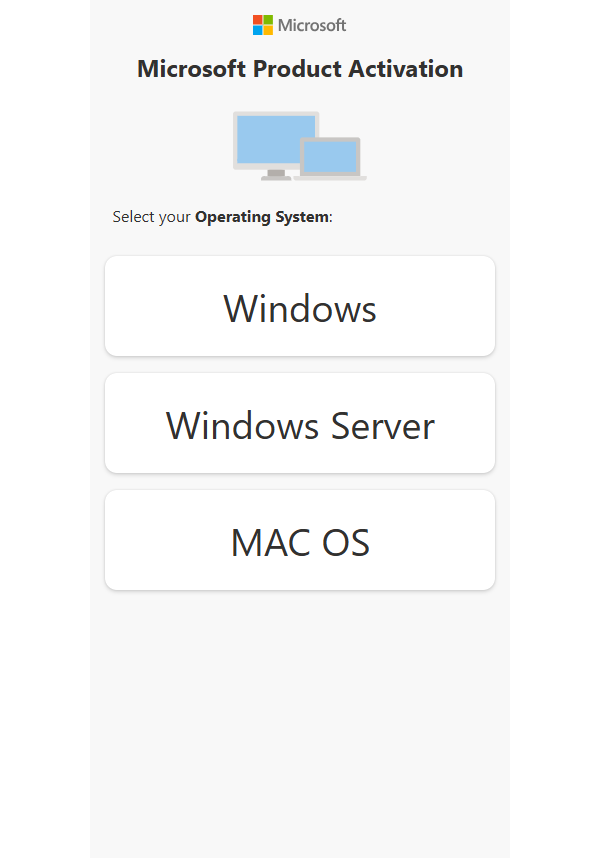
Operating System: Windows.
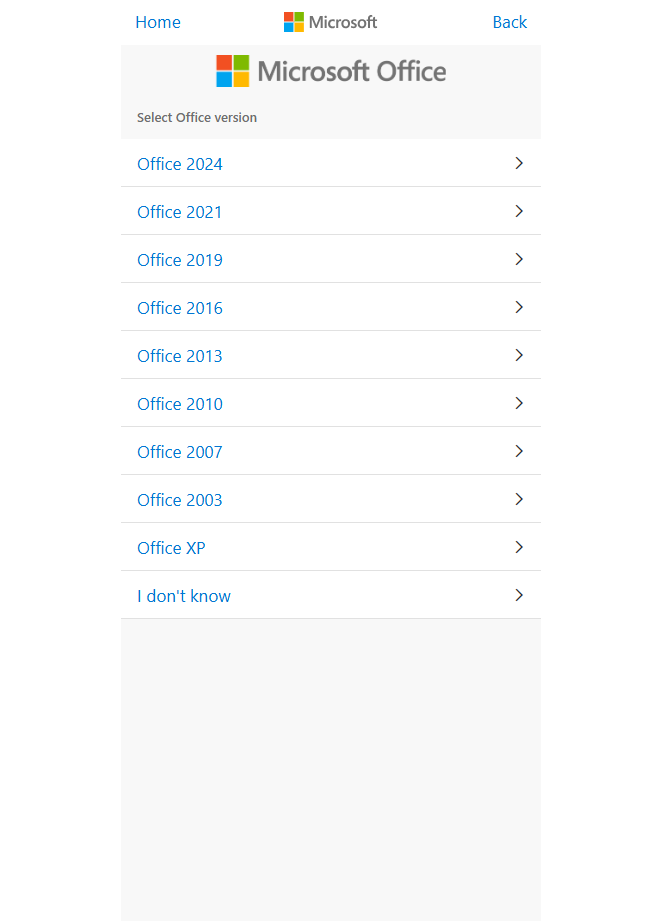
Office Version: Office 2021.
You will see the “Enter Installation ID” page.
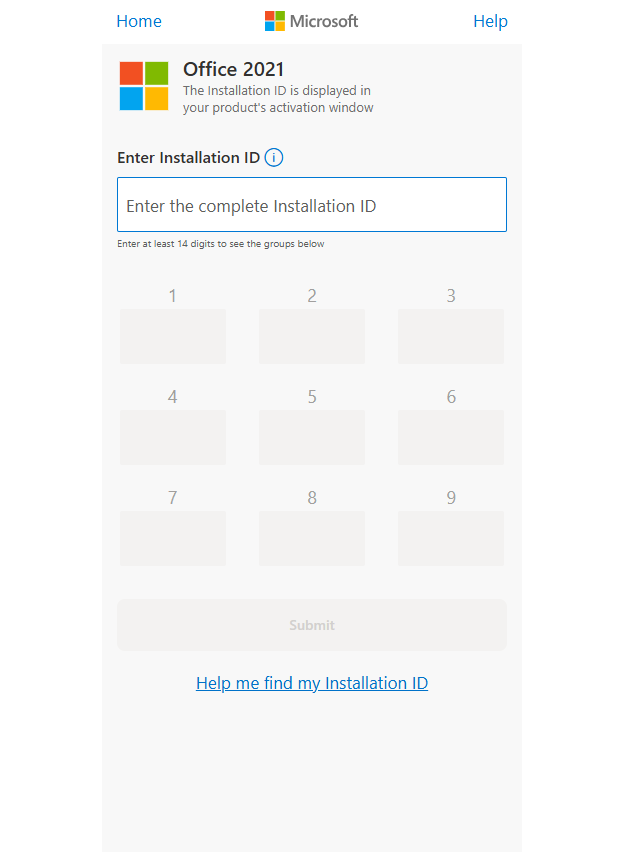
Carefully type the groups of numbers from your computer screen into the corresponding boxes (1 to 9) on the website.
Once all groups are entered correctly, click the Submit button.
If the ID is valid, the website will display your Confirmation ID in blocks labeled A through H.
Go back to the Activation Wizard on your computer.
Type the numbers provided by the website into the empty boxes (A, B, C, D, E, F, G, H).
Click Next and then Finish to complete the activation.