
Table of Contents
Introduction
You need your Windows product key for reinstalling Windows, transferring your licence to a new computer, or troubleshooting activation issues, but you can’t find the email confirmation or the sticker that came with your computer. This scenario happens more often than you might think, and it creates unnecessary stress when you need that 25-character key immediately.
Fortunately, Windows stores license information on your computer, and you can retrieve your product key using built-in tools like Command Prompt. However, the process varies depending on your Windows version, licence type, and how Windows was originally activated. Some methods reveal the actual product key, while others show alternative licence information that serves the same purpose.
Understanding how to find your product key empowers you to manage your Windows licence effectively, prepare for hardware upgrades, or troubleshoot activation problems without panicking or unnecessarily purchasing a new licence. Whether you’re running Windows 10 or Windows 11, whether your system uses a traditional product key or a digital licence, this guide provides clear methods to retrieve the information you need.
This comprehensive tutorial walks you through multiple methods to find your Windows product key using Command Prompt and other built-in Windows tools. We’ll explain what information you can retrieve, when you actually need your product key, and how to properly document it for future reference.
Understanding Windows Product Keys and Digital Licences
Before attempting to retrieve your product key, understanding how Windows licensing works helps you know what to expect and which method to use.
Traditional Product Keys
A Windows product key is a 25-character code formatted as five groups of five characters: XXXXX-XXXXX-XXXXX-XXXXX-XXXXX. These keys verify that your Windows copy is genuine and properly licensed.
Retail Keys: If you purchased Windows separately (not pre-installed), you received a retail product key that can transfer between computers when you upgrade hardware.
OEM Keys: Pre-installed on new computers, OEM keys are tied to the original device’s motherboard and typically cannot transfer to different hardware.
Volume Licence Keys: Used by businesses and organisations, these keys activate multiple computers under a single licensing agreement.
Digital Licences Explained
Modern Windows installations increasingly use digital licences (previously called digital entitlements) instead of traditional product keys. A digital licence links your Windows activation to your hardware configuration and Microsoft account rather than requiring a visible product key.
How Digital Licences Work: When you activate Windows with a product key or upgrade from a previous version, Windows creates a digital licence tied to your hardware. Future reinstallations on the same device activate automatically without requiring you to enter a product key.
Microsoft Account Linking: Linking your digital licence to your Microsoft account allows you to reactivate Windows after significant hardware changes using the activation troubleshooter.
What You Can Retrieve
The methods in this guide retrieve different types of information depending on your licence type:
Product Key: Some methods can reveal the actual 25-character product key if your system uses one.
Partial Key: Windows sometimes displays only the last five characters of your product key for security reasons.
OEM Key: Computers with pre-installed Windows may reveal the OEM key embedded in the BIOS/UEFI firmware.
Digital Licence Information: For systems using digital licences, you may see confirmation of activation status without displaying a traditional product key.
Understanding these distinctions helps set realistic expectations about what information you’ll retrieve.
Method 1: Using Windows Management Instrumentation Command-line (WMIC)
WMIC provides a straightforward command to retrieve Windows product key information directly from the Command Prompt.
Step-by-Step Instructions
Step 1: Press Windows + X and select “Command Prompt” or “Windows PowerShell” from the menu. You can also search for “cmd” in the Start menu.
Step 2: You don’t need administrator privileges for this command, so a regular Command Prompt window works fine.
Step 3: Type the following command exactly as shown and press Enter:
wmic path softwarelicensingservice get OA3xOriginalProductKey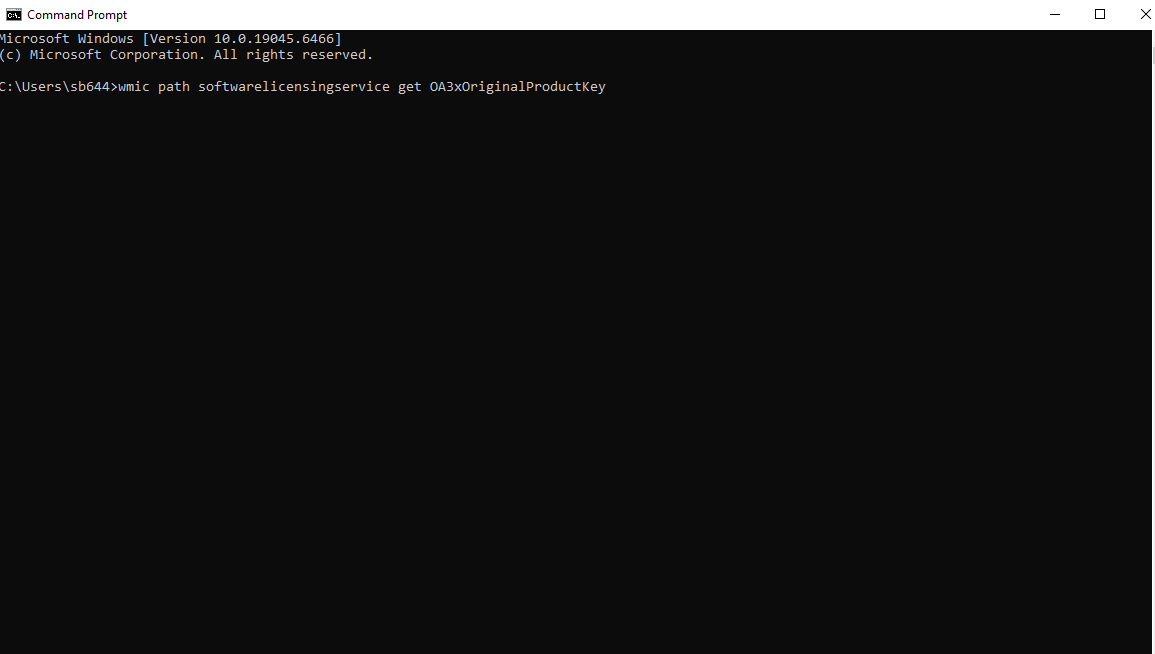
Step 4: Wait a moment while the command executes.
Step 5: If your computer has an OEM product key stored in the BIOS/UEFI firmware, it will display on the screen.
Step 6: Write down the product key immediately or take a screenshot for your records.
What This Method Retrieves
This WMIC command specifically retrieves the OA3xOriginalProductKey, which is the original equipment manufacturer (OEM) key embedded in your computer’s firmware. This works primarily on:
- Computers that came with Windows pre-installed
- Systems manufactured after Windows 8 that use UEFI firmware
- Devices where the manufacturer embedded the product key in BIOS
Important Note: If you see a blank result or the command returns nothing, your computer may not have an embedded OEM key, or you might be using a retail or volume licence that isn’t stored in firmware.
Method 2: Using PowerShell to Retrieve Product Key
PowerShell offers more advanced scripting capabilities for retrieving product key information.
PowerShell Script Method
Step 1: Press Windows + X and select “Windows PowerShell” from the menu.
Step 2: Copy and paste this PowerShell command and press Enter:
powershell
(Get-WmiObject -query 'select * from SoftwareLicensingService').OA3xOriginalProductKey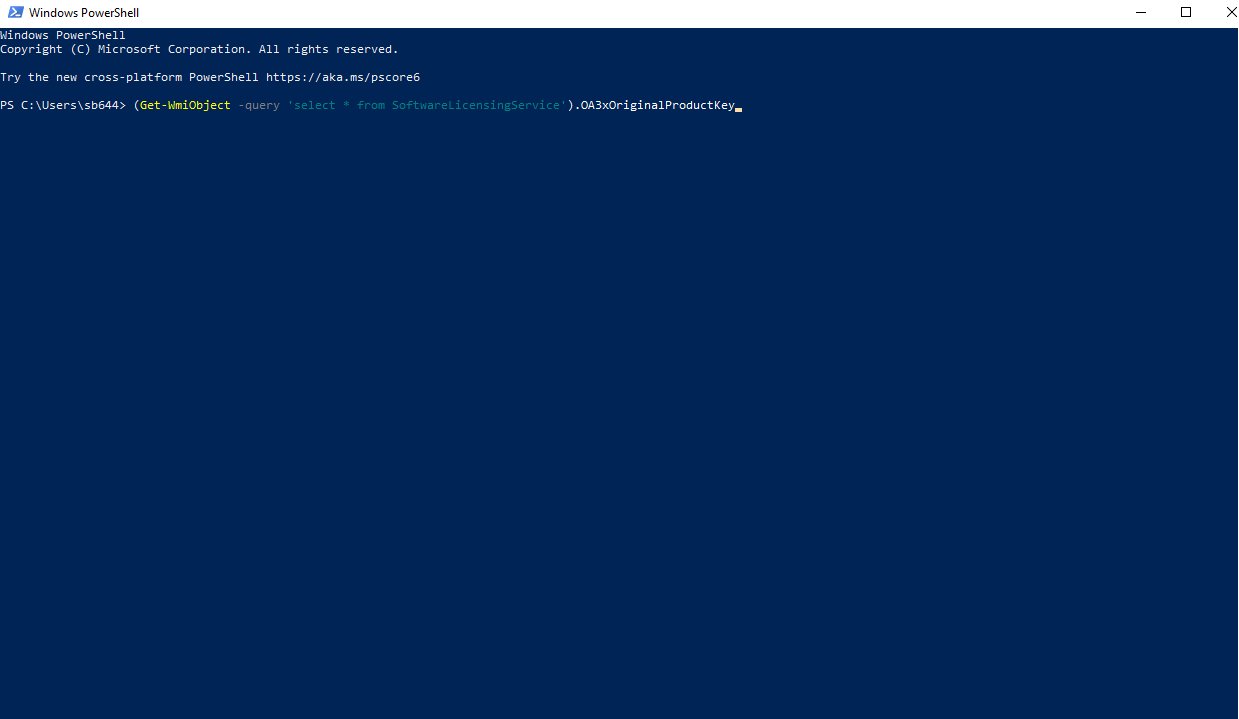
Step 3: If a product key is embedded in your firmware, it will display.
Step 4: Document the key in a secure location.
Alternative PowerShell Method
For more detailed licence information, try this command:
Step 1: Open PowerShell (administrator rights not required).
Step 2: Enter this command:
powershell
Get-WmiObject SoftwareLicensingService | Select-Object -ExpandProperty OA3xOriginalProductKeyStep 3: Review the output for your product key.
This method essentially performs the same function as the WMIC command but uses PowerShell’s syntax and may provide slightly different formatting of results.
Method 3: Checking Windows Registry
The Windows Registry stores licence information, though accessing it requires more steps and caution.
Registry Editor Method
Warning: The Registry contains critical system settings. Follow these instructions carefully and make changes only as directed. Incorrect registry modifications can cause system problems.
Step 1: Press Windows + R to open the Run dialog.
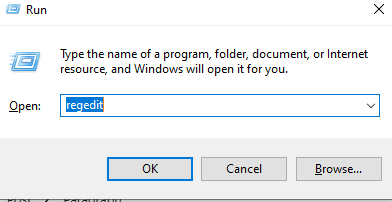
Step 2: Type “regedit” and press Enter.
Step 3: When User Account Control prompts you, click “Yes” to allow Registry Editor to open.

Step 4: Navigate to this registry path:
HKEY_LOCAL_MACHINE\SOFTWARE\Microsoft\Windows NT\CurrentVersion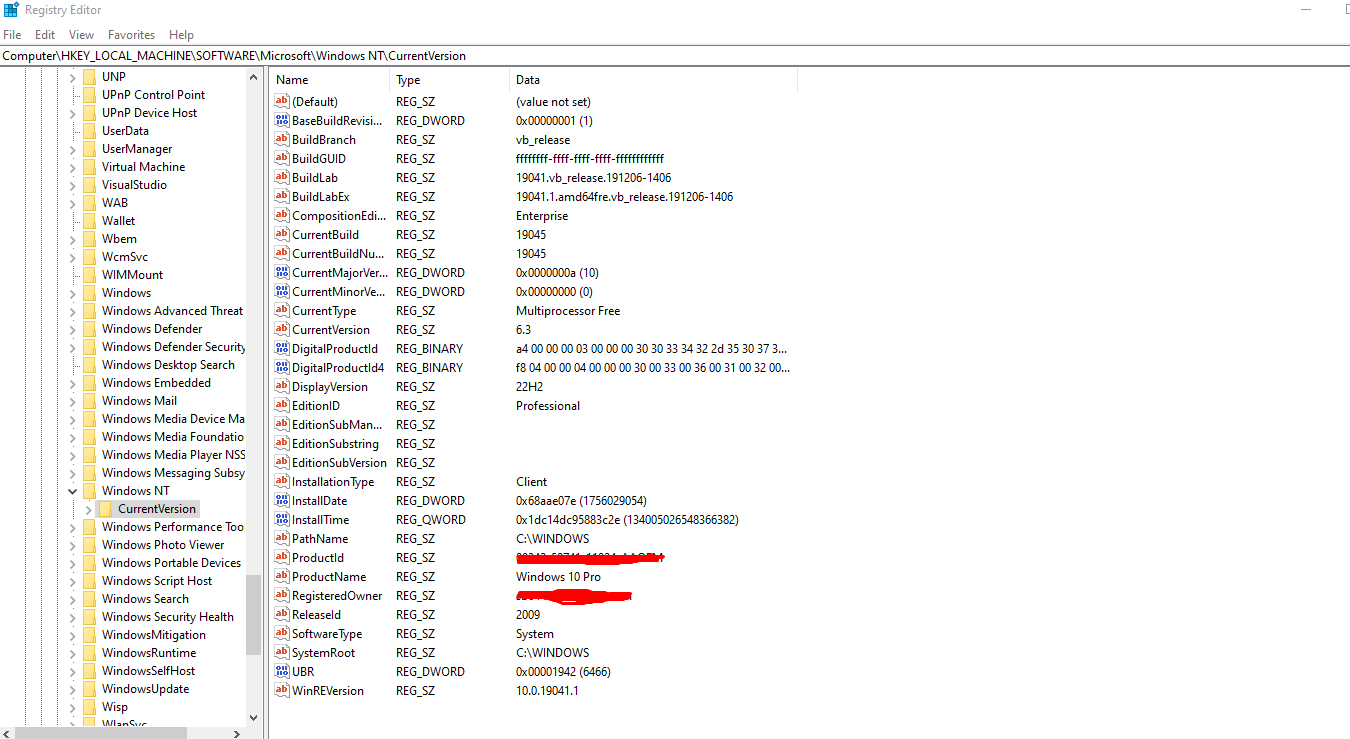
Step 5: In the right pane, look for entries named “DigitalProductId” or “ProductId.”
Step 6: The ProductId value shows your product identification, though this is not the same as your product key.
Important Registry Limitations
The registry method has significant limitations:
Encoded Information: Product keys stored in the registry are encrypted and not displayed in plain text.
Partial Information: You may see only partial product information or identification numbers rather than the full 25-character key.
No Direct Extraction: Without third-party tools or scripts, you cannot easily convert the encrypted registry data into a readable product key.
This method is more useful for verifying that Windows has licence information stored rather than retrieving the actual product key for use elsewhere.
Method 4: Viewing Activation Status Through Settings
While this doesn’t provide your product key, checking activation status helps verify your Windows licensing.
Checking Activation Information
Step 1: Press Windows + I to open Settings.
Step 2: Navigate to Update & Security > Activation (Windows 10) or System > Activation (Windows 11).
Step 3: Review the activation status displayed.
Step 4: You’ll see one of these messages:
- “Windows is activated with a digital licence” – Your Windows is activated using a digital licence
- “Windows is activated with a digital licence linked to your Microsoft account” – Your licence is linked to your account
- “Windows is activated” with a partial product key shown (displays last 5 characters)
- “Windows is not activated” – Activation issues need attention
Step 5: If a partial product key is shown, document those last five characters as they can help identify which licence activated your Windows.
This method confirms your Windows is properly licensed even if you cannot retrieve the full product key.
Method 5: Using System Information Tool
The System Information utility provides comprehensive system details including some licence information.
Accessing System Information
Step 1: Press Windows + R to open the Run dialog.
Step 2: Type “msinfo32” and press Enter.
Step 3: The System Information window opens displaying detailed system specifications.
Step 4: In the right pane, scroll down to find “OS Name” and other Windows-related information.
Step 5: Look for fields like “Product ID” which shows partial identification information.
Limitations of This Method
System Information displays product identification but typically doesn’t show the complete 25-character product key. It’s more useful for:
- Verifying your Windows edition (Home, Pro, etc.)
- Confirming your Windows version and build number
- Checking general system information
This method complements other approaches but usually won’t provide the full product key you might need for reinstallation.
When You Actually Need Your Product Key
Understanding when you need your product key helps you prepare appropriately and avoid unnecessary concern.
Situations Requiring Product Key
Clean Windows Installation: When performing a clean installation of Windows (rather than an upgrade), you may need to enter your product key during setup.
Hardware Changes: Significant hardware modifications, particularly motherboard replacements, might trigger reactivation that requires your product key.
Transferring Retail Licence: If you have a retail Windows licence and want to transfer it to a new computer, you’ll need the product key to activate on the new device.
Troubleshooting Activation: Resolving certain activation errors might require re-entering your product key.
Reinstalling After Drive Replacement: If you replace your hard drive and need to reinstall Windows, you may need your product key depending on your licence type.
When You Don’t Need It
Reinstalling on Same Hardware: If your Windows was previously activated on the same computer and you’re reinstalling on identical hardware, Windows typically activates automatically using your digital licence without requiring product key entry.
Digital Licence with Microsoft Account: If your digital licence is linked to your Microsoft account, the activation troubleshooter can reactivate Windows after hardware changes without requiring manual product key entry.
Windows Updates: Regular Windows updates don’t require product key verification.
Common Issues and Solutions
Attempting to retrieve your product key can sometimes result in errors or unexpected results.
“The request is not supported” Error
If the WMIC command returns this error:
Solution 1: Your computer may not have an OEM product key embedded in firmware. This is normal for systems that use digital licences or retail keys not stored in BIOS.
Solution 2: Try the PowerShell method instead, as it sometimes provides results when WMIC doesn’t.
Solution 3: Check your activation status through Settings to verify Windows is properly activated even without retrieving the key.
No Product Key Displayed
If commands return blank or no results:
Solution 1: Your Windows installation uses a digital licence without a traditional product key stored locally. This is increasingly common with modern Windows installations.
Solution 2: Check if your digital licence is linked to your Microsoft account through Settings > Accounts > Your info.
Solution 3: Contact the seller or manufacturer if you purchased a computer with pre-installed Windows but cannot find licence information.
Cannot Open Command Prompt or PowerShell
If you cannot access command-line tools:
Solution 1: Try searching for “cmd” or “powershell” in the Start menu and right-clicking to “Run as administrator.”
Solution 2: Check if your organization has restricted access to these tools through Group Policy (common in managed business environments).
Solution 3: Use the Settings method to check activation status as an alternative.
Product Key Doesn’t Work for Reinstallation
If you retrieve a key but it doesn’t activate a fresh Windows installation:
Solution 1: OEM keys are tied to the original hardware and won’t activate on different computers.
Solution 2: You might have retrieved a generic key used for installation but not for activation. Contact Microsoft support for assistance.
Solution 3: If you have a digital licence linked to your Microsoft account, install Windows, skip product key entry during setup, sign in with your Microsoft account, and use the activation troubleshooter.
Understanding Legitimate Licensing Practices
When managing Windows product keys and licences, maintaining legal compliance protects you and ensures continued access to updates and support.
Why Proper Licensing Matters
Security Updates: Only properly activated Windows installations receive critical security patches that protect against vulnerabilities and threats.
Technical Support: Microsoft provides support only for legitimate, activated Windows installations.
Legal Compliance: Using properly licensed software ensures compliance with copyright law and Microsoft’s terms of service.
System Stability: Legitimate Windows installations provide reliable performance without risks associated with unauthorized modifications.
Protecting Your Product Key
Secure Storage: Store your product key in a password manager, encrypted document, or other secure location separate from your computer.
Document Purchase Information: Keep purchase confirmations, receipts, and proof of purchase alongside your product key.
Link to Microsoft Account: If possible, link your Windows activation to your Microsoft account for easier licence management and recovery.
Avoid Sharing: Never share your product key publicly or with untrusted parties, as this can lead to unauthorized use and activation issues.
Legitimate Acquisition Channels
If you need to purchase a Windows licence:
Microsoft Store: Direct purchases from Microsoft guarantee authenticity.
Authorized Retailers: Major electronics retailers and certified Microsoft partners sell legitimate licences.
OEM Installations: New computers from reputable manufacturers include genuine pre-installed licences.
Workplace Licensing: Many employers provide Windows licences for employee devices through corporate agreements.
Avoid suspiciously discounted Windows keys from unknown sellers, as these often represent improperly sourced volume licence keys or other licensing violations that may result in activation failures.
Frequently Asked Questions (FAQs)
Can I find my Windows product key if I lost the email or sticker?
Yes, in many cases you can retrieve your product key using the methods described in this guide, particularly the WMIC command or PowerShell script. However, if your Windows uses a digital licence without a traditional product key, you may not be able to retrieve a 25-character key. Instead, verify your activation status through Settings and ensure your digital licence is linked to your Microsoft account for future reference.
Is it legal to use Command Prompt to find my product key?
Yes, using Command Prompt or PowerShell to retrieve your Windows product key is completely legal. You’re simply accessing licence information for software you legitimately own and have activated. These methods retrieve information already stored on your computer—they don’t bypass activation or enable piracy. You should only retrieve and use product keys for Windows installations you legitimately own.
Will these methods work on Windows 10 and Windows 11?
Yes, the methods described work on both Windows 10 and Windows 11, as well as some earlier Windows versions. The WMIC and PowerShell commands function identically across these versions. However, the Settings interface differs slightly between Windows 10 and 11, though activation information is accessible in both through Settings > System > Activation or Settings > Update & Security > Activation.
What if the commands show no product key?
If commands return blank results, your Windows installation likely uses a digital licence without a traditional product key stored locally. This is increasingly common and perfectly normal. Your Windows is still legitimately activated—it just uses a digital licence linked to your hardware (and potentially your Microsoft account) instead of a visible product key. You can verify activation through Settings and don’t need to worry about not having a traditional key.
Can I use my retrieved product key on another computer?
This depends entirely on your licence type. Retail licences can be transferred to a new computer (after deactivating on the old one), but you can only have Windows activated on one device at a time. OEM licences embedded in firmware are tied permanently to that specific hardware and cannot legally be transferred to different computers. Volume licence keys have specific terms that typically prohibit individual transfers. Always ensure you comply with your specific licence agreement.
Do I need my product key to upgrade from Windows 10 to Windows 11?
No, if you have a properly activated Windows 10 installation and your hardware meets Windows 11 requirements, you can upgrade to Windows 11 for free without entering a product key. Your Windows 10 activation automatically converts to a Windows 11 digital licence during the upgrade process. The upgrade maintains your licence status seamlessly.
Conclusion
Finding your Windows product key using Command Prompt and other built-in tools empowers you to manage your Windows licence effectively, prepare for hardware upgrades, or troubleshoot activation issues without stress. While traditional product keys remain important for some licensing scenarios, modern Windows increasingly relies on digital licences that simplify activation and licence management.
The methods described in this guide using WMIC commands, PowerShell scripts, Registry Editor access, and Settings verification provide multiple approaches to retrieve licence information appropriate for different Windows installations and licence types. Whether you discover your embedded OEM key, confirm your digital licence status, or find partial product identification, you now have the knowledge to access the licence information your system stores.
Remember that not every Windows installation stores a retrievable traditional product key, and that’s perfectly normal with modern digital licensing. If commands return blank results but your Windows is activated, you’re using a digital licence that functions correctly without requiring a visible 25-character key. Your activation status in Settings confirms your Windows is properly licensed regardless of whether you can retrieve a traditional product key.
Always protect any product keys you retrieve by storing them securely, never sharing them publicly, and linking your Windows activation to your Microsoft account when possible for simplified future management. Maintaining proper licensing documentation and understanding your licence type ensures you can confidently manage Windows installations, transfers, and troubleshooting throughout your computer’s lifecycle.
If you’re considering purchasing Windows for a new computer or upgrading your current system and need a legitimate Windows digital licence with secure delivery and activation support, choose a trusted, authorized provider with verified credentials and positive customer reviews to ensure you receive genuine software backed by proper support and documentation.