
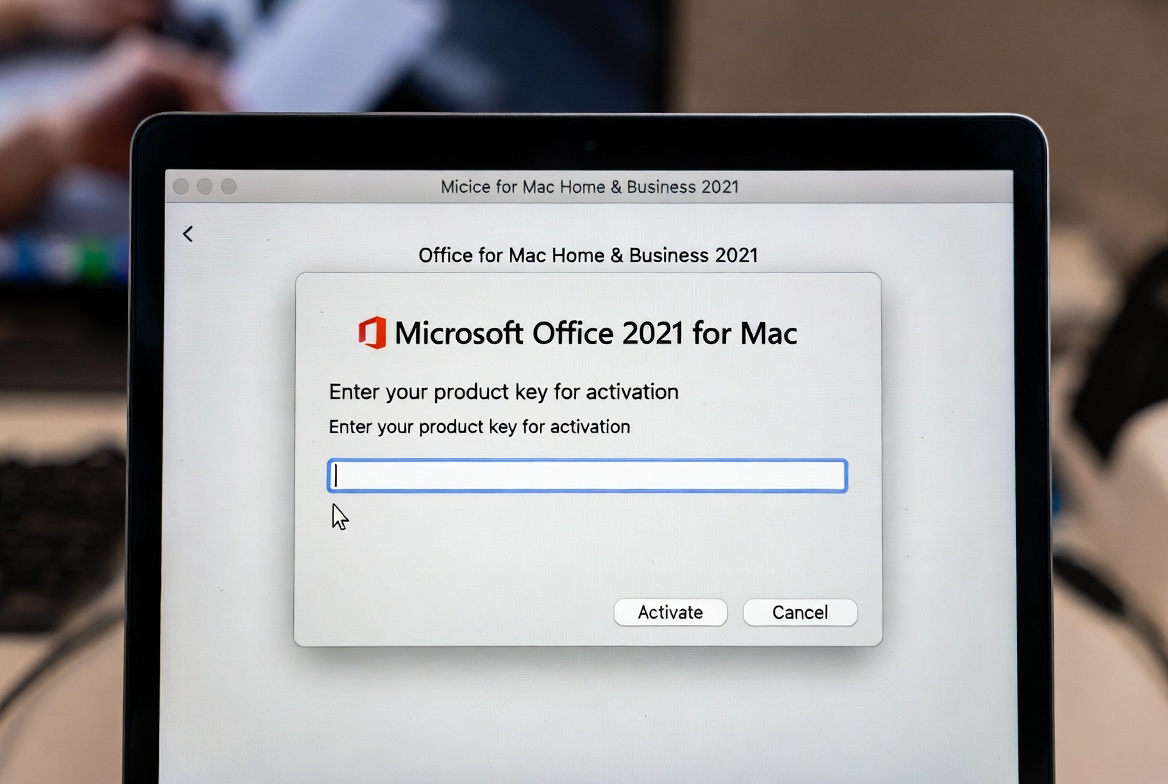
Microsoft Office Home & Business 2021 for Mac provides essential productivity tools for professionals, small business owners, and Mac users who need reliable access to Word, Excel, PowerPoint, and Outlook. However, many users encounter confusion during the activation process, unsure whether they’re following the correct steps or whether their licence will activate properly.
Activation is more than just a formality; it’s the process that verifies your genuine licence and unlocks the full functionality of your Office applications. Without proper activation, you’ll face limited features, persistent reminders, and eventually lose access to editing capabilities. Understanding how to activate Office correctly ensures you can work without interruptions and access all the features you’ve purchased.
Unlike subscription-based Microsoft 365, Office Home & Business 2021 is a one-time purchase that you own permanently. This perpetual licence requires a different activation approach than cloud-based subscriptions. Whether you’ve just purchased your digital licence, received Office with a new Mac, or are reinstalling after a system upgrade, this comprehensive guide walks you through every step of the activation process and addresses common issues that might arise.
Table of Contents
By following this guide, you’ll activate your Office for Mac installation correctly, verify your genuine licence, and resolve any activation problems that prevent you from accessing your productivity tools.
Understanding Office Home & Business 2021 for Mac
Before diving into activation, understanding what you’ve purchased helps you appreciate the activation process and your licence rights.
What’s Included in Office Home & Business 2021
Office Home & Business 2021 for Mac includes five essential applications:
Microsoft Word: The industry-standard word processing application for creating documents, reports, letters, and any text-based content.
Microsoft Excel: Powerful spreadsheet software for data analysis, calculations, budgets, charts, and business intelligence.
Microsoft PowerPoint: Presentation software for creating compelling slideshows, pitch decks, and visual presentations.
Microsoft Outlook: Email client and personal information manager that handles email, calendars, contacts, and task management.
Microsoft OneNote: A digital note-taking application for organising information, research, meeting notes, and ideas.
Perpetual Licence vs Subscription
Office Home & Business 2021 is a perpetual licence, meaning you purchase it once and own it forever. This differs significantly from Microsoft 365 subscriptions:
No Recurring Payments: After the initial purchase, you never pay again for this version of Office.
Fixed Version: You receive Office 2021 features but don’t get future major upgrades (like Office 2024 or beyond) without purchasing a new version.
Local Installation: Office installs directly on your Mac and works without requiring an ongoing internet connection, though initial activation does require internet access.
Single Device: Most Office Home & Business 2021 licences allow installation on one Mac, though some retailers may offer multi-device packages.
System Requirements
Before activating, ensure your Mac meets the minimum requirements:
Operating System: macOS 11.0 (Big Sur) or later
Processor: Apple Silicon (M1, M2, M3, or newer) or Intel processor
Memory: 4 GB RAM minimum (8 GB recommended)
Storage: 10 GB available disk space
Display: 1280 x 800 screen resolution minimum
Internet: Required for activation and updates
Verify your macOS version by clicking the Apple menu and selecting “About This Mac.” If you’re running an older macOS version, update your system before attempting to activate Office.
How to Activate Office Home & Business 2021 for Mac
The activation process for Office on Mac is straightforward when you follow the correct sequence. This guide covers the complete process from installation through successful activation.
Step 1: Obtain Your Product Key
Your Office Home & Business 2021 digital licence includes a 25-character product key that looks like this: XXXXX-XXXXX-XXXXX-XXXXX-XXXXX.
If you purchased directly from Microsoft: Your product key is in the confirmation email sent to the email address you used for purchase. Search your inbox for “Microsoft” or “Office” to locate it.
If you purchased from an authorized retailer: The product key comes on a card inside the retail box or via email if you purchased a digital download version.
If Office came with your Mac: The product key information is typically included in the documentation with your new computer or in a separate email from the manufacturer.
Keep this product key secure. You’ll need it for initial activation and may need it again if you reinstall Office in the future.
Step 2: Download Office Installation Files
Method 1: From Microsoft Website
Step 1: Open Safari or your preferred browser on your Mac.
Step 2: Navigate to office.com/setup or microsoft.com/setup.
Step 3: Sign in with your Microsoft account. If you don’t have one, create a free Microsoft account using any email address.
Step 4: Enter your 25-character product key when prompted.
Step 5: Click “Next” and follow the prompts to associate the product key with your Microsoft account.
Step 6: After validation, you’ll see a “Download Office” button.
Step 7: Click “Download” to begin downloading the Office installer package (approximately 2-3 GB).
Method 2: From App Store (for certain purchases)
Some Office versions purchased through Apple’s ecosystem may install via the Mac App Store. However, Office Home & Business 2021 typically requires downloading from Microsoft’s website for proper license activation.
Step 3: Install Office Applications
Step 1: Locate the downloaded installer file in your Downloads folder. It’s typically named something like “Microsoft_Office_Installer.pkg.”
Step 2: Double-click the installer file to begin installation.
Step 3: If you see a security warning, click “Open” to confirm you want to run the installer.
Step 4: Follow the installation wizard prompts:
- Click “Continue” to proceed through the introduction screens
- Read and accept the software licence agreement
- Choose your installation location (typically your main hard drive)
- Enter your Mac administrator password when prompted
Step 5: Wait for the installation to complete. This typically takes 5-15 minutes depending on your Mac’s performance.
Step 6: Click “Close” when the installation finishes successfully.
Step 7: The Office applications are now installed in your Applications folder.
Step 4: Launch and Activate Office Applications
Step 1: Open any Office application. You can find them in your Applications folder, Launchpad, or by using Spotlight search (Command + Space and type the application name).
Step 2: When you first launch an Office app, you’ll see a welcome or activation screen.
Step 3: You have two activation options:
Option A: Sign In with Microsoft Account (Recommended)
If you already associated your product key with your Microsoft account during download:
- Click “Sign In” when prompted
- Enter your Microsoft account email and password
- Office automatically detects your licence and activates
Option B: Enter Product Key Directly
If you haven’t associated your key with a Microsoft account yet:
- Select “Enter a Product Key” or similar option
- Type your 25-character product key carefully (hyphens are usually added automatically)
- Click “Activate” or “Next”
- You may be prompted to sign in to or create a Microsoft account to complete activation
Step 4: Wait for activation to complete. Office connects to Microsoft’s servers to verify your licence. This usually takes 30 seconds to 2 minutes.
Step 5: When you see a success message or the application opens without restrictions, activation is complete.
Step 6: Close and reopen the application to ensure activation persists.
Step 7: Repeat this process for other Office applications if needed. In most cases, activating one application automatically activates all Office apps associated with your licence.
Step 5: Verify Successful Activation
Confirming activation ensures you won’t encounter unexpected restrictions later.
Step 1: Open any Office application (Word, Excel, PowerPoint, or Outlook).
Step 2: Click the application name in the menu bar (e.g., “Microsoft Word”).
Step 3: Select “About [Application Name]” from the dropdown menu.
Step 4: In the About window, look for activation status. You should see:
- “Product Activated” or similar confirmation
- Your Office version and build number
- Licence type showing “Office Home & Business 2021”
Step 5: If you see any messages about unlicensed product or trial mode, activation didn’t complete successfully, and you need to troubleshoot.
Successful activation means you can now use all Office features without restrictions or time limits.
Common Activation Problems and Solutions
Even when following instructions carefully, you might encounter activation issues. Here are the most common problems and their solutions.
“We Couldn’t Verify Your Licence” Error
This message appears when Office cannot connect to Microsoft’s activation servers or verify your product key.
Solution 1: Check your internet connection. Open Safari and verify you can access websites normally. Office requires internet connectivity for activation.
Solution 2: Restart your Mac and try activation again. Sometimes network configuration issues resolve after a restart.
Solution 3: Temporarily disable any VPN connections, firewall software, or proxy settings that might block Office from reaching Microsoft’s servers.
Solution 4: Verify you entered your product key correctly. Product keys are case-insensitive but must be typed exactly as provided, though hyphens are usually added automatically.
Solution 5: Ensure your product key matches Office Home & Business 2021 for Mac. Windows product keys don’t work with Mac versions and vice versa.
“This Product Key Has Already Been Used” Message
If you receive this error, your product key has been activated on another device or installation.
Solution 1: Office Home & Business 2021 typically allows installation on one Mac. If you previously installed on another Mac, you need to deactivate that installation first.
Solution 2: Sign in to your Microsoft account at account.microsoft.com, navigate to Services & Subscriptions, and check which devices have Office activated.
Solution 3: If you replaced your Mac or upgraded macOS, the system may recognize it as a new device. Use the “I changed hardware on this device” option in the activation troubleshooter if available.
Solution 4: Contact Microsoft Support if you genuinely haven’t used the product key elsewhere. They can verify your purchase and help resolve activation conflicts.
Activation Window Doesn’t Appear
Sometimes Office installs but never prompts for activation.
Solution 1: Quit all Office applications completely. Open Activity Monitor (in Applications > Utilities) and ensure no Office processes are running. Force quit any Office-related processes you find.
Solution 2: Delete Office preference files:
- Open Finder and press Command + Shift + G
- Type ~/Library/Preferences/ and press Enter
- Look for files starting with “com.microsoft.office” and move them to Trash
- Empty Trash and restart Office
Solution 3: Sign out of any Microsoft accounts in your Mac’s system preferences (System Settings > Internet Accounts), then relaunch Office.
Solution 4: Completely uninstall and reinstall Office. Microsoft provides an official Office uninstaller tool for Mac that removes all Office files completely before reinstalling.
“Unlicensed Product” Banner Appears
If Office shows an unlicensed product notice despite previously activating successfully, the activation may have been lost.
Solution 1: Open any Office app, click the application name in the menu bar, and select “Activate” or “Sign In” to reactivate.
Solution 2: Verify your Microsoft account is signed in. Open any Office app, click the application name, then click “Sign In” if needed.
Solution 3: Check your internet connection. Periodic verification requires connectivity, and activation may lapse if Office cannot reach Microsoft’s servers for extended periods.
Solution 4: If you recently updated macOS, reboot your Mac to ensure system-level changes take effect.
Office Applications Won’t Open After Installation
If Office apps crash or won’t open after installation, system-level issues may be interfering.
Solution 1: Verify your Mac meets minimum system requirements, particularly macOS version compatibility.
Solution 2: Check for macOS updates in System Settings > General > Software Update. Installing pending updates often resolves compatibility issues.
Solution 3: Repair disk permissions by running First Aid in Disk Utility:
- Open Disk Utility (Applications > Utilities)
- Select your main hard drive
- Click “First Aid” and let it complete
Solution 4: Create a new user account on your Mac and try installing Office there to determine if the issue is user-specific or system-wide.
Understanding Genuine Licences and Legal Compliance
Using legitimate Office licences protects you legally and ensures you receive full functionality and support.
What Makes a Licence Genuine
A genuine Office Home & Business 2021 licence comes from authorized sources and includes proper documentation:
Official Microsoft Store: Direct purchases from Microsoft guarantee authenticity.
Authorized Retailers: Major electronics retailers, certified Microsoft partners, and reputable online vendors sell legitimate licences.
OEM Installations: Office pre-installed on new Macs by manufacturers includes genuine OEM licences tied to that specific device.
Volume Licensing: Businesses purchasing multiple licences through Microsoft Volume Licensing programs receive genuine licences with proper agreements.
Genuine licences come with product keys that successfully activate, provide access to all features, and entitle you to technical support from Microsoft.
Risks of Unauthorized Licences
Purchasing Office licences from unauthorized sources creates numerous problems:
Activation Failures: Improperly sourced keys often fail activation or stop working after initial success.
No Support: Microsoft cannot provide technical assistance for products purchased through unofficial channels.
Security Risks: Unauthorized sellers sometimes bundle malware with Office downloads or steal personal information during transactions.
Legal Liability: Using unlicensed software violates copyright law and Microsoft’s terms of service, potentially resulting in legal consequences.
Lost Investment: When problematic keys stop working, you’ve wasted money with no recourse for refunds or replacements.
Protecting Your Investment
When purchasing Office Home & Business 2021 for Mac, protect yourself by:
Verifying Seller Credentials: Research sellers before purchasing. Check reviews, verify business registration, and ensure they’re listed as Microsoft partners if claiming authorization.
Keeping Documentation: Save purchase confirmations, receipts, and product key information securely. You may need this for future reinstallations or support requests.
Using Official Download Sources: Always download Office installation files from Microsoft’s official website, not from third-party file-sharing sites.
Registering Your Product: Associate your product key with your Microsoft account during activation for easier management and recovery.
Business Compliance Considerations
For businesses using Office Home & Business 2021, proper licensing ensures compliance with software auditing requirements:
Track Installations: Maintain records of which devices have Office installed and which product keys are assigned to each device.
Respect Licence Limits: Most licences permit installation on one device. Businesses needing multiple installations must purchase additional licences or consider volume licensing.
Regular Audits: Periodically verify all Office installations use genuine licences to maintain compliance and avoid penalties during potential software audits.
Proper Asset Management: Include Office licences in your IT asset management system, tracking purchase dates, expiration (if applicable), and renewal needs.
Maintaining Your Office Installation
After successful activation, proper maintenance ensures the Office continues working optimally.
Keeping the Office Updated
Microsoft regularly releases updates that fix bugs, patch security vulnerabilities, and improve performance.
Enabling Automatic Updates:
Step 1: Open any Office application.
Step 2: Click “Help” in the menu bar.
Step 3: Select “Check for Updates.”
Step 4: In Microsoft AutoUpdate, click “Automatically Download and Install.”
Step 5: Choose whether to check for updates daily, weekly, or monthly.
Regular updates protect your system from security threats and ensure compatibility with the latest macOS versions.
Backing Up Your Office Data
While Office files aren’t affected by activation, protecting your documents ensures business continuity.
Time Machine Backups: Enable Time Machine to automatically back up your Mac, including all Office documents.
Cloud Storage: Save important documents to OneDrive, iCloud Drive, Google Drive, or Dropbox for redundancy.
External Drives: Periodically copy critical files to external storage for offline backup.
Reinstalling Office
If you need to reinstall Office due to system issues, Mac replacement, or other reasons, your genuine licence allows this:
Step 1: Sign in to your Microsoft account at account.microsoft.com.
Step 2: Navigate to Services & Subscriptions.
Step 3: Find Office Home & Business 2021 in your product list.
Step 4: Click “Install Office” to download the installer.
Step 5: Follow the installation and activation steps outlined earlier in this guide.
Your product key can be reused for reinstallation on the same device as many times as needed.
Frequently Asked Questions (FAQs)
Can I use my Windows Office product key to activate Office on Mac?
No, Office product keys are platform-specific. A product key for Office Home & Business 2021 for Windows will not activate the Mac version, and vice versa. When purchasing Office, ensure you select the correct platform version—”Office for Mac” or “Office for Windows” as they require separate licences. If you need Office on both platforms, you must purchase separate licences for each or consider a Microsoft 365 subscription that includes both versions.
How many Macs can I install Office Home & Business 2021 on?
Office Home & Business 2021 typically includes a single-device licence, meaning you can install and activate it on one Mac. If you need Office on multiple Macs, you must purchase additional licences. Some retailers offer multi-device packages, but these are separate licences bundled together, not a single licence for multiple devices. Check your specific purchase documentation for the exact terms of your licence.
What’s the difference between Office Home & Business and Office Home & Student for Mac?
Office Home & Business 2021 includes Outlook for email and calendar management, making it suitable for professional and business use. Office Home & Student 2021 includes only Word, Excel, PowerPoint, and OneNote, but omits Outlook. Additionally, Home & Business licences permit commercial use, while Home & Student licences are restricted to personal, household, and educational use only. For business purposes, you must use Home & Business or a commercial subscription.
Do I need the internet to use Office after activation?
No, Office Home & Business 2021 works offline after initial activation. You need internet connectivity during installation and activation, but once activated, Office applications function without constant internet access. However, periodic internet connection is beneficial for receiving updates, accessing cloud-saved documents, and maintaining activation verification. If Office cannot verify activation for extended periods (typically several months), you may need to reconnect to revalidate your licence.
Can I transfer my Office licence to a new Mac if I upgrade?
Yes, Office Home & Business 2021 retail licences can be transferred to a new Mac if you’re replacing your old one. However, you can only have it actively installed and activated on one Mac at a time. When transferring, uninstall Office from your old Mac or simply begin using it on the new Mac. When you activate on the new device, sign in with the same Microsoft account used originally, and the activation troubleshooter can help transfer the licence. OEM licences pre-installed by manufacturers are typically tied to the original device and cannot be transferred.
What should I do if my product key stops working?
If your previously working product key suddenly fails to activate, first verify your internet connection and try again. Check your Microsoft account at account.microsoft.com to ensure the product is still listed under your subscriptions. If the key was genuine and stops working, contact Microsoft Support with your purchase documentation they can investigate whether there’s a server issue or if your key was mistakenly deactivated. If you purchased from an unauthorised seller and the key stops working, unfortunately, you have little recourse except to purchase a legitimate licence from an authorized source.
Conclusion
Activating Microsoft Office Home & Business 2021 for Mac with a genuine licence is a straightforward process when you follow the correct steps and use legitimate product keys from authorized sources. By downloading Office from Microsoft’s official website, entering your product key accurately, and signing in with your Microsoft account, you unlock full access to Word, Excel, PowerPoint, Outlook, and OneNote without restrictions.
Understanding the activation process empowers you to troubleshoot common issues independently and ensures your Office installation remains properly licensed and functional. The perpetual nature of Office Home & Business 2021 means your investment provides lasting value once activated, you own this version of Office permanently without recurring subscription fees.
Always prioritize genuine licences from authorized retailers or directly from Microsoft. While unauthorized sources might seem appealing, they create risks ranging from activation failures and security vulnerabilities to legal liability and wasted money. Genuine licences provide not only successful activation but also access to updates, security patches, and Microsoft’s technical support when you need assistance.
Proper maintenance through regular updates and secure documentation of your product key ensures your Office installation continues serving your productivity needs reliably. Whether you’re a professional managing client work, a small business owner handling day-to-day operations, or a Mac user needing reliable productivity tools, correctly activated Office Home & Business 2021 provides the functionality and stability you need.
If you’re looking for legitimate Microsoft Office digital licences with secure delivery and activation support, choose a trusted, authorized provider with verified credentials and positive customer reviews to ensure you receive genuine software backed by proper documentation and support.