
Table of Contents
Introduction
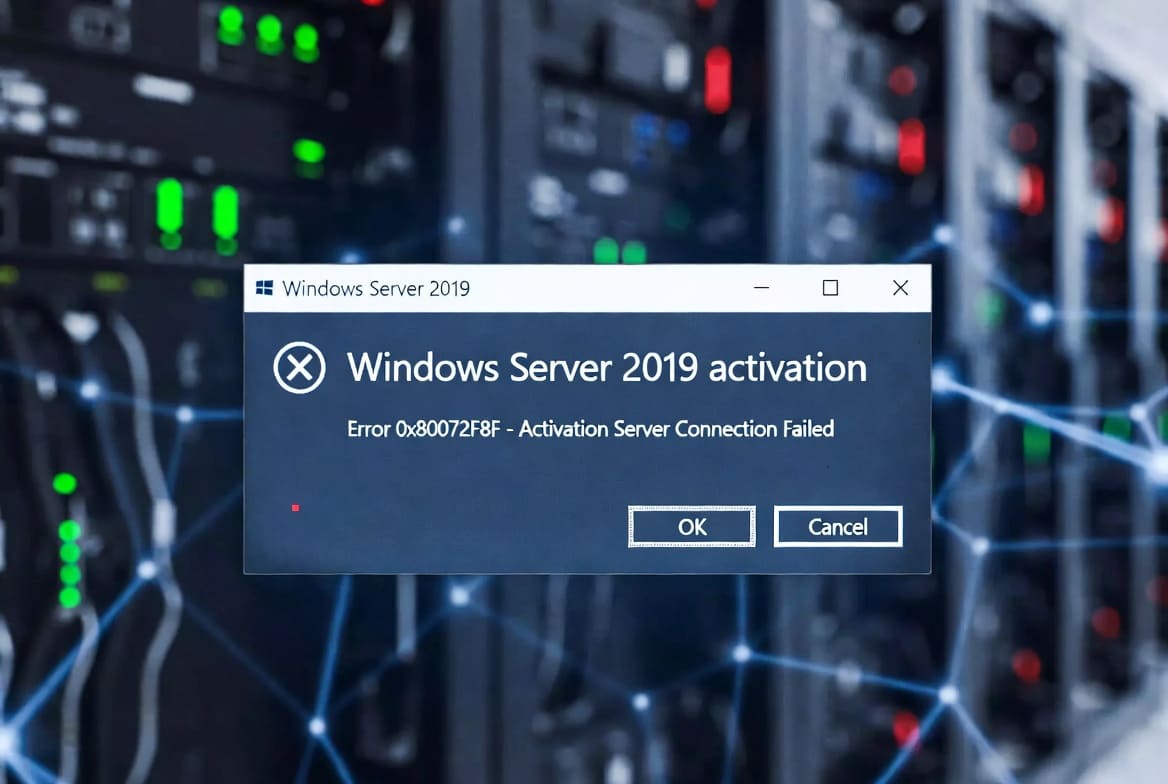
Windows Server 2019 activation error 0x80072F8F is a frustrating issue that prevents servers from successfully activating with Microsoft’s licensing servers. This error typically displays the message “A security error occurred” or “The activation server determined that the specified product key could not be used,” accompanied by error code 0x80072F8F. Unlike simple product key errors, this code indicates underlying connectivity or security problems preventing your server from communicating with Microsoft’s activation infrastructure.
Error 0x80072F8F specifically relates to secure communication failures, often involving SSL/TLS protocol issues, expired or invalid security certificates, incorrect system date and time settings, or firewall and proxy configurations blocking the encrypted connections required for activation. This error occurs during both initial activation attempts and periodic reactivation for servers using volume licensing systems, such as KMS (Key Management Service).
For IT administrators managing production server environments, activation failures create immediate concerns about compliance, functionality restrictions, and potential service disruptions when grace periods expire. Understanding the root causes of error 0x80072F8F and knowing how to systematically troubleshoot secure connection problems ensures you can resolve activation issues quickly and maintain a properly licensed infrastructure.
This comprehensive guide explains what error 0x80072F8F means, identifies the common causes of secure connection failures, provides step-by-step solutions for different scenarios, and offers preventive measures to avoid future activation problems with Windows Server 2019.
Understanding Error 0x80072F8F
Before diving into solutions, understanding what this error code signifies helps you apply targeted troubleshooting.
What Does Error 0x80072F8F Mean?
Error 0x80072F8F is a Windows error code indicating “A security error occurred.” Specifically, it means:
Secure Connection Failure: The system cannot establish a secure connection to the required server (Microsoft’s activation servers in this context).
SSL/TLS Problems: The secure communication protocols (SSL/TLS) that protect activation traffic are failing due to certificate issues, protocol mismatches, or security configuration problems.
Certificate Validation Failure: The system cannot validate the security certificates presented by Microsoft’s activation servers, often due to expired certificates, missing certificate authorities, or incorrect system time.
Underlying HTTP Error: Error 0x80072F8F maps to HTTP error code 12175 (ERROR_INTERNET_SEC_CERT_DATE_INVALID), which specifically indicates certificate date/time validation problems.
Why Activation Requires Secure Connections
Windows activation uses HTTPS (specure HTTP) to protect sensitive licensing information during transmission:
Product Key Protection: Activation traffic contains product keys that must be encrypted during transmission to prevent interception.
Authentication Security: Secure connections authenticate that your server is communicating with legitimate Microsoft servers, not malicious intermediaries.
Data Integrity: SSL/TLS ensures activation data isn’t modified during transmission between your server and Microsoft’s infrastructure.
Compliance Requirements: Microsoft’s security policies mandate encrypted connections for all licensing operations to protect customer information and prevent fraud.
Common Scenarios Triggering 0x80072F8F
Initial Activation: The error appears when first activating a newly installed Windows Server 2019.
Periodic Reactivation: For servers using volume licensing (KMS or MAK), the error occurs during automatic renewal attempts.
After Windows Updates: System updates that modify security settings, certificates, or networking configurations can trigger activation failures.
Following Certificate Expiration: When root certificates or intermediate certificates expire, secure connections fail with this error.
Proxy or Firewall Changes: Network infrastructure changes that affect HTTPS traffic cause activation connectivity problems.
Isolated Environments: Servers in secure networks with limited internet access or strict outbound filtering encounter this error frequently.
Diagnostic Steps Before Troubleshooting
Start with systematic diagnostics to identify the specific cause of your 0x80072F8F error.
Verify Current Activation Status
Step 1: Open Command Prompt as administrator.
Step 2: Check activation status:
slmgr.vbs /dliStep 3: Review the displayed information:
- License Status (Licensed, Grace Period, Unlicensed)
- Days remaining in the grace period
- Product Key Channel (Retail, Volume: GVLK, Volume: MAK)
Step 4: Get detailed activation information:
slmgr.vbs /dlvStep 5: Note any error messages or codes displayed.
This establishes your starting point and confirms whether this is an initial activation or a renewal issue.
Test Basic Connectivity to Microsoft Activation Servers
Step 1: Test connectivity to Microsoft’s activation infrastructure:
ping activation.sls.microsoft.comStep 2: Successful ping responses indicate basic network connectivity exists, though this doesn’t verify HTTPS connectivity.
Step 3: Test HTTPS connectivity using PowerShell:
powershell
Test-NetConnection -ComputerName activation.sls.microsoft.com -Port 443Step 4: A successful connection indicates the network path to activation servers exists.
Step 5: If basic connectivity fails, investigate network configuration, routing, or firewall issues before addressing certificate problems.
Check System Date and Time
Incorrect system time is the most common cause of error 0x80072F8F because SSL/TLS certificate validation depends on accurate time:
Step 1: Open Command Prompt and check the current system time:
time
date
Step 2: Compare against a reliable time source (your watch, phone, or time.gov).
Step 3: Check time zone configuration:
tzutil /gStep 4: Verify the displayed time zone matches your actual location.
Step 5: Even small time differences (minutes) can cause certificate validation failures. Differences exceeding a few minutes almost certainly cause this error.
Review Event Logs for Additional Details
Windows logs detailed error information that provides diagnostic clues:
Step 1: Open Event Viewer (eventvwr.msc).
Step 2: Navigate to Windows Logs > Application.
Step 3: Look for recent errors from the source “Software Protection Platform Service” or “Security-SPP.”
Step 4: Examine error details for additional context about the failure.
Step 5: Also check Windows Logs > System for networking, certificate, or security-related errors occurring around the same time.
Step 6: Note any error codes or descriptions that provide more specific failure reasons.
Event logs often reveal whether the problem is time-related, certificate-related, or connectivity-related.
Solution 1: Correct System Date and Time
Incorrect system time is the leading cause of error 0x80072F8F. Correcting time settings resolves the majority of cases.
Manually Setting Date and Time
Step 1: Open Command Prompt as administrator.
Step 2: Set the correct date:
date MM-DD-YYYYReplace MM-DD-YYYY with the current date (e.g., 01-15-2026).
Step 3: Set the correct time:
time HH:MM:SSReplace HH:MM: SS with the current time in 24-hour format (e.g., 14:30:00 for 2:30 PM).
Step 4: Verify the time zone is correct:
tzutil /lThis lists all available time zones.
Step 5: If needed, set the correct time zone:
tzutil /s "Pacific Standard Time"Replace with your appropriate time zone from the list.
Step 6: Immediately attempt activation:
slmgr.vbs /atoStep 7: If successful, you’ve confirmed time synchronisation was the issue.
Configuring Automatic Time Synchronisation
To prevent future time-related activation failures, configure automatic time synchronisation:
Step 1: Configure the Windows Time service to synchronise with Internet time servers:
w32tm /config /manualpeerlist:"time.windows.com time.nist.gov" /syncfromflags:manual /reliable:YES /updateStep 2: Restart the Windows Time service:
net stop w32time
net start w32time
Step 3: Force immediate synchronisation:
w32tm /resync /forceStep 4: Verify synchronisation status:
w32tm /query /statusStep 5: Check that “Source” shows one of your configured time servers and “Last Successful Sync Time” is recent.
For Domain-Joined Servers:
Step 1: Configure time synchronisation with domain controllers:
w32tm /config /syncfromflags:domhier /updateStep 2: Force synchronisation:
w32tm /resync /forceStep 3: Verify synchronisation:
w32tm /query /sourceDomain-joined servers should synchronize time from domain controllers to maintain consistent time across the infrastructure.
Verifying Time Service Operation
Step 1: Ensure Windows Time service is running:
sc query w32timeStep 2: If not running, start it:
net start w32timeStep 3: Set it to start automatically:
sc config w32time start= autoStep 4: Monitor time drift over several hours to ensure synchronisation remains accurate.
Proper time synchronisation prevents not only activation errors but also authentication problems (Kerberos), certificate validation issues, and log timestamp accuracy problems.
Solution 2: Update Windows Root Certificates
Expired or missing root certificates prevent validation of Microsoft’s activation server certificates, causing error 0x80072F8F.
Understanding Certificate Dependencies
SSL/TLS connections require certificate chains:
Root Certificates: Trusted certificate authorities that sign intermediate and server certificates.
Intermediate Certificates: Middle links in the trust chain between root and server certificates.
Server Certificates: Certificates presented by Microsoft’s activation servers.
If your system lacks current root certificates or they’ve expired, the entire trust chain fails, preventing secure connections.
Manually Updating Root Certificates
Step 1: Download the latest root certificate update from Microsoft:
Navigate to Microsoft Update Catalogue (catalog.update.microsoft.com) and search for “root certificate update” for Windows Server 2019.
Step 2: Download the appropriate update package for your system architecture (x64).
Step 3: Install the certificate update:
wusa.exe .msu /quiet /norestart Step 4: Wait for installation to complete.
Step 5: Restart the server if required:
shutdown /r /t 0Step 6: After restart, attempt activation:
slmgr.vbs /atoUsing Windows Update for Certificate Updates
Step 1: Open Settings > Update & Security > Windows Update.
Step 2: Click “Check for updates.”
Step 3: Install all available updates, particularly those labelled as security updates or certificate updates.
Step 4: Restart the server after updates complete.
Step 5: Attempt activation again.
Windows Update automatically installs certificate updates when available, but servers with disabled or restricted Windows Update may miss these critical updates.
Verifying Certificate Store
Step 1: Open the Certificates snap-in:
certlm.mscStep 2: Navigate to Certificates (Local Computer) > Trusted Root Certification Authorities > Certificates.
Step 3: Look for recent Microsoft root certificates with valid expiration dates extending into the future.
Step 4: Common required roots include:
- Microsoft Root Certificate Authority
- Microsoft Root Authority
- Baltimore CyberTrust Root
- DigiCert Global Root CA
Step 5: If certificates are missing or expired, Windows Update or manual certificate updates are needed.
Step 6: You can also check certificate validity dates:
- Right-click a certificate and select “Open”
- Click the “Details” tab
- Review “Valid from” and “Valid to” dates
Ensure certificates remain valid for the current date and extend well into the future.
Solution 3: Configure Proxy and Firewall Settings
Proxies, firewalls, and security appliances can block the HTTPS connections required for activation, causing error 0x80072F8F.
Identifying Proxy Requirements
Step 1: Determine if your network uses a proxy server for internet access. Check with your network administrator or IT department.
Step 2: Obtain proxy server details:
- Proxy server address (hostname or IP)
- Proxy port (commonly 8080, 3128, or 80)
- Authentication requirements (username/password if needed)
Configuring System Proxy Settings
For Internet Explorer/Windows Default Proxy:
Step 1: Open Internet Options:
inetcpl.cplStep 2: Click the “Connections” tab.
Step 3: Click the “LAN settings” button.
Step 4: Check “Use a proxy server for your LAN.”
Step 5: Enter proxy address and port.
Step 6: Click “Advanced” and ensure “Use the same proxy server for all protocols” is checked, or specifically configure the HTTPS proxy.
Step 7: If your proxy requires authentication, credentials may need to be configured through Group Policy or the netsh command.
Step 8: Click OK to save settings.
Using Command Line Proxy Configuration:
Step 1: Configure proxy using netsh:
netsh winhttp set proxy proxy-server="http://proxyserver:port" bypass-list="" Step 2: Replace proxyserver: port with your actual proxy address and port.
Step 3: View current proxy configuration:
netsh winhttp show proxyStep 4: Verify the configuration is correct.
Step 5: Attempt activation:
slmgr.vbs /atoTesting Activation Server Connectivity Through Proxy
Step 1: Test HTTPS connectivity through the configured proxy:
powershell
Invoke-WebRequest -Uri https://activation.sls.microsoft.com -UseBasicParsingStep 2: A successful response indicates the proxy allows HTTPS traffic to activation servers.
Step 3: If the request fails with certificate errors, the proxy might be performing SSL inspection.
SSL Inspection and Certificate Issues
Some organisations use SSL inspection (SSL decryption/re-encryption) at proxies or firewalls:
Problem: SSL inspection replaces Microsoft’s certificates with the organisation’s certificates, which Windows may not trust for activation purposes.
Solutions:
Option 1: Add Inspection Certificate to Trusted Roots
Step 1: Obtain your organisation’s SSL inspection root certificate from your IT security team.
Step 2: Import it to the Trusted Root Certification Authorities store:
certutil -addstore "Root" inspection-ca-cert.cerOption 2: Exempt Activation Servers from SSL Inspection
Step 1: Request your network security team add these domains to SSL inspection bypass lists:
- activation.sls.microsoft.com
- *.microsoft.com (if specific exemption isn’t possible)
Step 2: This allows direct encrypted communication with Microsoft without proxy interception.
Firewall Configuration
Ensure firewalls allow outbound HTTPS to activation servers:
Required Outbound Rules:
- Protocol: TCP
- Destination Port: 443 (HTTPS)
- Destination: activation.sls.microsoft.com
- Alternatively, allow *.microsoft.com:443
Step 1: On Windows Firewall, verify outbound HTTPS isn’t blocked:
powershell
Get-NetFirewallRule | Where-Object {$_.Direction -eq 'Outbound' -and $_.Action -eq 'Block'}Step 2: Look for rules blocking TCP 443 or specific destination addresses.
Step 3: If necessary, create an allow rule:
powershell
New-NetFirewallRule -DisplayName "Allow Activation HTTPS" -Direction Outbound -Protocol TCP -RemotePort 443 -Action AllowStep 4: For network firewalls, work with your network team to ensure the server can reach activation.sls.microsoft.com on port 443.
Solution 4: Disable or Configure TLS Protocol Restrictions
Overly restrictive TLS settings or disabled protocols can prevent secure connections to Microsoft’s activation servers.
Understanding TLS Protocol Requirements
Microsoft’s activation servers support modern TLS versions:
TLS 1.2 and TLS 1.3: Currently supported and recommended protocols.
TLS 1.1 and TLS 1.0: Older protocols that Microsoft is phasing out. Some activation servers may still support these temporarily, but they’re being deprecated.
SSL 3.0 and older: Completely disabled and unsupported due to security vulnerabilities.
Enabling TLS 1.2
If TLS 1.2 is disabled on your server, activation will fail:
Step 1: Open Registry Editor:
regeditStep 2: Navigate to:
HKEY_LOCAL_MACHINE\SYSTEM\CurrentControlSet\Control\SecurityProviders\SCHANNEL\ProtocolsStep 3: If “TLS 1.2” folder doesn’t exist under Protocols, create it:
- Right-click Protocols > New > Key
- Name it “TLS 1.2”
Step 4: Under TLS 1.2, create two subkeys if they don’t exist:
- “Client”
- “Server”
Step 5: Under TLS 1.2\Client, create DWORD values:
- DisabledByDefault = 0 (zero)
- Enabled = 1 (one, in decimal)
Step 6: Under TLS 1.2\Server, create the same DWORD values:
- DisabledByDefault = 0
- Enabled = 1
Step 7: Restart the server for changes to take effect:
shutdown /r /t 0Step 8: After restart, attempt activation.
Using IIS Crypto for TLS Configuration
IIS Crypto (a free tool from Nartac Software) provides a GUI for managing SSL/TLS settings:
Step 1: Download IIS Crypto from nartac.com/Products/IISCrypto.
Step 2: Run the tool as administrator.
Step 3: Select a template like “Best Practices” that enables TLS 1.2/1.3 and disables weak protocols.
Step 4: Click “Apply” and restart when prompted.
Step 5: After restart, test activation.
Note: IIS Crypto is particularly useful for systematically configuring TLS settings across multiple servers.
Verifying TLS Configuration
Step 1: Use PowerShell to test TLS 1.2 connectivity:
powershell
[Net.ServicePointManager]::SecurityProtocol = [Net.SecurityProtocolType]::Tls12
Invoke-WebRequest -Uri https://activation.sls.microsoft.com -UseBasicParsing
Step 2: Successful response confirms TLS 1.2 connectivity works.
Step 3: If this fails with certificate errors even after time correction, deeper SSL/TLS configuration issues exist.
Solution 5: Repair Windows Update Components
Corrupted Windows Update components can prevent certificate updates and system file integrity, contributing to activation failures.
Resetting Windows Update Components
Step 1: Open Command Prompt as administrator.
Step 2: Stop Windows Update services:
net stop wuauserv
net stop cryptSvc
net stop bits
net stop msiserver
Step 3: Rename the SoftwareDistribution and Catroot2 folders:
ren C:\Windows\SoftwareDistribution SoftwareDistribution.old
ren C:\Windows\System32\catroot2 catroot2.old
Step 4: Restart the services:
net start wuauserv
net start cryptSvc
net start bits
net start msiserver
Step 5: Run Windows Update to rebuild component stores:
- Open Settings > Update & Security > Windows Update
- Click “Check for updates”
- Install all available updates
Step 6: Restart the server after updates complete.
Step 7: Attempt activation.
Running System File Checker
Corrupted system files can affect activation:
Step 1: Run the System File Checker:
sfc /scannowStep 2: Wait for the scan to complete (typically 15-30 minutes).
Step 3: Review results. If corruption is found and repaired, restart the server.
Step 4: If SFC reports corruption it couldn’t repair, run DISM:
DISM /Online /Cleanup-Image /RestoreHealthStep 5: Wait for DISM to complete (this may take 20-40 minutes).
Step 6: Run SFC again after DISM completes:
sfc /scannowStep 7: Restart the server and attempt activation.
Clearing SSL/TLS State
Cached SSL/TLS state can cause persistent connection problems:
Step 1: Clear SSL state in Internet Options:
RunDll32.exe InetCpl.cpl,ClearMyTracksByProcess 256Step 2: Alternatively, open Internet Options manually:
- Click Content tab
- Click “Clear SSL state” button
- Click OK
Step 3: Restart the server.
Step 4: Attempt activation.
Solution 6: Use Phone Activation as Workaround
When network or security issues prevent online activation, phone activation provides an alternative that bypasses HTTPS connectivity requirements.
When Phone Activation Is Appropriate
Isolated Networks: Servers without internet access or in highly secured environments.
Persistent 0x80072F8F Errors: When all troubleshooting efforts fail to resolve secure connection problems.
Temporary Solution: While resolving underlying network, certificate, or security configuration issues.
Organisational Restrictions: When security policies prevent modifying network or TLS settings needed for online activation.
Phone Activation Procedure
Step 1: Open Command Prompt as administrator.
Step 2: Launch the phone activation wizard:
slui.exe 4Step 3: Select your country or region from the dropdown.
Step 4: Click “Next” to display the toll-free activation phone number.
Step 5: Call the number using a telephone.
Step 6: The automated system provides instructions.
Step 7: When prompted, enter the Installation ID displayed on your screen using your phone’s keypad.
Step 8: The Installation ID consists of multiple groups of numbers. Enter each group when prompted.
Step 9: After entering all groups, the automated system provides a Confirmation ID.
Step 10: Write down the entire Confirmation ID (usually 8-9 groups of numbers).
Step 11: Enter the Confirmation ID into the wizard on your computer.
Step 12: Click “Activate Windows.”
Step 13: Verify activation succeeded:
slmgr.vbs /dliPhone activation bypasses all network connectivity, certificate, and SSL/TLS issues, but doesn’t resolve the underlying problem. Use it as a temporary solution while investigating and fixing the root cause.
Solution 7: Configure KMS Activation for Volume Licensing
For volume-licensed Windows Server 2019 installations using KMS, error 0x80072F8F might indicate KMS connectivity problems rather than Internet activation issues.
Identifying KMS Activation Scenarios
Step 1: Check if your server uses KMS activation:
slmgr.vbs /dlvStep 2: Look for “Product Key Channel: Volume:GVLK” which indicates KMS activation.
Step 3: Note the “KMS machine name” if configured.
Configuring KMS Host Address
Step 1: Obtain your KMS host address from your IT department.
Step 2: Set the KMS host:
slmgr.vbs /skms kms-hostname.yourdomain.com:1688Step 3: Replace with your actual KMS host address.
Step 4: Attempt activation:
slmgr.vbs /atoStep 5: Verify activation succeeded.
Troubleshooting KMS Connectivity
If KMS activation fails with 0x80072F8F:
Step 1: Test connectivity to KMS host:
powershell
Test-NetConnection -ComputerName kms-hostname -Port 1688Step 2: If connection fails, investigate network routing, firewall rules, or KMS host availability.
Step 3: Verify DNS SRV records for automatic KMS discovery:
nslookup -type=srv _vlmcs._tcpStep 4: Ensure time synchronization with KMS host (time differences cause Kerberos authentication failures in domain environments).
Step 5: Verify the KMS host itself is properly activated and functional.
KMS activation failures sometimes present as 0x80072F8F when the underlying issue is network connectivity to the KMS host rather than certificate problems.
Preventing Future 0x80072F8F Errors
After resolving the immediate issue, implement preventive measures to avoid recurrence.
Maintain Accurate System Time
Automated Time Sync: Configure automatic time synchronization as described in Solution 1.
Monitor Time Drift: Implement monitoring to alert when servers’ time drifts significantly from authoritative sources.
VMware Time Sync: For virtual machines on VMware, disable VMware Tools time synchronization if using Windows Time service to prevent conflicts.
Hyper-V Time Sync: Similarly, configure appropriate time synchronization for Hyper-V virtual machines through Integration Services settings.
Keep Certificates Updated
Windows Update: Ensure Windows Update is enabled and functioning to receive automatic certificate updates.
Update Schedule: Configure automatic update installation during maintenance windows to ensure certificate updates apply promptly.
Certificate Monitoring: Periodically verify root certificate validity and expiration dates.
Document Network Requirements
Firewall Rules: Document required outbound connections for activation:
- Destination: activation.sls.microsoft.com
- Protocol: TCP
- Port: 443
Proxy Configuration: Maintain documentation of proxy settings required for activation.
SSL Inspection Exemptions: Document which servers or domains must bypass SSL inspection for activation to succeed.
Regular Validation
Periodic Activation Testing: On a schedule, test activation on representative servers to identify problems before grace periods expire.
Event Log Monitoring: Configure monitoring for activation-related errors in Event Viewer.
Compliance Audits: Include activation status checks in regular compliance audits to identify and address issues proactively.
Version and Patch Management
Keep Systems Updated: Regular patching ensures systems have current security protocols, certificates, and fixes for known activation issues.
Test Before Deployment: Test updates in non-production environments first to identify potential activation impacts before production deployment.
Security Configuration Baseline: Maintain documented security baselines that include TLS settings, certificate requirements, and network configurations necessary for activation.
Frequently Asked Questions (FAQs)
Can I ignore error 0x80072F8F if my server seems to work fine?
No, you shouldn’t ignore this activation error. While your server may function normally during the grace period (typically 180 days), unactivated servers face eventual functionality restrictions and don’t receive certain updates. More importantly, running unactivated servers violates Microsoft’s licensing terms and creates compliance risks. The error indicates underlying security configuration problems that could affect other systems or services beyond just activation, so resolving it ensures overall system health and security.
Why does this error appear on newly installed Windows Server 2019?
Error 0x80072F8F on new installations typically indicates time synchronization problems the server’s clock hasn’t been set correctly or synchronized with a time server. New installations often have incorrect time until configured. Additionally, new systems may lack current root certificate updates if they can’t reach Windows Update initially. Finally, network configurations (proxy settings, firewall rules) may not be complete on newly deployed servers, preventing activation server connectivity. Address time synchronization first, as it’s the most common cause for new installations.
Does this error only affect internet-based activation, or can it affect KMS too?
Error 0x80072F8F can affect both activation methods, but for different reasons. For internet activation, it indicates SSL/TLS connection problems reaching Microsoft’s activation servers typically certificate or time issues. For KMS activation, it may appear when there are secure connection problems reaching the KMS host, particularly in domain environments where Kerberos authentication (which is time-sensitive) is used. Time synchronization is critical for both methods but especially important for KMS clients that must authenticate with the KMS host using Kerberos.
Will fixing this error require downtime or server restart?
Most solutions require minimal downtime. Correcting system time and attempting activation takes just minutes without restart. Installing certificate updates or Windows updates typically requires restart, as does modifying TLS registry settings. However, you can schedule these restarts during maintenance windows. Phone activation as a workaround requires no restart and allows immediate activation while you troubleshoot the underlying cause offline. Plan for potential restart requirements when addressing root causes but know that temporary workarounds exist for maintaining activation while resolving issues.
Can incorrect time cause this error even if I’m only off by a few minutes?
Yes, even small time differences can cause error 0x80072F8F. SSL/TLS certificate validation has relatively tight time tolerance—differences of even 5-10 minutes can cause certificate validation failures because the system may interpret the certificate as “not yet valid” or “expired” based on the incorrect local time. Windows Server uses the local system time to validate certificates’ “Valid From” and “Valid To” dates. If system time is outside the certificate’s validity period (even due to minor clock differences), validation fails and secure connections cannot be established, triggering error 0x80072F8F.
If I fix the error, will I need to reactivate periodically?
This depends on your activation method. For retail or MAK (Multiple Activation Key) activation, once successfully activated, the server remains permanently activated and doesn’t require periodic reactivation. For KMS (Key Management Service) activation, servers automatically renew every 180 days by contacting the KMS host every 7 days. As long as the issues causing 0x80072F8F are properly resolved, periodic KMS renewals should succeed automatically in the background without manual intervention. Monitor KMS clients to ensure they maintain activation status over time.
Conclusion
Windows Server 2019 error 0x80072F8F represents secure connection failures that prevent activation communication with Microsoft’s licensing infrastructure. While the error message suggests a simple security problem, the underlying causes range from straightforward time synchronization issues to complex certificate, proxy, and TLS configuration challenges requiring systematic troubleshooting to identify and resolve.
The most common cause incorrect system time is also the easiest to fix. Simple time correction immediately resolves the majority of 0x80072F8F cases, emphasizing the importance of maintaining accurate, automatically synchronized system time across server infrastructure. After addressing time synchronization, certificate updates through Windows Update provide the next most effective solution, ensuring your system can validate Microsoft’s activation server certificates properly.
For servers behind corporate proxies or firewalls, network configuration represents a critical component of activation functionality. Proper proxy settings, firewall rules permitting HTTPS to activation servers, and exemptions from SSL inspection for activation traffic ensure uninterrupted activation communication. Organizations with restrictive security policies must balance security requirements with activation functionality, typically by exempting Microsoft activation servers from certain security controls.
TLS protocol configuration, particularly enabling TLS 1.2, ensures your server uses modern, secure protocols compatible with Microsoft’s activation infrastructure. Combined with current root certificates and proper system time, correct TLS settings establish the foundation for reliable, secure activation connections.
Phone activation provides a valuable workaround when network, security, or certificate issues prevent online activation, allowing you to activate servers immediately while resolving underlying problems. However, phone activation treats symptoms rather than causes invest effort in identifying and correcting root causes to prevent recurrence and maintain long-term activation reliability.
Preventive measures including automated time synchronization, regular Windows updates for certificates and security patches, documented network requirements, and periodic activation testing minimize future 0x80072F8F occurrences across your server infrastructure. Treating activation requirements as essential system health checks rather than one-time configurations ensures sustainable, compliant server operations.
For organizations managing Windows Server infrastructure and needing guidance on proper activation, licensing compliance, or resolution of persistent activation issues, work with trusted Microsoft partners or licensing specialists who can evaluate your environment, identify specific causes of activation failures, and implement lasting solutions that maintain properly activated, compliant server infrastructure.









